Save to Workspace (Creo Elements/Direct Modeling)
The Save to Workspace action saves selected objects and uploads the data to the server-side workspace.
When you click > , all the modified objects are saved to the Windchill workspace.
To perform the Save to Workspace action:
1. In a Creo Elements/Direct Modeling session, select one or more objects that you want to save from the Structure Browser.
2. Access the Save to Workspace window using one of the following methods:
a. Click > .
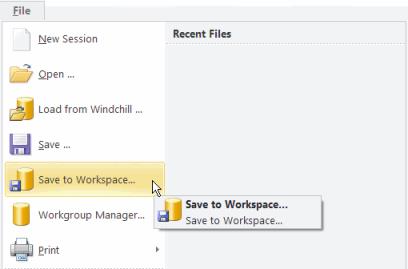
–or–
b. Right-click the selected objects and click > from the actions menu.
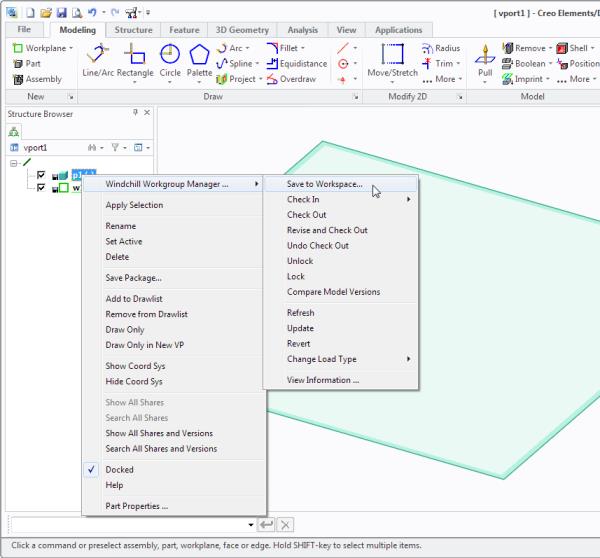
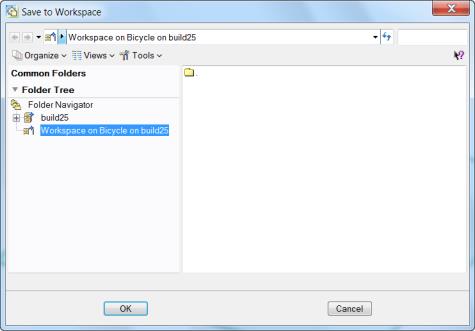
The Save to Workspace window opens.
 | When you save an annotation drawing, the 2D drawing and its relevant 3D part should be open in session, so that the links between the drawing and part are maintained. |
3. Click OK to save the object data to the last save location within the workspace.
–or–
Select an alternate location using the Folder Navigator in the window, then click OK.
Starting with Creo Elements/Direct Modeling 20.6.2.0, a CAD document is saved to Windchill with the same release version. For example, a file created in Creo Elements/Direct Modeling 20.6.2.0 is saved in Windchill as a Creo Elements/Direct Modeling 20.6 file.
Files saved in Creo Elements/Direct Modeling 20.6.2.0 cannot be opened in any earlier versions of Creo Elements/Direct Modeling. However, files are forward compatible, that is, the files saved in the older versions can be opened in the newer versions of Creo Elements/Direct Modeling.
This behavior applies to Creo Elements/Direct Modeling 20.6.2.0 or later version when used with Windchill Workgroup Manager 13.0.0.0 or later version.
 | • In Windchill, the default length for names of parts and library objects is set at a maximum of two hundred (200) characters. It is recommended to increase the allowable character length to avoid errors when importing objects to the workspace or saving (uploading) parts and library objects to the Windchill server. • When importing or saving CAD documents to the workspace, both filename and SysID uniqueness are enforced by Windchill. If one of the uniqueness constraints is violated, a conflict is raised and the appropriate resolution options are presented in a Conflicts window. For more information, see Modeling Identifiers and Save Conflicts. • When the Save to Workspace operation is in progress, you might experience the following: ◦ The CAD application UI is blocked until the native CAD tool action is completed. ◦ CAD actions on the Workspace page remain available. ◦ A progress indicator shows that the action is being performed in the background. Check the status periodically to identify any errors or failures. Click the Event Management icon to address errors or resolve conflicts. |
Save Files in Previous Version of Creo Elements/Direct Modeling
You can save files in a previous version format of Creo Elements/Direct Modeling using the following LISP function: (sd-uwgm-set-back-version-as-default-file-version 1)
This function is supported in Creo Elements/Direct Modeling version 20.8.1.0 or later when used with Windchill Workgroup Manager version 13.1.2.0 or later.
After enabling the LISP function, all data is saved in the previous version format of Creo Elements/Direct Modeling.
For example, files from Creo Elements/Direct Modeling version 20.8.1.0 can be saved in version 20.7.x.x
| | Files from Creo Elements/Direct Modeling version 20.8.1.0 cannot be saved directly in version 20.6.x.x. |
To disable saving files in previous versions, use the following LISP function: (sd-uwgm-set-back-version-as-default-file-version 0)
To check whether the LISP function is enabled or disabled, use: (DISPLAY (sd-uwgm-inq-back-version-as-default-file-version))