Using the Method for Generating Process Plans Preference
The Method for Generating Process Plans preference defines the method for generating process plans. This preference has the following values:
• For each BOM — (Default) Generates a process plan for each BOM.
• For each routing plan — Generates a process plan for each routing plan that is associated with the generic process plan.
• For each plant — Generates a process plan for all routing plans that are associated with the same plant.
Consider the following use cases.
For Each BOM
The value of the Method for Generating Process Plans preference is set to For each BOM.
Example 1
Consider the following structure:
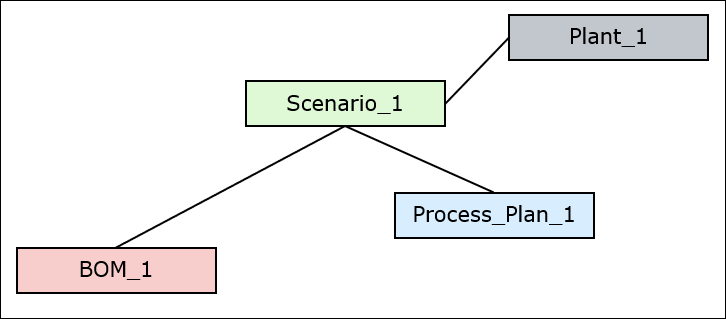
• Open a generic process plan Process_Plan_1 in the process plan browser.
• BOM BOM_1 is related to generic process plan Process_Plan_1. Open a structure containing BOM BOM_1 in the tree picker window of the process plan browser.
• Routing plan Scenario_1 is associated with BOM_1, Process_Plan_1 and Plant_1.
• After the process of generating the process plans is complete, click the Generated Process Plans tab in the process plan browser to view the generated process plans. Click the generated process plan to open it in the process plan browser. Select the Related tab to view information about the various associated objects.
1. In the process plan browser, select the generic process plan Process_Plan_1.
2. Select BOM_1 in the tree picker window.
3. Initiate the Generate Process Plans action. For more information, see Creating a Generated Process Plan.
Based on your selection, the system generates a process plan Generated_Process_Plan_1. The duplicate version of the routing plan Scenario_1, which is Scenario_1' is associated with the newly generated process plan Generated_Process_Plan_1. All other entities associated with the generic process plan are also forwarded to or duplicated in the newly generated process plan.
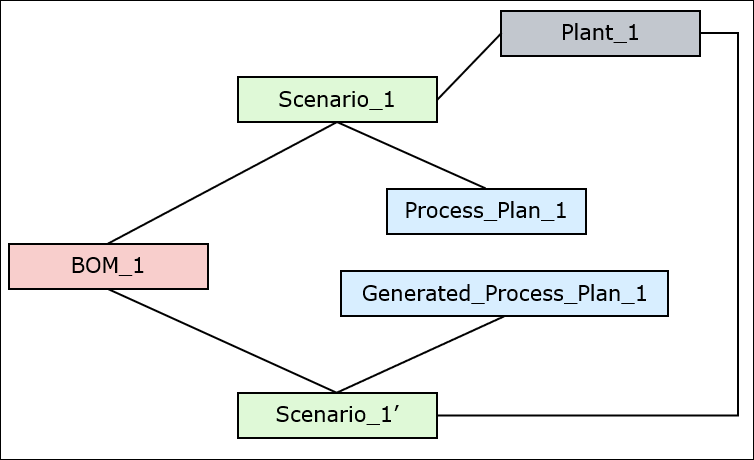
 | The system also associates the generated process plan Generated_Process_Plan_1 with BOM_1. |
Example 2
Consider the following structure:
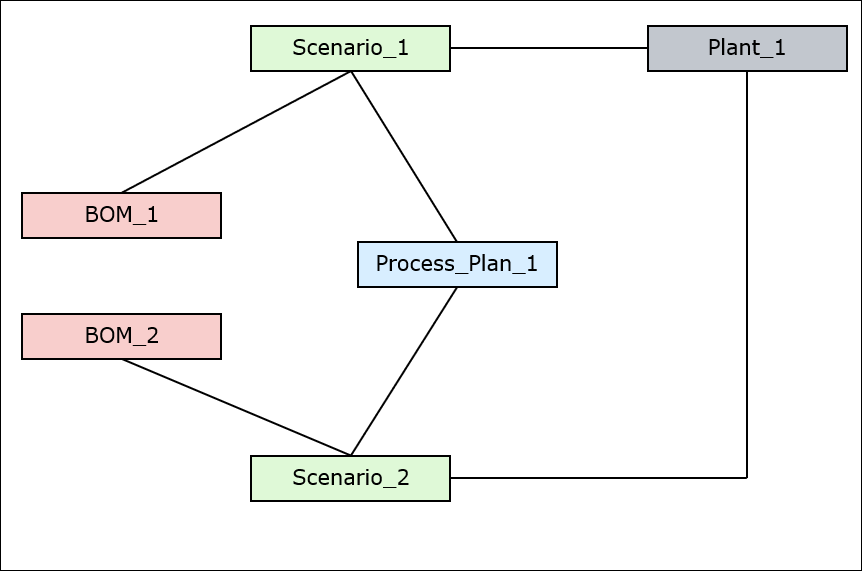
• Open a generic process plan Process_Plan_1 in the process plan browser.
• BOMs BOM_1 and BOM_2 are related to generic process plan Process_Plan_1. Open a structure containing BOMs BOM_1 and BOM_2 in the tree picker window of the process plan browser.
• Routing plan Scenario_1 is associated with BOM_1, Process_Plan_1 and Plant_1.
• Routing plan Scenario_2 is associated with BOM_2, Process_Plan_1 and Plant_1.
• After the process of generating the process plans is complete, click the Generated Process Plans tab in the process plan browser to view the generated process plans. Click the generated process plan to open it in the process plan browser. Select the Related tab to view information about the various associated objects.
1. In the process plan browser, select the generic process plan Process_Plan_1.
2. Select BOM_1 and BOM_2 in the tree picker window.
3. Initiate the Generate Process Plans action. For more information, see Creating a Generated Process Plan.
Based on your selection, the system generates two process plans, Generated_Process_Plan_1 and Generated_Process_Plan_2. The duplicate version of the routing plan Scenario_1, which is Scenario_1' is associated with the newly generated process plan Generated_Process_Plan_1. The duplicate version of the routing plan Scenario_2, which is Scenario_2' is associated with the newly generated process plan Generated_Process_Plan_2. All other entities associated with the generic process plan are also forwarded to or duplicated in the newly generated process plans.
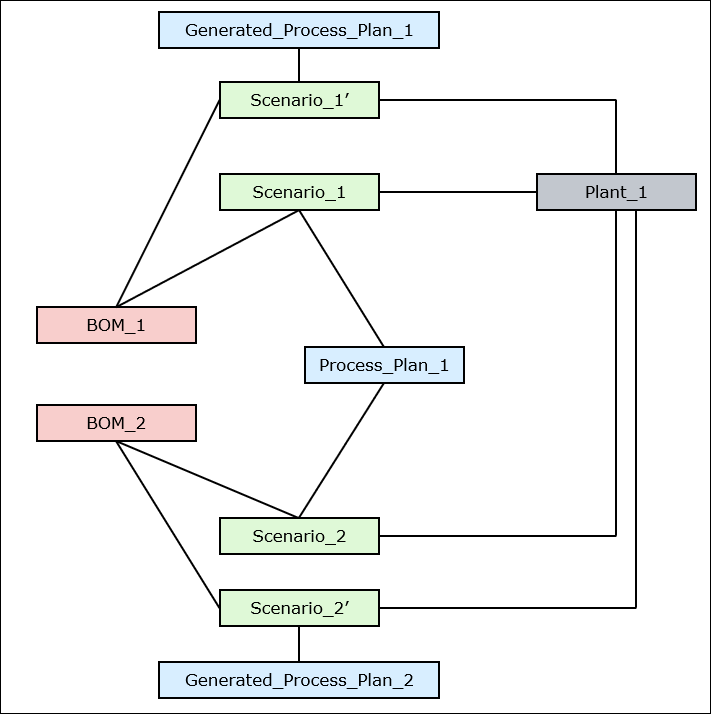
| | The system also associates generated process plans Generated_Process_Plan_1 and Generated_Process_Plan_2 with BOMs BOM_1 and BOM_2, respectively. |
Example 3
Consider the following structure:
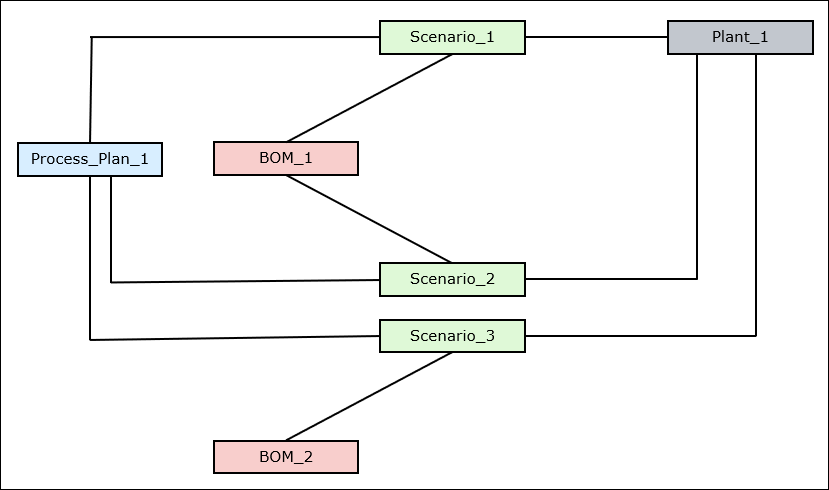
• Open a generic process plan Process_Plan_1 in the process plan browser.
• BOMs BOM_1 and BOM_2 are related to generic process plan Process_Plan_1. Open a structure containing BOMs BOM_1 and BOM_2 in the tree picker window of the process plan browser.
• Routing plans Scenario_1 and Scenario_2 are associated with BOM_1, Process_Plan_1 and Plant_1.
• Routing plan Scenario_3 is associated with BOM_2, Process_Plan_1 and Plant_1.
• After the process of generating the process plans is complete, click the Generated Process Plans tab in the process plan browser to view the generated process plans. Click the generated process plan to open it in the process plan browser. Select the Related tab to view information about the various associated objects.
1. In the process plan browser, select the generic process plan Process_Plan_1.
2. Select BOM_1 and BOM_2 in the tree picker window.
3. Initiate the Generate Process Plans action. For more information, see Creating a Generated Process Plan.
Based on your selection, the system generates two process plans, Generated_Process_Plan_1 and Generated_Process_Plan_2.
◦ The duplicate version of the routing plan Scenario_1, which is Scenario_1' is associated with the newly generated process plan Generated_Process_Plan_1.
◦ The duplicate version of the routing plan Scenario_2, which is Scenario_2' is associated with the newly generated process plan Generated_Process_Plan_1.
◦ The duplicate version of the routing plan Scenario_3, which is Scenario_3' is associated with the newly generated process plan Generated_Process_Plan_2.
All other entities associated with the generic process plan are also forwarded to or duplicated in the newly generated process plan.
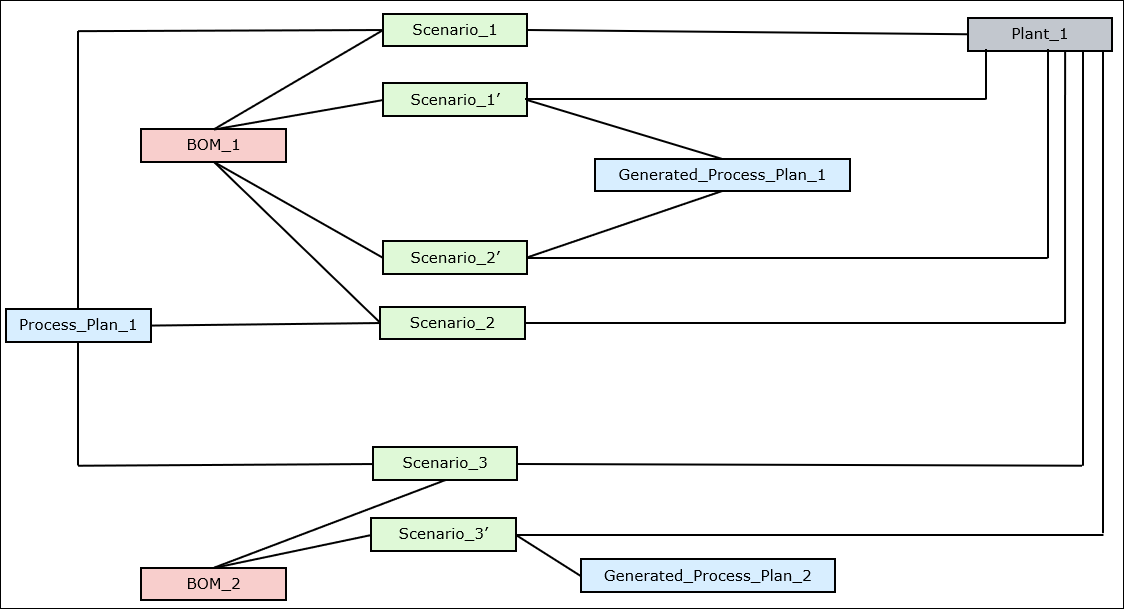
| | The system also associates the generated process plans Generated_Process_Plan_1 and Generated_Process_Plan_2 with BOMs BOM_1 and BOM_2 respectively. |
For Each Routing Plan
The value of the Method for Generating Process Plans preference is set to For each routing plan.
Example 1
Consider the following structure:
• Open a generic process plan Process_Plan_1 in the process plan browser.
• BOM BOM_1 is related to generic process plan Process_Plan_1. Open a structure containing BOM BOM_1 in the tree picker window of the process plan browser.
• Routing plan Scenario_1 is associated with BOM_1, Process_Plan_1 and Plant_1.
• After the process of generating the process plans is complete, click the Generated Process Plans tab in the process plan browser to view the generated process plans. Click the generated process plan to open it in the process plan browser. Select the Related tab to view information about the various associated objects.
1. In the process plan browser, select the generic process plan Process_Plan_1.
2. Select BOM_1 in the tree picker window.
3. Initiate the Generate Process Plans action. For more information, see Creating a Generated Process Plan.
Based on your selection, the system generates a process plan Generated_Process_Plan_1. The duplicate version of the routing plan Scenario_1, which is Scenario_1' is associated with the newly generated process plan Generated_Process_Plan_1. All other entities associated with the generic process plan are also forwarded to or duplicated in the newly generated process plan.
| | The system also associates the generated process plan Generated_Process_Plan_1 with BOM_1. |
Example 2
Consider the following structure:
• Open a generic process plan Process_Plan_1 in the process plan browser.
• BOMs BOM_1 and BOM_2 are related to generic process plan Process_Plan_1. Open a structure containing BOMs BOM_1 and BOM_2 in the tree picker window of the process plan browser.
• Routing plan Scenario_1 is associated with BOM_1, Process_Plan_1 and Plant_1.
• Routing plan Scenario_2 is associated with BOM_2, Process_Plan_1 and Plant_1.
• After the process of generating the process plans is complete, click the Generated Process Plans tab in the process plan browser to view the generated process plans. Click the generated process plan to open it in the process plan browser. Select the Related tab to view information about the various associated objects.
1. In the process plan browser, select the generic process plan Process_Plan_1.
2. Select BOM_1 and BOM_2 in the tree picker window.
3. Initiate the Generate Process Plans action. For more information, see Creating a Generated Process Plan.
Based on your selection, the system generates two process plans, Generated_Process_Plan_1 and Generated_Process_Plan_2. The duplicate version of the routing plan Scenario_1, which is Scenario_1' is associated with the newly generated process plan Generated_Process_Plan_1. The duplicate version of the routing plan Scenario_2, which is Scenario_2' is associated with the newly generated process plan Generated_Process_Plan_2. All other entities associated with the generic process plan are also forwarded to or duplicated in the newly generated process plans.
| | The system also associates generated process plans Generated_Process_Plan_1 and Generated_Process_Plan_2 with BOMs BOM_1 and BOM_2, respectively. |
Example 3
Consider the following structure:
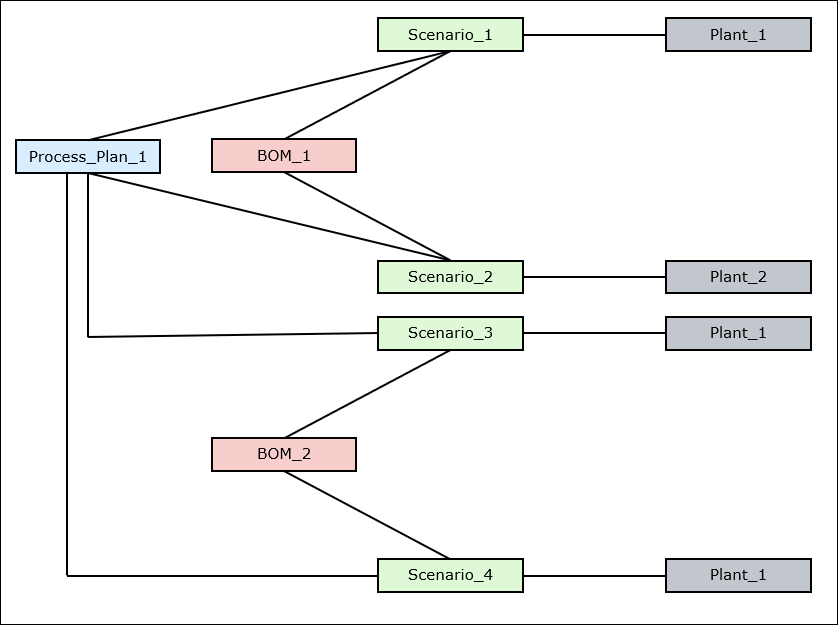
• Open a generic process plan Process_Plan_1 in the process plan browser.
• BOMs BOM_1 and BOM_2 are related to generic process plan Process_Plan_1. Open a structure containing BOMs BOM_1 and BOM_2 in the tree picker window of the process plan browser.
• Routing plan Scenario_1 is associated with BOM_1, Process_Plan_1 and Plant_1.
• Routing plan Scenario_2 is associated with BOM_1, Process_Plan_1 and Plant_2.
• Routing plans Scenario_3 and Scenario_4 are associated with BOM_2, Process_Plan_1 and Plant_1.
• After the process of generating the process plans is complete, click the Generated Process Plans tab in the process plan browser to view the generated process plans. Click the generated process plan to open it in the process plan browser. Select the Related tab to view information about the various associated objects.
1. In the process plan browser, select the generic process plan Process_Plan_1.
2. Select BOM_1 and BOM_2 in the tree picker window.
3. Initiate the Generate Process Plans action. For more information, see Creating a Generated Process Plan.
Based on your selection, the system generates four process plans: Generated_Process_Plan_1, Generated_Process_Plan_2, Generated_Process_Plan_3 and Generated_Process_Plan_4.
◦ The duplicate version of the routing plan Scenario_1, which is Scenario_1', is associated with the newly generated process plan Generated_Process_Plan_1.
◦ The duplicate version of the routing plan Scenario_2, which is Scenario_2', is associated with the newly generated process plan Generated_Process_Plan_2.
◦ The duplicate version of the routing plan Scenario_3, which is Scenario_3', is associated with the newly generated process plan Generated_Process_Plan_3.
◦ The duplicate version of the routing plan Scenario_4, which is Scenario_4', is associated with the newly generated process plan Generated_Process_Plan_4.
All other entities associated with the generic process plan are also forwarded to or duplicated in the newly generated process plans.
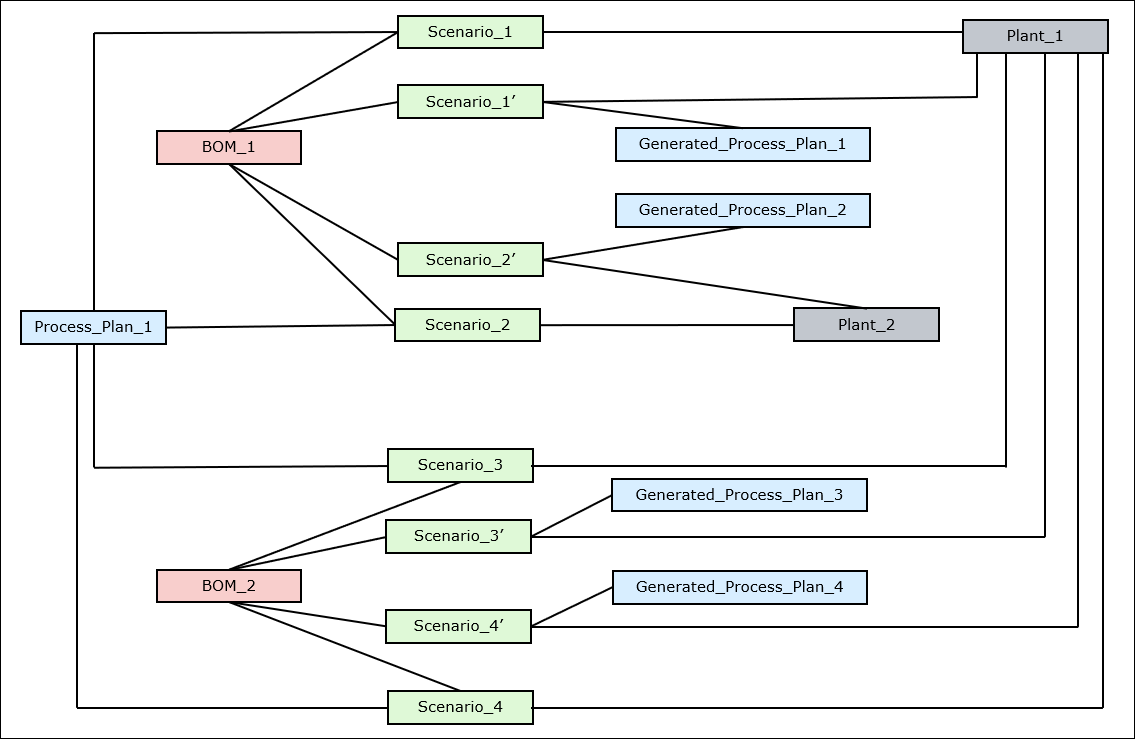
| | The system also associates the generated process plans Generated_Process_Plan_1 and Generated_Process_Plan_2 with BOM_1. The system also associates the generated process plans Generated_Process_Plan_3 and Generated_Process_Plan_4 with BOM_2. |
For Each Plant
The value of the Method for Generating Process Plans preference is set to For each plant.
Example 1
Consider the following structure:
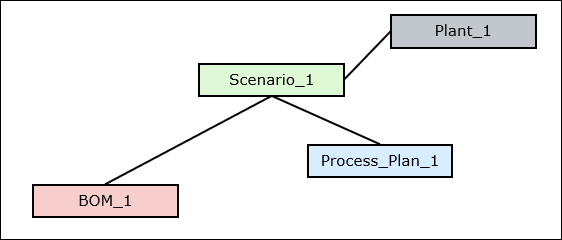
• Open a generic process plan Process_Plan_1 in the process plan browser.
• BOM BOM_1 is related to generic process plan Process_Plan_1. Open a structure containing BOM BOM_1 in the tree picker window of the process plan browser.
• Routing plan Scenario_1 is associated with BOM_1, Process_Plan_1 and Plant_1.
• After the process of generating the process plans is complete, click the Generated Process Plans tab in the process plan browser to view the generated process plans. Click the generated process plan to open it in the process plan browser. Select the Related tab to view information about the various associated objects.
1. In the process plan browser, select the generic process plan Process_Plan_1.
2. Select BOM_1 in the tree picker window.
3. Initiate the Generate Process Plans action. For more information, see Creating a Generated Process Plan.
Based on your selection, the system generates a process plan Generated_Process_Plan_1. The duplicate version of the routing plan Scenario_1, which is Scenario_1' is associated with the newly generated process plan Generated_Process_Plan_1. All other entities associated with the generic process plan are also forwarded to or duplicated in the newly generated process plans.
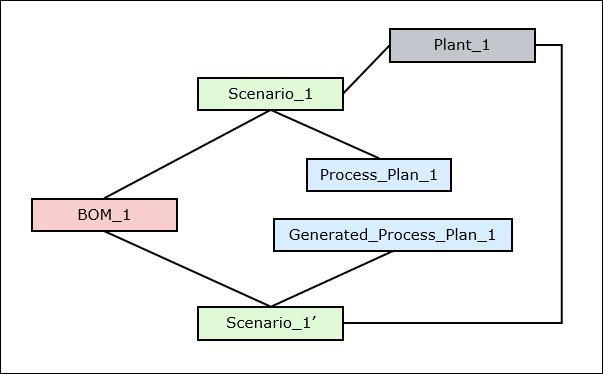
| | The system also associates the generated process plan Generated_Process_Plan_1 with BOM_1. |
Example 2
Consider the following structure:
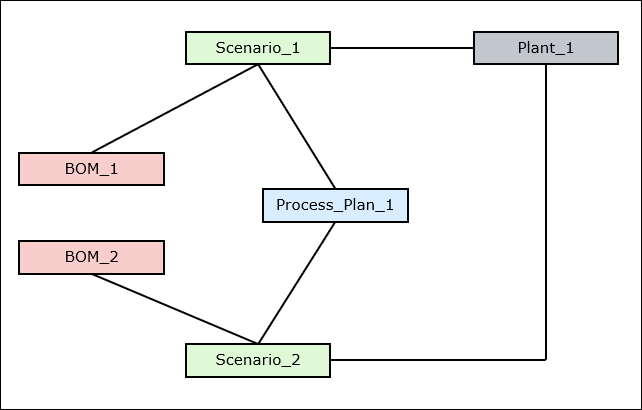
• Open a generic process plan Process_Plan_1 in the process plan browser.
• BOMs BOM_1 and BOM_2 are related to generic process plan Process_Plan_1. Open a structure containing BOMs BOM_1 and BOM_2 in the tree picker window of the process plan browser.
• Routing plan Scenario_1 is associated with BOM_1, Process_Plan_1 and Plant_1.
• Routing plan Scenario_2 is associated with BOM_2, Process_Plan_1 and Plant_1.
• After the process of generating the process plans is complete, click the Generated Process Plans tab in the process plan browser to view the generated process plans. Click the generated process plan to open it in the process plan browser. Select the Related tab to view information about the various associated objects.
1. In the process plan browser, select the generic process plan Process_Plan_1.
2. Select BOM_1 and BOM_2 in the tree picker window.
3. Initiate the Generate Process Plans action. For more information, see Creating a Generated Process Plan.
Based on your selection, the system generates two process plans, Generated_Process_Plan_1 and Generated_Process_Plan_2. The duplicate version of the routing plan Scenario_1, which is Scenario_1' is associated with the newly generated process plan Generated_Process_Plan_1. The duplicate version of the routing plan Scenario_2, which is Scenario_2' is associated with the newly generated process plan Generated_Process_Plan_2. All other entities associated with the generic process plan are also forwarded to or duplicated in the newly generated process plans.
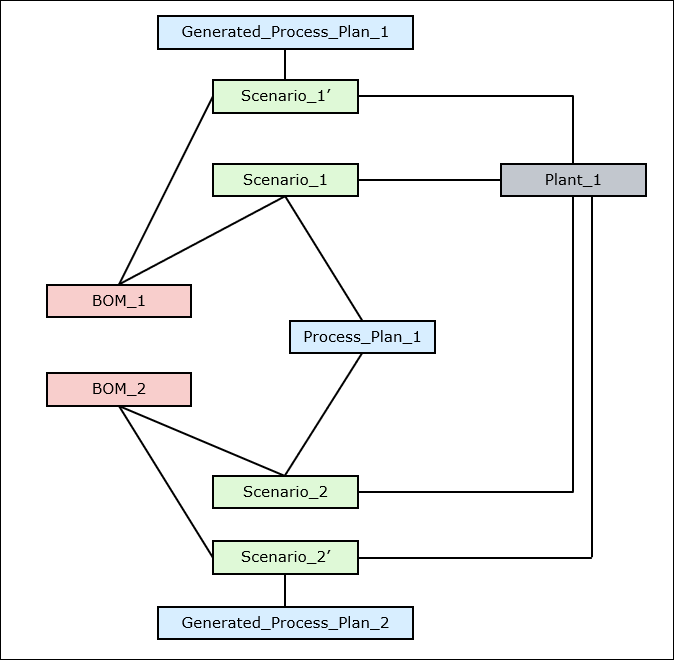
| | The system also associates generated process plan Generated_Process_Plan_1 with BOM_1. The system also associates generated process plans Generated_Process_Plan_2 with BOM_2. |
Example 3
Consider the following structure:
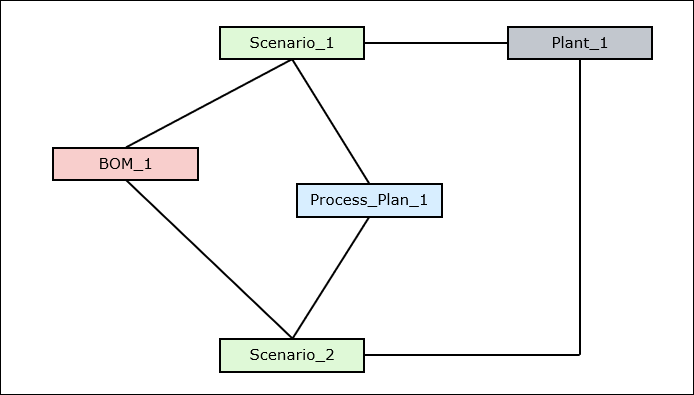
• Open a generic process plan Process_Plan_1 in the process plan browser.
• BOM BOM_1 is related to generic process plan Process_Plan_1. Open a structure containing BOM BOM_1 in the tree picker window of the process plan browser.
• Routing plans Scenario_1 and Scenario_2 are associated with BOM_1, Process_Plan_1 and Plant_1.
• After the process of generating the process plans is complete, click the Generated Process Plans tab in the process plan browser to view the generated process plans. Click the generated process plan to open it in the process plan browser. Select the Related tab to view information about the various associated objects.
1. In the process plan browser, select the generic process plan Process_Plan_1.
2. Select BOM_1 and BOM_2 in the tree picker window.
3. Initiate the Generate Process Plans action. For more information, see Creating a Generated Process Plan.
Based on your selection, the system generates two process plans, Generated_Process_Plan_1 and Generated_Process_Plan_2. The duplicate version of the routing plan Scenario_1, which is Scenario_1' is associated with the newly generated process plan Generated_Process_Plan_1. The duplicate version of the routing plan Scenario_2, which is Scenario_2' is associated with the newly generated process plan Generated_Process_Plan_2. All other entities associated with the generic process plan are also forwarded to or duplicated in the newly generated process plans.
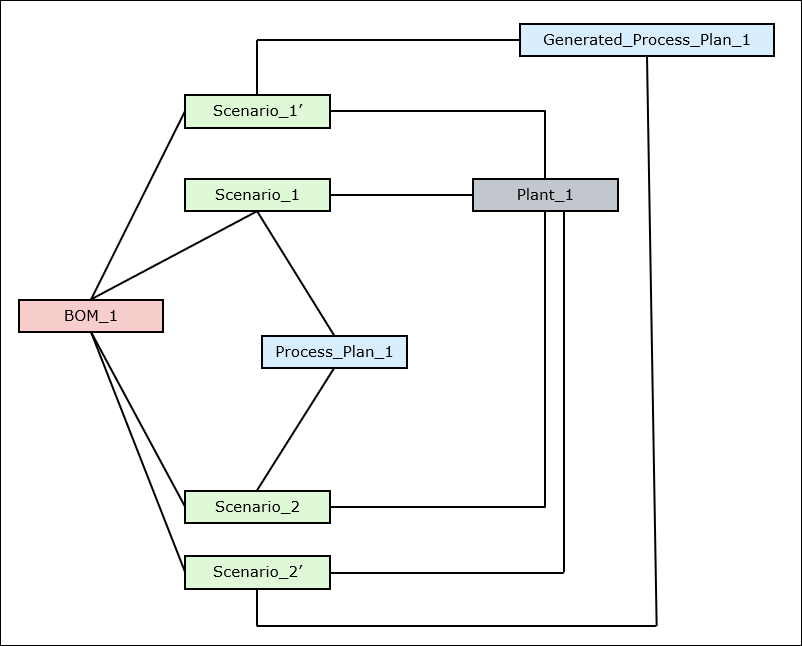
| | The system also associates the generated process plan Generated_Process_Plan_1 with BOM_1. |
Example 4
Consider the following structure:
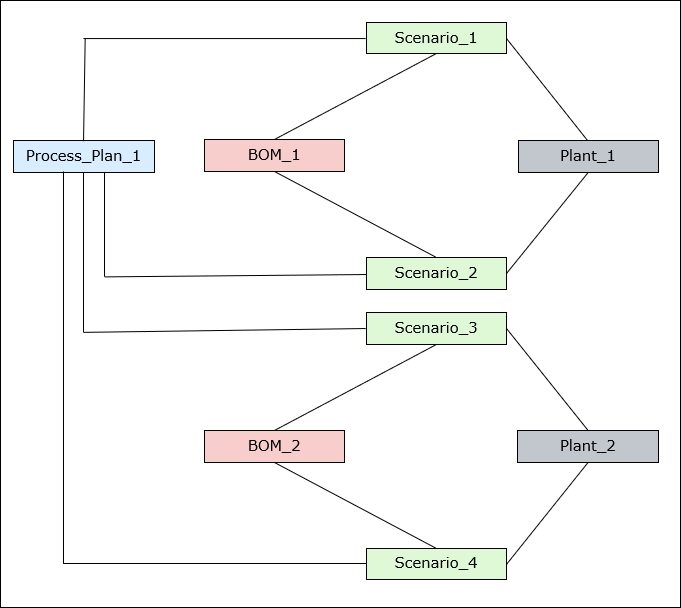
• Open a generic process plan Process_Plan_1 in the process plan browser.
• BOMs BOM_1 and BOM_2 are related to generic process plan Process_Plan_1. Open a structure containing BOMs BOM_1 and BOM_2 in the tree picker window of the process plan browser.
• Routing plans Scenario_1 and Scenario_2 are associated with BOM_1, Process_Plan_1 and Plant_1.
• Routing plans Scenario_3 and Scenario_4 are associated with BOM_2, Process_Plan_1 and Plant_2.
• After the process of generating the process plans is complete, click the Generated Process Plans tab in the process plan browser to view the generated process plans. Click the generated process plan to open it in the process plan browser. Select the Related tab to view information about the various associated objects.
1. In the process plan browser, select the generic process plan Process_Plan_1.
2. Select BOM_1 and BOM_2 in the tree picker window.
3. Initiate the Generate Process Plans action. For more information, see Creating a Generated Process Plan.
Based on your selection, the system generates two process plans, Generated_Process_Plan_1 and Generated_Process_Plan_2.
◦ The duplicate version of the routing plan Scenario_1, which is Scenario_1' is associated with the newly generated process plan Generated_Process_Plan_1.
◦ The duplicate version of the routing plan Scenario_2, which is Scenario_2' is associated with the newly generated process plan Generated_Process_Plan_1.
◦ The duplicate version of the routing plan Scenario_3, which is Scenario_3' is associated with the newly generated process plan Generated_Process_Plan_2.
◦ The duplicate version of the routing plan Scenario_4, which is Scenario_4' is associated with the newly generated process plan Generated_Process_Plan_2.
All other entities associated with the generic process plan are also forwarded to or duplicated in the newly generated process plan.
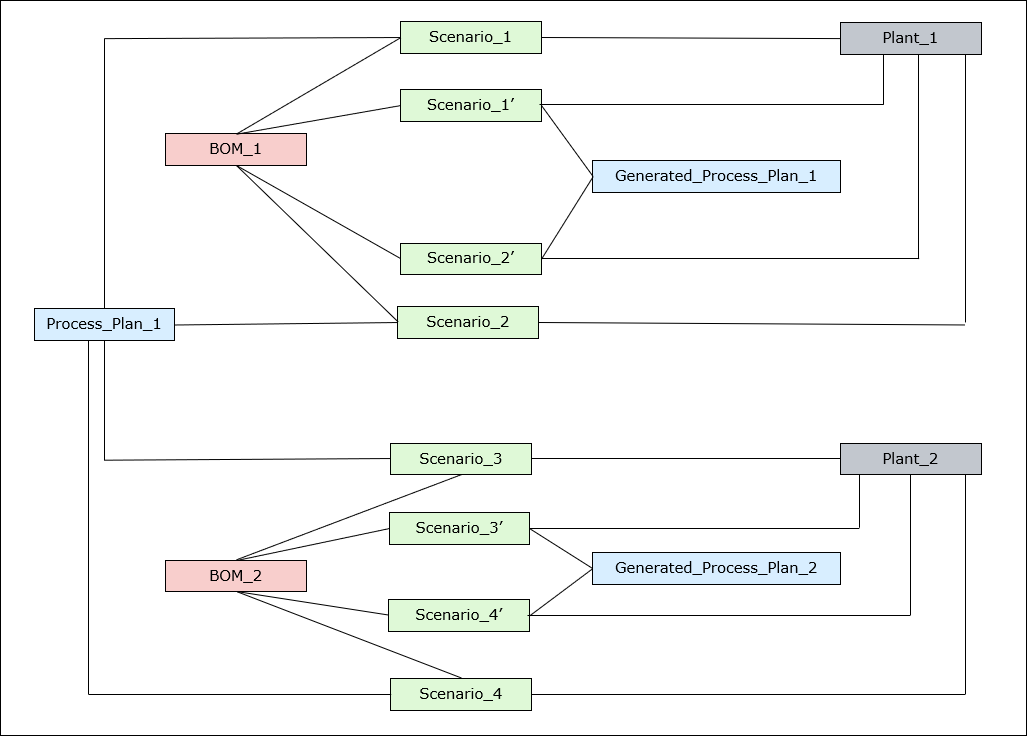
| | The system also associates the generated process plans Generated_Process_Plan_1 and Generated_Process_Plan_2 with BOMs BOM_1 and BOM_2 respectively. |
Example 5
Consider the following structure:
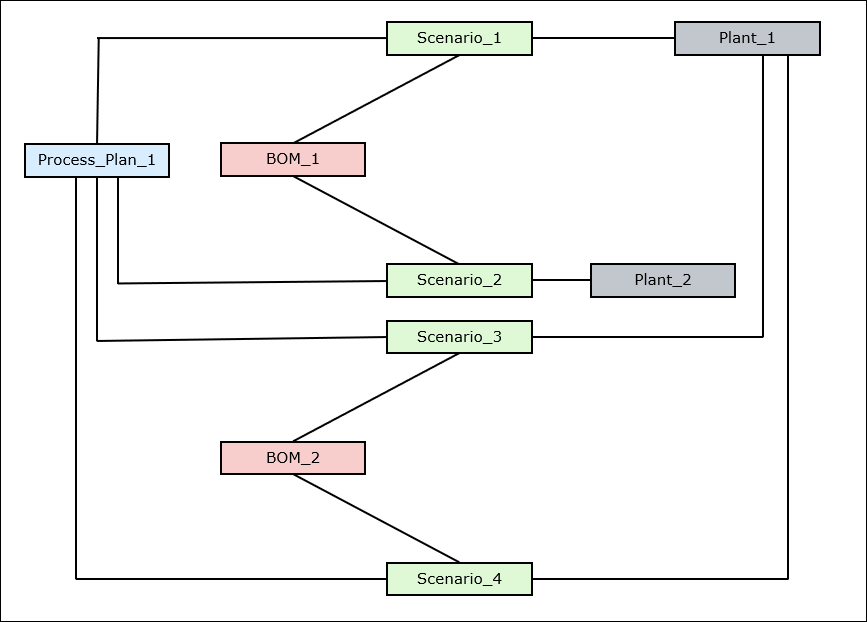
• Open a generic process plan Process_Plan_1 in the process plan browser.
• BOMs BOM_1 and BOM_2 are related to generic process plan Process_Plan_1. Open a structure containing BOMs BOM_1 and BOM_2 in the tree picker window of the process plan browser.
• Routing plan Scenario_1 is associated with BOM_1, Process_Plan_1 and Plant_1.
• Routing plan Scenario_2 is associated with BOM_1, Process_Plan_1 and Plant_2.
• Routing plans Scenario_3 and Scenario_4 are associated with BOM_2, Process_Plan_1 and Plant_1.
• After the process of generating the process plans is complete, click the Generated Process Plans tab in the process plan browser to view the generated process plans. Click the generated process plan to open it in the process plan browser. Select the Related tab to view information about the various associated objects.
1. In the process plan browser, select the generic process plan Process_Plan_1.
2. Select BOM_1 and BOM_2 in the tree picker window.
3. Initiate the Generate Process Plans action. For more information, see Creating a Generated Process Plan.
Based on your selection, the system generates three process plans, Generated_Process_Plan_1, Generated_Process_Plan_2, and Generated_Process_Plan_3.
◦ The duplicate version of the routing plan Scenario_1, which is Scenario_1' is associated with the newly generated process plan Generated_Process_Plan_1.
◦ The duplicate version of the routing plan Scenario_2, which is Scenario_2' is associated with the newly generated process plan Generated_Process_Plan_2.
◦ The duplicate version of the routing plan Scenario_3, which is Scenario_3' is associated with the newly generated process plan Generated_Process_Plan_3.
◦ The duplicate version of the routing plan Scenario_4, which is Scenario_4' is associated with the newly generated process plan Generated_Process_Plan_3.
All other entities associated with the generic process plan are also forwarded to or duplicated in the newly generated process plans.
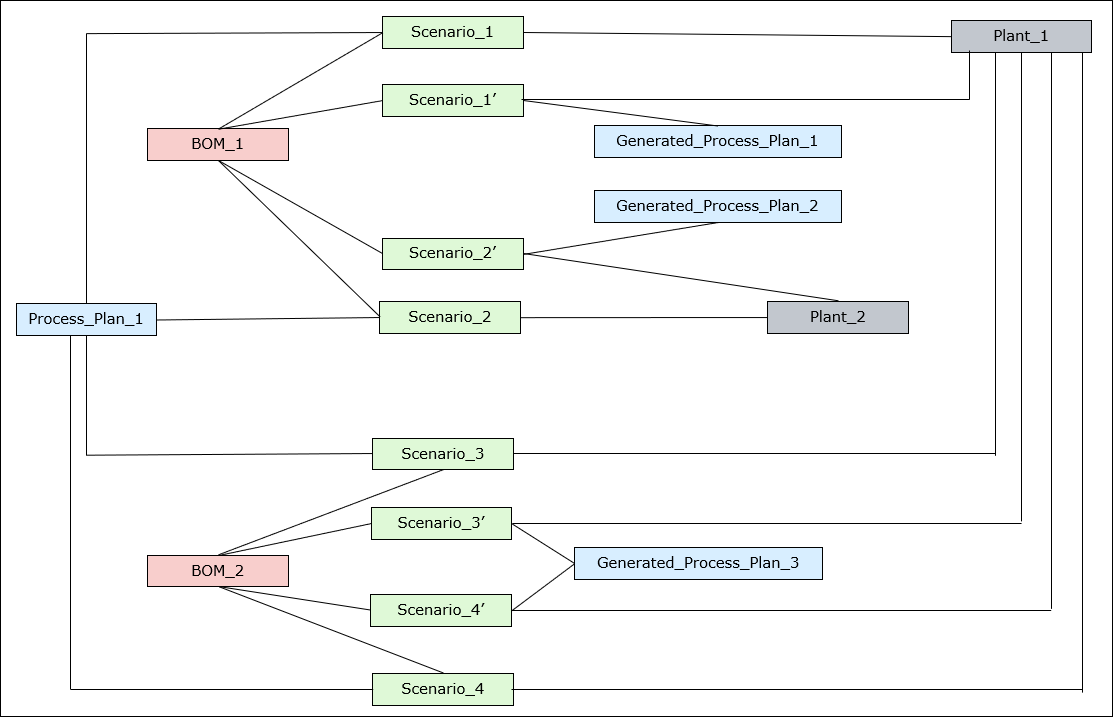
| | The system associates the generated process plans Generated_Process_Plan_1 and Generated_Process_Plan_2 with BOM_1. The system also associates the generated process plans Generated_Process_Plan_3 with BOM_2. |
Additional Information
• The information displayed in the Synchronize Process Plans dialog box depends on the value set in the Method for Generating Process Plans preference. For more information, see Synchronizing Generic and Generated Process Plans.