Updating an Illustration in Creo Illustrate
To make updates to an existing illustration on a parent or a child operation, use the Update Illustration action.
Perform the following steps when only one illustration is associated with an operation:
1. In the Process Plan Browser, right-click a parent operation, child operation, or a reference document linked with the child operation.
2. In the right-click actions menu, select > .
3. In the Open File dialog box, select Check it out and open and click OK.
The illustration created using Process Plan Browser opens in Creo Illustrate.
 |
When you select an operation or a reference document, the Update Illustration action respects how the illustration was generated:
• If the illustration was created from the parent operation, the linked Creo Illustration file opens.
• If the illustration was created from a child operation, the child illustration file opens.
|
4. In Creo Illustrate, update the file.
5. To save the file, click > > .
6. Click > > .
Key Points
• You can create an illustration using the New Illustration action. You can copy an illustration associated with an operation to other operations. Use the  Copy action available in the References Documents section of the Documentation tab to copy an illustration. You can paste this illustration under the same or different operation.
Copy action available in the References Documents section of the Documentation tab to copy an illustration. You can paste this illustration under the same or different operation.| | You can update the illustration only from the original location. That is, the location from where the illustration was copied. |
• Once you update an illustration from the original location, the system updates the changes at all the locations wherever the illustration is present.
• If the operation has multiple illustrations associated with it, use the  Update Illustration action available in the References Documents table of the Documentation tab to update an illustration. To update an illustration, select the illustration and click Update Illustration.
Update Illustration action available in the References Documents table of the Documentation tab to update an illustration. To update an illustration, select the illustration and click Update Illustration.| | At a time, you can update only one illustration using the Update Illustration action available in the References Documents table. |
• An error message appears if you try to update a non-published reference document.
Use Case — Update Illustration
1. Consider that the following structure is present in the Process Plan Browser:
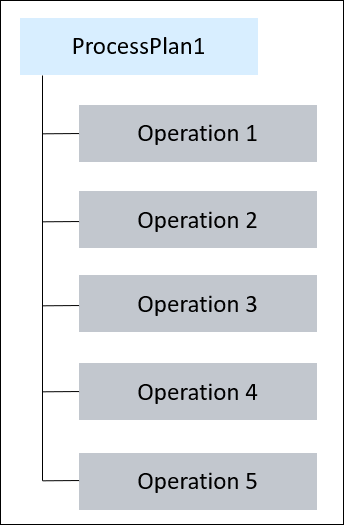
An illustration Doc_MPM_2 is associated with Operation 1. The record of the illustration Doc_MPM_2 is visible in the References Documents section of the Documentation tab of Operation 1.
2. Use the Copy action available in the References Documents section of the Documentation tab to copy the illustration to Operation 2.
Copy action available in the References Documents section of the Documentation tab to copy the illustration to Operation 2.The illustration Doc_MPM_2 is now visible in the in the References Documents section of the Documentation tab of Operation 2.
3. Select Doc_MPM_2.
4. Right-click and select Update Illustration. A user message appears stating that you cannot open or update the selected illustration because it was copied from a different location. To open or update this illustration, browse to the original location. The hyperlinks to the associated process plan and operation are also provided in the user message. An example of the error message is as follows:

You can open or update the illustration from the References Documents section of the Documentation tab of Operation 1.