Generating Manufacturing Information Using NC-XML Files
Use the  Generate Information Using the NC-XML File action present in the Process Plan Browser to generate manufacturing information from the NC-XML file. You can select one or more operations present in the Structure tab of the Process Plan Browser and launch this action. You can also select sub-operations. You can generate manufacturing information from a CAD document that has a valid NC-XML file attached as a secondary content file, or from a Windchill document that has a valid NC-XML file attached as a primary content file. So, as a prerequisite, you must attach an existing CAD document as a secondary content file or an existing Windchill described by document as a primary content file. For more information, see Associating a Document with an Object. Also, the entities mentioned in the NC-XML files must be present in the Windchill database. For example, a tool mentioned in the NC-XML file must be present in the Windchill database.
Generate Information Using the NC-XML File action present in the Process Plan Browser to generate manufacturing information from the NC-XML file. You can select one or more operations present in the Structure tab of the Process Plan Browser and launch this action. You can also select sub-operations. You can generate manufacturing information from a CAD document that has a valid NC-XML file attached as a secondary content file, or from a Windchill document that has a valid NC-XML file attached as a primary content file. So, as a prerequisite, you must attach an existing CAD document as a secondary content file or an existing Windchill described by document as a primary content file. For more information, see Associating a Document with an Object. Also, the entities mentioned in the NC-XML files must be present in the Windchill database. For example, a tool mentioned in the NC-XML file must be present in the Windchill database.When you launch the Generate Information Using the NC-XML File action, the system first searches for the CAD document attached to the operation. If the system does not find a valid CAD document, it searches for a valid described by document. For this action, the preference is always given to the secondary content file of the CAD document attached to the operation. That is, if a valid CAD document and described by document are present, the system loads the valid secondary content of the CAD document.
Generate Information Using the NC-XML File action, the system first searches for the CAD document attached to the operation. If the system does not find a valid CAD document, it searches for a valid described by document. For this action, the preference is always given to the secondary content file of the CAD document attached to the operation. That is, if a valid CAD document and described by document are present, the system loads the valid secondary content of the CAD document.The information about the attributes on these links is also added, updated, or removed.
The record of the CAD document attached to the operation is visible in the CAD Documents section of the Documentation tab of the Process Plan Browser. The record of the secondary content file of the CAD document is visible in the References Documents section of the Documentation tab of the Process Plan Browser. The record of the primary content file of the described by document is visible in the Described By Documents section of the Documentation tab of the Process Plan Browser.
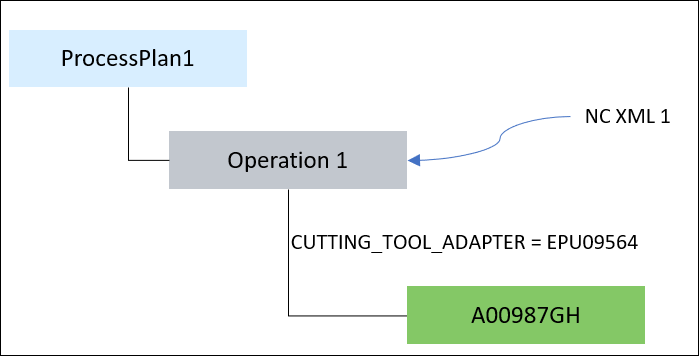
A Manufacturing Operation to Consumable Link exists between the following entities:
• An operation and a tool
• An operation and a fixture
• An operation and a work cell
When you initiate the action, the system looks for the respective attribute and attribute values in the NC-XML file. After the system finds the necessary information, the attributes on these links are added, updated, or removed.
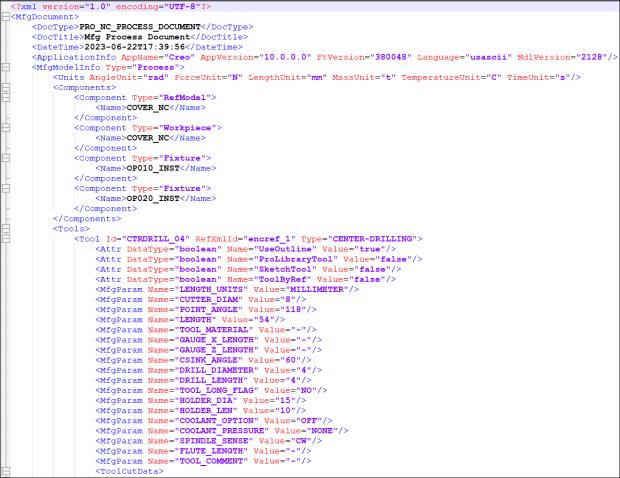
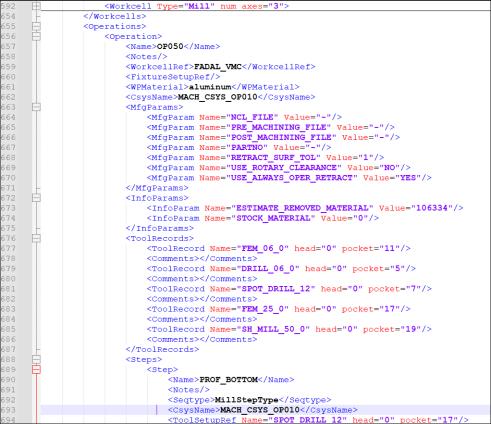
The following images displays an example of a valid NC-XML file:
Perform the following steps to generate manufacturing information using the NC-XML files:
1. Browse to the Structure tab of the Process Plan Browser. From the process plan tree structure, select one or more operations. You can also select sub-operations.
2. From the Editing section, click  Insert > Generate Information Using the NC-XML File. The Generate Information Using the NC-XML File dialog box opens.
Insert > Generate Information Using the NC-XML File. The Generate Information Using the NC-XML File dialog box opens.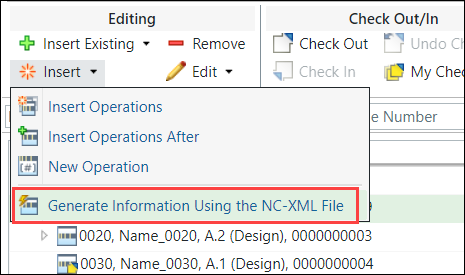
Alternatively, you can right-click and select > to open the Generate Information Using the NC-XML File dialog box.
It contains the Import Options and Import Preview steps.
3. In the Import Options step, select your import options:
◦ Import Operations and Steps: Imports the operations and steps information included in the NC-XML file.
◦ Import Operations: Imports the operations information included in the NC-XML file.
◦ Import Tools: Imports the tooling information included in the NC-XML file.
◦ Import Fixtures: Imports the fixtures information included in the NC-XML file.
◦ Import Work Cell: Imports the work cell information included in the NC-XML file.
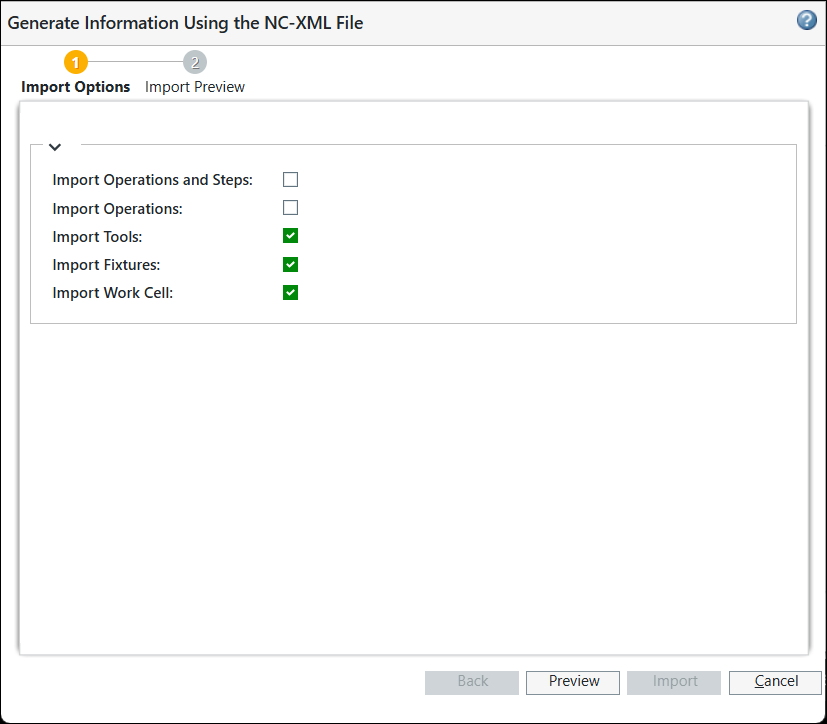
 | • The last three check boxes are selected by default, as shown in the image. You can make the changes according to your business requirements. • You must select at least one checkbox. • The entities mentioned in the NC-XML files must be present in the Windchill database. • Tools and fixtures are considered as two separate categories in Windchill. • When you select the Import Operations and Steps checkbox, the other four checkboxes are unavailable. The system automatically includes the operations, steps, and resources (tools, fixtures, workcell) in the selection. • When you select the Import Operations checkbox, the other four checkboxes are unavailable. The system automatically includes the operations and resources (tools, fixtures, workcell) in the selection. |
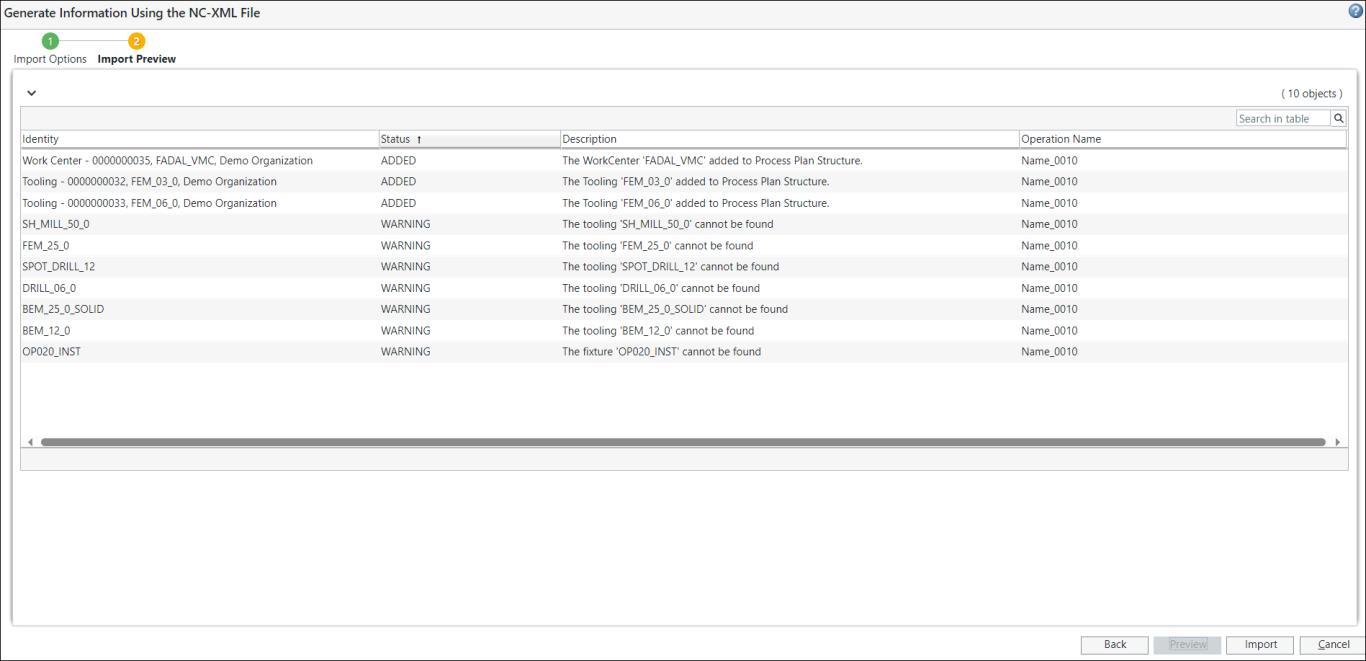
4. Click Preview to go to the Import Preview step. In this step, the system displays the information of the entities to be imported. The following image displays an example of the information in the Import Preview step:
A Manufacturing Operation to Consumable Link exists between the following entities:
◦ An operation and a tool
◦ An operation and a fixture
◦ An operation and a work cell
The system imports the manufacturing information on the objects and the Manufacturing Operation to Consumable Link.
The system displays the following columns in the Import Preview step:
◦ Identity— Provides information about the identity of the object.
◦ Status— Provides information about the status of the object.
◦ Description— Provides detailed information about the object.
◦ Operation Name— Provides information about the name of the operation. The tool, fixture or work cell is allocated to the operation displayed in the Operation Name column. The information in this column is helpful when you initiate the Generate Information Using the NC-XML File for multiple operations.
The system displays the following status in the Status column of the Import Preview step:
Status | Description |
Added | A new tool, fixture, or work cell is allocated to the operations. |
Updated | The existing tool, fixture, or work cell allocated to the operations is updated. |
Warning | The tool, fixture, or work cell allocated cannot be found. |
Removed | An existing tool, fixture, or work cell allocated to the operations is removed. |
5. Click Import to import the manufacturing information. A confirmation message appears stating that the action is complete. The system adds, updates, or removes entities as specified in the NC-XML file.
| | A Manufacturing Operation to Consumable Link exists between the following entities: • An operation and a tool • An operation and a fixture • An operation and a work cell The information about the attributes on these links is also added, updated, or removed. You can also view the tooling attributes and the information on the link. Use the table view to add valid columns. For more information, see Customizing Table Views and Creating and Editing New Table View. |
Optionally, you can also click Back to go back to the Import Options step.
| | Click Cancel to abort the operation. In this case, no tools are allocated to the operations. |
Key Points
• Consider that you launch the Generate Information Using the NC-XML File action. After its implementation, you made changes to the same secondary content file or primary content file. In such a case, when there is a change in the information in the attached NC-XML file, you can use the Generate Information Using the NC-XML File action again to update the manufacturing information in Windchill. The process described above remains the same. The system makes the changes accordingly, as specified in the NC-XML file.
Generate Information Using the NC-XML File action. After its implementation, you made changes to the same secondary content file or primary content file. In such a case, when there is a change in the information in the attached NC-XML file, you can use the Generate Information Using the NC-XML File action again to update the manufacturing information in Windchill. The process described above remains the same. The system makes the changes accordingly, as specified in the NC-XML file.For update, after the implementation of the Generate Information Using the NC-XML File action is complete, the operation remains checked-out.
Generate Information Using the NC-XML File action is complete, the operation remains checked-out.• In a case where there are multiple valid NC-XML files, the system displays the following user message: You can generate manufacturing information from only one CAD document that has a valid NC-XML file attached as a secondary content file.
• You cannot launch the Generate Information Using the NC-XML File action if the selected operations are checked out by another user.
Generate Information Using the NC-XML File action if the selected operations are checked out by another user.• Once the implementation of the Generate Information Using the NC-XML File action is complete, the operations present in the NC-XML file are added under the process plan in the process plan tree structure. Also, the steps present under the operations in the NC-XML file are added as sub-operations under the operations. The resources used by the operations appear under the operations in the process plan tree structure. The resources used by the steps appear under the sub-operations in the process plan tree structure.
Using the com.ptc.windchill.mpml.nc.ImportNCPrefix property, you can set the prefix for the names of the operations and sub-operations. The default prefix is NC_. For example, the operations added to the process plan are displayed as NC_OP0010, NC_OP0020 and so on. The com.ptc.windchill.mpml.nc.ImportNCPrefix property is present at codebase/com/ptc/windchill/mpml/mpmlink.properties. The default value is NC_.
You can configure the property according to your business requirements. For example, <Property name="com.ptc.windchill.mpml.nc.ImportNCPrefix" default="JR7_"/>.
You have the option of specifying no value in the property. In that case, no prefix is added before the operation and suboperation names.
Preferences
The following preferences are related to the Generate Information Using the NC-XML File action:
Generate Information Using the NC-XML File action:• Use the Search Criteria to Allocate Tooling to NC Generated Operations preference to specify the search criteria to be used for searching the existing tooling and work center information in the Windchill database and allocate to NC generated operation. OOTB search is based on the Number attribute.
• When you launch the Generate Information Using the NC-XML File action, the system searches for the tooling and work center information inside the Windchill database. It then allocates the Tool or work center to the operation as per the option selected in the Applicable Object Mapping preference. Use the Applicable Object Mapping preference to define the type of criteria used during the Generate Information Using the NC-XML File action. The working of this preference depends on the value set in the Search Criteria to Allocate Tooling to NC Generated Operations preference. The system searches for the entity based on the value set in the Search Criteria to Allocate Tooling to NC Generated Operations preference. The possible values for the Search Criteria to Allocate Tooling to NC Generated Operations preference are Name and Number. The possible values for the Applicable Object Mapping preference are as follows:
Generate Information Using the NC-XML File action. The working of this preference depends on the value set in the Search Criteria to Allocate Tooling to NC Generated Operations preference. The system searches for the entity based on the value set in the Search Criteria to Allocate Tooling to NC Generated Operations preference. The possible values for the Search Criteria to Allocate Tooling to NC Generated Operations preference are Name and Number. The possible values for the Applicable Object Mapping preference are as follows:◦ Tooling —The system searches for the Tooling or Part object depending on the value set in the Search Criteria to Allocate Tooling to NC Generated Operations preference. If it finds the Tooling or Part object, it allocates the same to the operation.
◦ CAD Document — The system first searches for the CAD Document depending on the value set in the Search Criteria to Allocate Tooling to NC Generated Operations preference.. If it finds the CAD document, it allocates the associated resource to the operation.
◦ CAD Document/Tooling — The system first searches for the CAD Document depending on the value set in the Search Criteria to Allocate Tooling to NC Generated Operations preference.. If it finds the CAD document, it allocates the associated resource to the operation. If the CAD document is not found, the system searches for the Tooling or Part object in the Windchill database and allocate the same to the operation.
• Use the Search Criteria to Allocate Tooling to NC Generated Operations preference to specify the search criteria to be used for searching the existing tooling and work center information in the Windchill database and allocate to NC generated operation. OOTB search is based on the Number attribute.
• Use the Mapping Attribute from NC-XML File for Resources Allocation preference to define the criteria to map the search attribute from the NC-XML file for resource allocation to operations. The possible values are Id (default) and InstanceName. The system uses these values to identify the tooling information in the NC-XML file. The working of this preference depends on the value set in the Search Criteria to Allocate Tooling to NC Generated Operations preference. When set to Id, the system searches for the Id value in the NC-XML file. Once it finds the Id value, it allocates the tooling information to the operation based on the attribute set in the Search Criteria to Allocate Tooling to NC Generated Operations preference. When set to InstanceName, the system searches for the InstanceName value in the NC-XML file. Once it finds the InstanceName value, it allocates the tooling information to the operation based on the attribute set in the Search Criteria to Allocate Tooling to NC Generated Operations preference.
• Use the Numerical Control Operation applicable types preference to define the type of numerical operations created after initiating the Generate Information Using the NC-XML File action. The default value is Operation. Specify a valid operation type based on your business requirements.
Generate Information Using the NC-XML File action. The default value is Operation. Specify a valid operation type based on your business requirements.Use Case
The possible values for the Search Criteria to Allocate Tooling to NC Generated Operations preference are Number and Name. The possible values for the Mapping Attribute from NC-XML File for Resources Allocation preference are Id and InstanceName. Consider the following scenarios:
Value set in the Search Criteria to Allocate Tooling to NC Generated Operations preference | Value set in the Mapping Attribute from NC-XML File for Resources Allocation preference | Description |
|---|---|---|
Number | Id | The system searches Id value in the NC-XML file. It also searches for the number. Based on the findings, the system allocates the tool to the operation. |
Number | InstanceName | The system searches for InstanceName of the tool in the NC-XML file. It also searches for the number. Based on the findings, the system allocates the tool to the operation. |
Properties
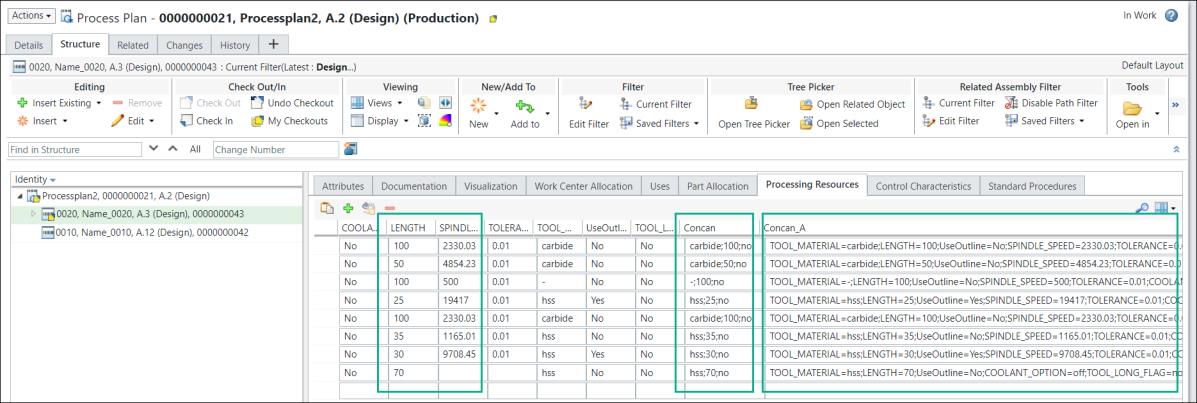
You can add or update the properties mentioned below to customize the implementation of the Generate Information Using the NC-XML File action. These properties are present in the mpmlink.properties.xconf file located at <Windchill>/codebase/com/ptc/windchill/mpml. You must restart the Windchill server after adding or updating the property to the mpmlink.properties.xconf file for the changes to take effect. The local or global attributes mentioned in the following properties must be already present in the Windchill system. You can create the attributes using the Type and Attribute Management utility. All the information related to the following properties is displayed in the Processing Resources tab of the Process Plan Browser. All the columns displayed in the Processing Resources because of the following properties are not available OOTB. You must add it using the table views. For more information, see Customizing Table Views and Creating and Editing New Table View.
Property Name | Description |
|---|---|
com.ptc.windchill.mpml.nc.ImportSpecificResourceAttribute | Use this property to allocate a tool to the selected operation using attribute values from the NC-XML file. Configure the property in the following format: <Property name="com.ptc.windchill.mpml.nc.ImportSpecificResourceAttribute" default=""/> For example, <Property name="com.ptc.windchill.mpml.nc.ImportSpecificResourceAttribute" default="CUTTING_TOOL_ADAPTER"/> . Using the values of CUTTING_TOOL_ADAPTER, a tool is created in Windchill. You can allocate a tool to the selected operation using attribute values of CUTTING_TOOL_ADAPTER from the NC-XML file. |
com.ptc.windchill.mpml.nc.ImportAttributesFromXML | Certain link attributes are present on the Manufacturing Operation to Consumable Link. Use this property to save these link attributes. Configure the property in the following format: <Property name="com.ptc.windchill.mpml.nc.ImportAttributesFromXML" default=""/> For example, <Property name="com.ptc.windchill.mpml.nc.ImportAttributesFromXML" default="LENGTH,SPINDLE_SPEED,TOLERANCE,COOLANT_OPTION,TOOL_LONG_FLAG"/> . The LENGTH, SPINDLE_SPEED, TOLERANCE, and TOOL_LONG_FLAG columns appear in the Processing Resources tab of the Process Plan Browser. The LENGTH and TOOL_MATERIAL columns are highlighted in the image. The columns display the attribute values for the allocated tools. Consider the following points related to this property: • You can update tool link information from the NC-XML file. • The system allows you to update the attribute values that are on the link between operation and tooling. • Using this property, you can map attributes from the NC-XML file to Windchill. • The attributes such as LENGTH and TOOL_MATERIAL must be present in the Windchill database before you use the property. |
com.ptc.windchill.mpml.nc.ImportAttributesFromXMLForCombinedValues | Use this property to display the concatenated attribute values for the allocated tools. Configure the property in the following format: • For one to one mapping: <Property name="com.ptc.windchill.mpml.nc.ImportAttributesFromXMLForCombinedValues" default="TOOL_MATERIAL_Mfg=TOOL_MATERIAL"/> You can use the one to one mapping when the attributes in the NC-XML file and the attributes present in the Windchill database are different. For example, the attribute TOOL_MATERIAL_Mfg is present on your Windchill database, and the attribute TOOL_MATERIAL is present in the NC-XML file. You can configure the property to map such attributes. • For one as to many mapping: <Property name="com.ptc.windchill.mpml.nc.ImportAttributesFromXMLForCombinedValues" default="Concan=TOOL_MATERIAL,LENGTH,TOOL_LONG_FLAG;Concan1=UseOutline,SPINDLE_SPEED,TOLERANCE,COOLANT_OPTION,TOOL_LONG_FLAG"/> The Concan column appears in the Processing Resources tab of the Process Plan Browser. It is highlighted in the image. The columns display the attribute values for the allocated tools. Consider the following points related to this property: • You can use this property to map the tags and attributes present in the NC-XML file and the Windchill system. • You can also use this property to concatenate multiple attributes. • In the property, you can specify multiple attribute values separated by a comma. The values that are displayed in the columns are separated by semicolons. |
com.ptc.windchill.mpml.nc.ShowAttributeValuesAndName | Use this property to display the concatenated attribute names and values for the allocated tools. Configure the property in the following format: <Property name="com.ptc.windchill.mpml.nc.ShowAttributeValuesAndName" default=""/> For example, <Property name="com.ptc.windchill.mpml.nc.ImportAttributesFromXMLForCombinedValuesAndNames" default="Concan_A=TOOL_MATERIAL,LENGTH,UseOutline,SPINDLE_SPEED,TOLERANCE,COOLANT_OPTION,TOOL_LONG_FLAG"/> The Concan_A column appears in the Processing Resources tab of the Process Plan Browser. It is highlighted in the image. • Consider the following points related to this property: ◦ You can also use this property to concatenate multiple attributes. ◦ In the property, you can specify multiple attribute values separated by a comma. The values that are displayed in the columns are separated by semicolons. The columns display the information in the following format: Attribute Name = Attribute Value. For example, Attribute1 = Attribute1 Value; Attribute2 = Attribute2 Value. • Attribute1=Attribute1 Value;Attribute2 = Attribute2 Value • Attribute1=Attribute1 Value;Attribute2 = Attribute2 Value |