Tutorial 6: Alternate BOMs — Reusing the Existing Master Part
You can create alternate BOMs using multiple methods. For more information, see Creating Alternate BOMs.
During the mass BOM creation process, the system does not create a new master for each alternate BOM; it reuses the existing one. That is, during the mass mBOM generation, the system creates the first-time master with respect to generic reference BOMs if it is a new master. However, if the next reference of the existing master on the downstream side is an alternate, the system does not create a new master. Instead, it creates the respective alternate of the existing master.
This tutorial demonstrates how to create the respective alternate of the existing master.
1. Consider that the following structure is present in the BOM Transformer:

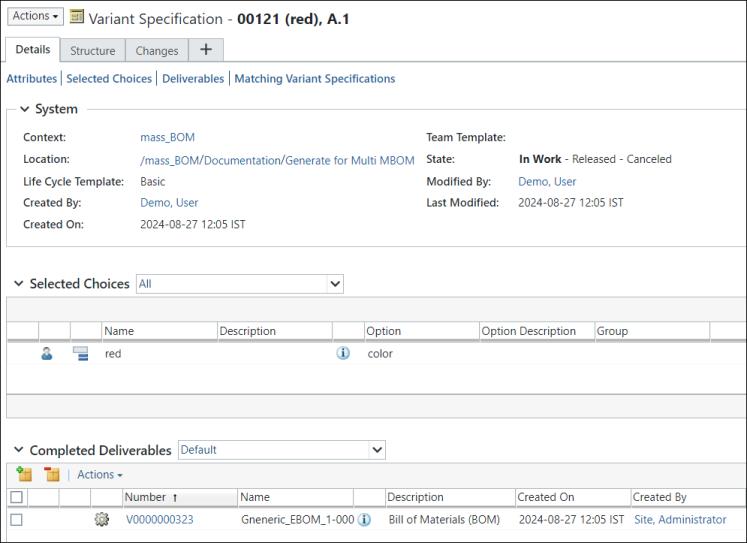
2. Select part 0000000002, Top, (Design) in the upstream and create two variant specifications 0021 (RED) and 0022 (BLUE).
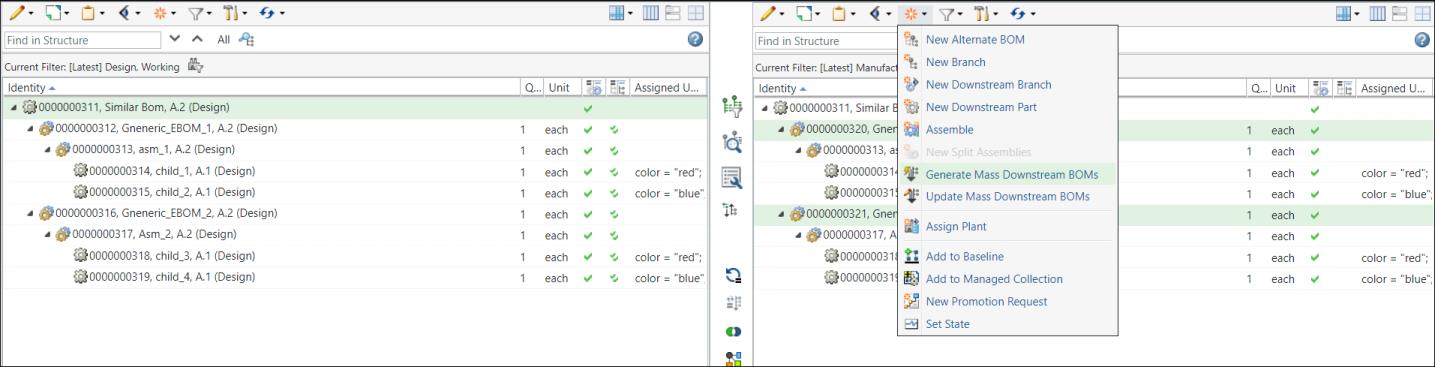
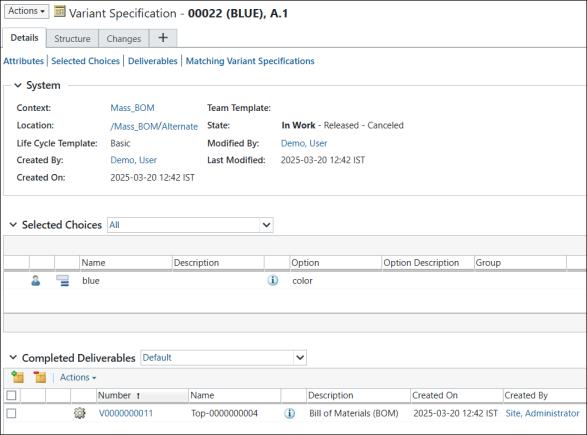
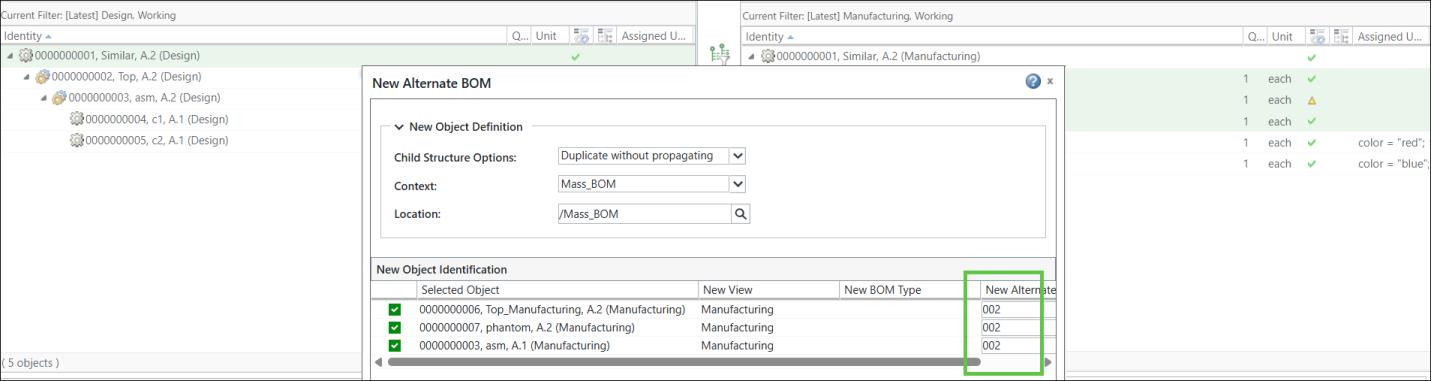
3. To create an alternate BOM, select multiple parts in the downstream view and initiate the New Alternate BOM action.

4. The New Alternate BOM dialog box opens. It lists the parts selected in the downstream view.
5. Click OK to close the New Alternate BOM dialog box. The system opens the Adjust Expansion Criteria dialog box. Click Yes to close the Adjust Expansion Criteria dialog box. The following updated structure appears in the BOM Transformer.

6. To create another alternate BOM, select multiple parts in the downstream view and initiate the New Alternate BOM action. The New Alternate BOM dialog box opens. It lists the parts selected in the downstream view.
7. Click OK to close the New Alternate BOM dialog box. The system opens the Adjust Expansion Criteria dialog box. Click Yes to close the Adjust Expansion Criteria dialog box. The following updated structure appears in the BOM Transformer.
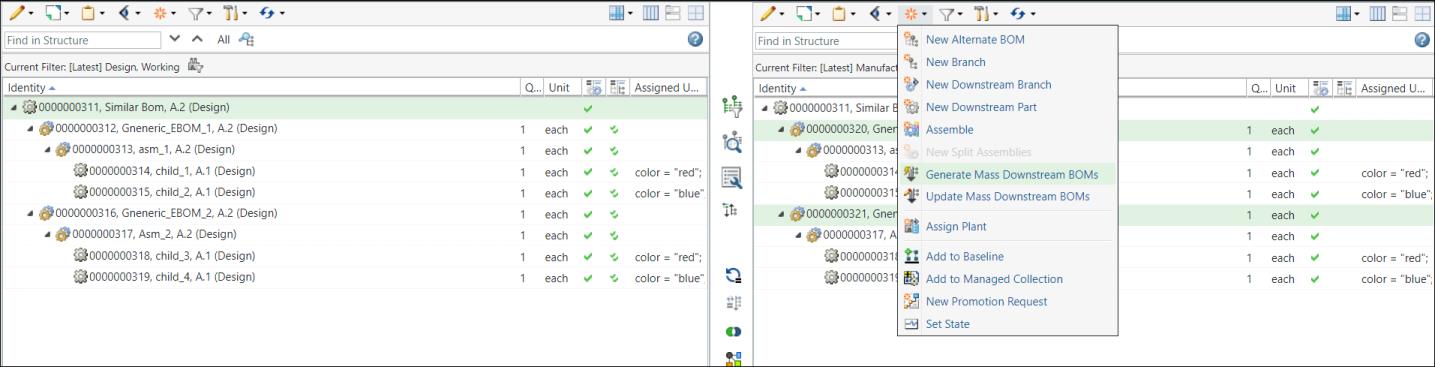
8. Switch to the default view. Click the Alternate BOM tab in the downstream view of the BOM transformer to view the information about the alternate BOMs.
9. Generate a variant mBOM.
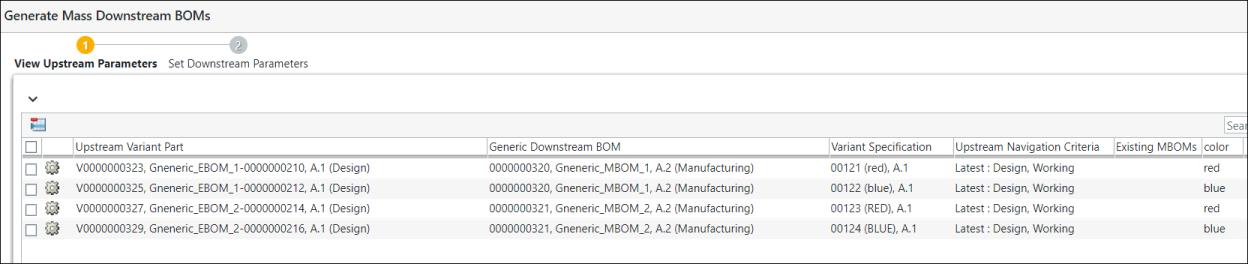
Select part 0000000006 , Top_Manufacturing, (Manufacturing) in the downstream view of the BOM transformer and initiate the  Generate Mass Downstream BOMs action.
Generate Mass Downstream BOMs action.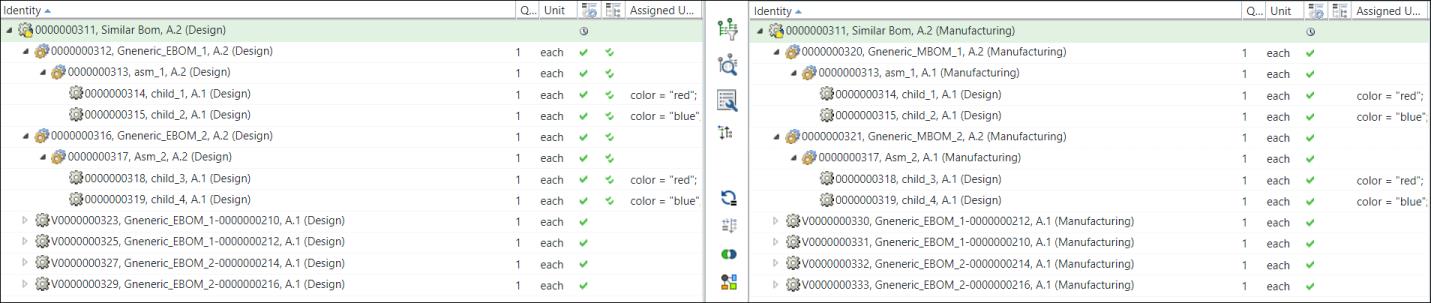
10. The Generate Mass Downstream BOMs dialog box opens. It contains the View Upstream Parameters and Set Downstream Parameters steps. In the View Upstream Parameters step, the variants for which you want to generate the mass downstream BOMs appear.
Note that the column color also appears in the attribute columns.
In the View Upstream Parameters step, the system displays the E-variants. The respective variant specifications are also listed.
11. Optionally, you can select a variant eBOM, and then click the  Remove Selected Row action to remove the variant eBOM from the Generate Mass Downstream BOMs dialog box.
Remove Selected Row action to remove the variant eBOM from the Generate Mass Downstream BOMs dialog box.You can also use the  Set Location action to set a location. The Set Location window opens when you click Set Location. Select the Context and Folder, and then click OK. You can view the contents of the selected folder by clicking Open. For more information, see About Set Location Action in MPMLink.
Set Location action to set a location. The Set Location window opens when you click Set Location. Select the Context and Folder, and then click OK. You can view the contents of the selected folder by clicking Open. For more information, see About Set Location Action in MPMLink. | You must have the appropriate permissions to access the specified folders. |
12. Click Next. The Set Downstream Parameters step appears. In the Set Downstream Parameters step, the variants for which you want to generate mass downstream BOMs appear.
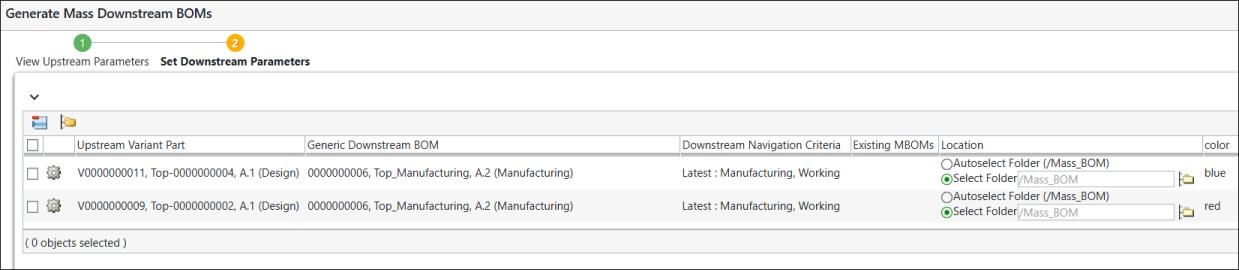
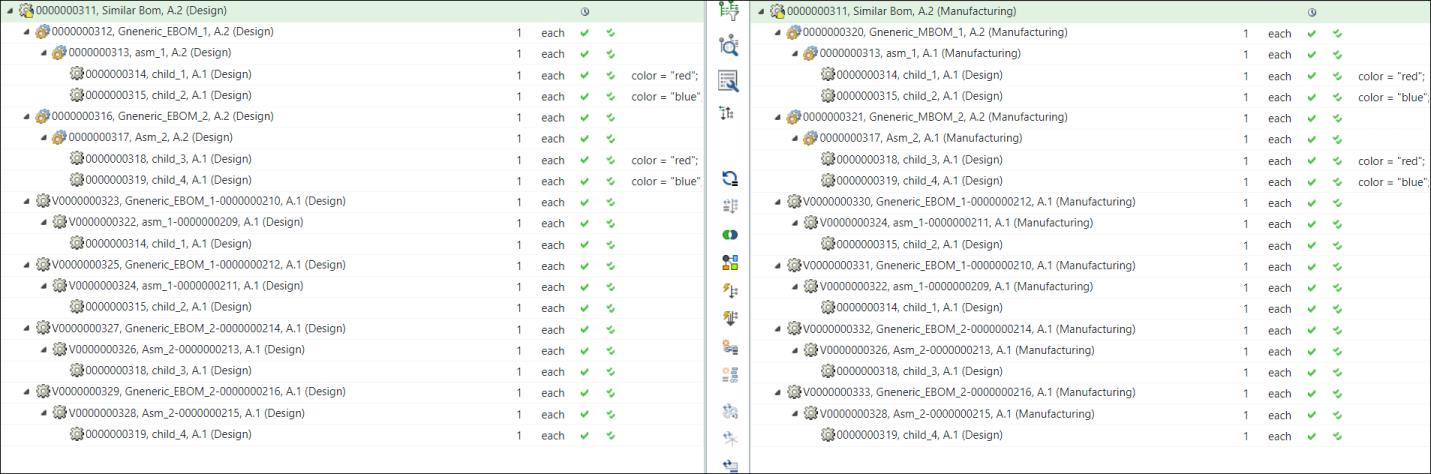
13. Click Finish. The Generate Mass Downstream BOMs dialog box closes. The eBOM and mBOM variants appear in the upstream and downstream views of the BOM Transformer.
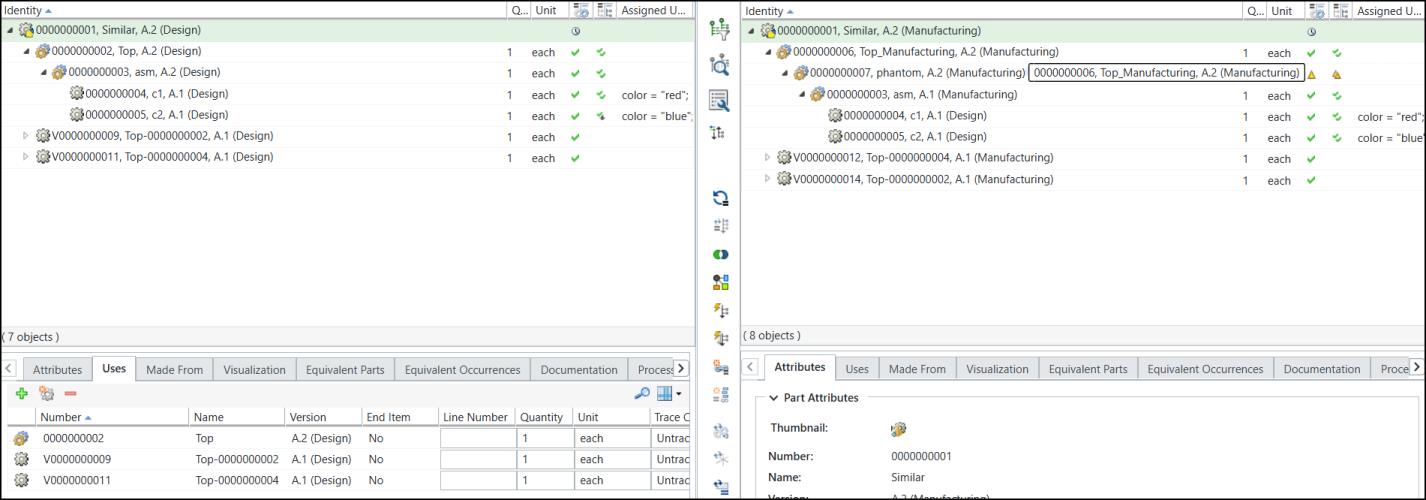
In the expanded form, the entire structure in the BOM Transformer appears as follows:
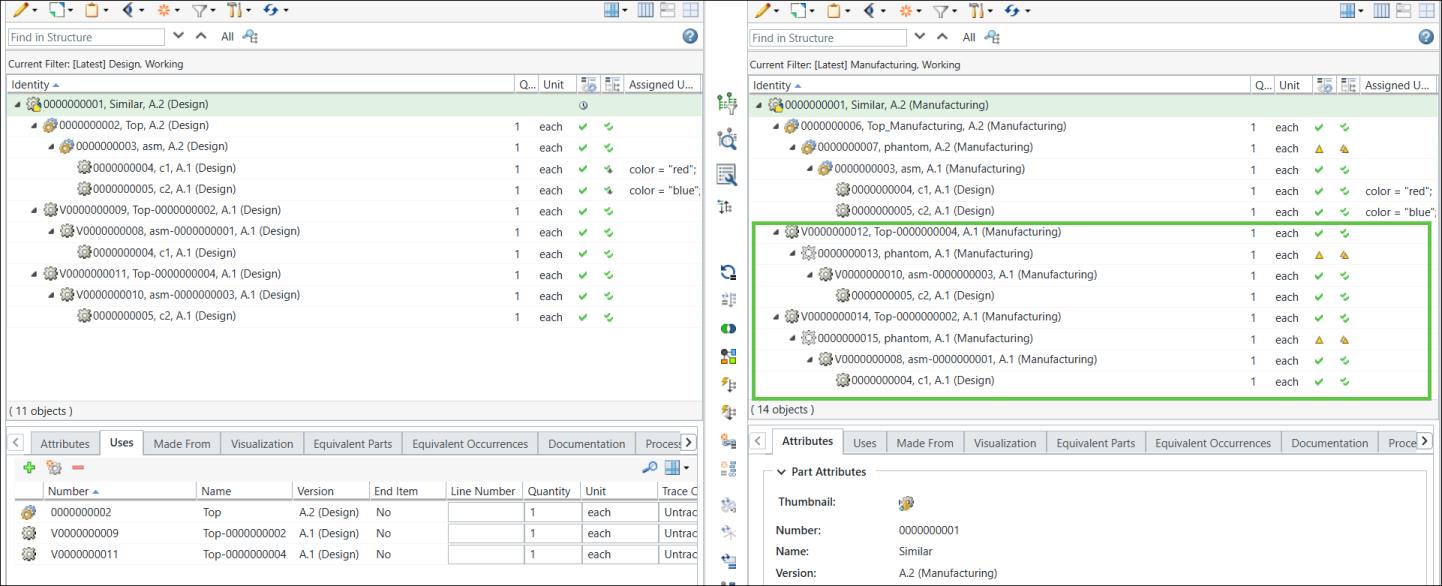
| | Observe the selected area. When you generate the new mBOMs for the alternate BOM for the part 0000000006 , Top_Manufacturing, (Manufacturing), the same part numbers will be reused by the system in the alternate mBOMs. |
14. Select the part 0000000006, Top_Manufacturing, (Manufacturing,001) in the downstream view.

15. Initiate the Generate Mass Downstream BOMs action. The Generate Mass Downstream BOMs dialog box opens. In the View Upstream Parameters step, the system displays the E-variants. The respective variant specifications are also listed.
Generate Mass Downstream BOMs action. The Generate Mass Downstream BOMs dialog box opens. In the View Upstream Parameters step, the system displays the E-variants. The respective variant specifications are also listed.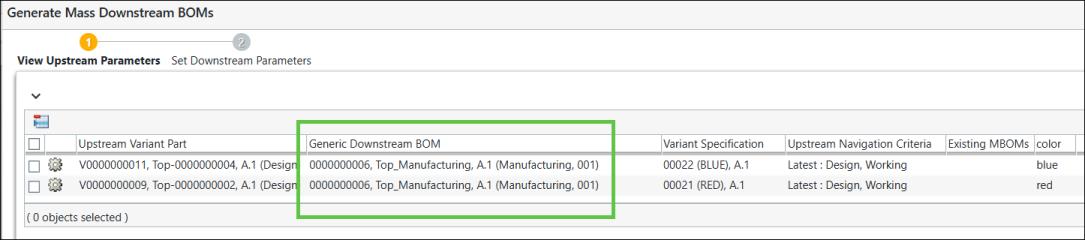
| | The system displays the alternate BOM number in the Generic Downstream BOM column. |
16. Click Next. The Set Downstream Parameters step appears. In the Set Downstream Parameters step, the variants for which you want to generate the mass downstream BOMs appear.

17. Click Finish. The Generate Mass Downstream BOMs dialog box closes. The eBOM and mBOM variants appear in the upstream and downstream views of the BOM Transformer.
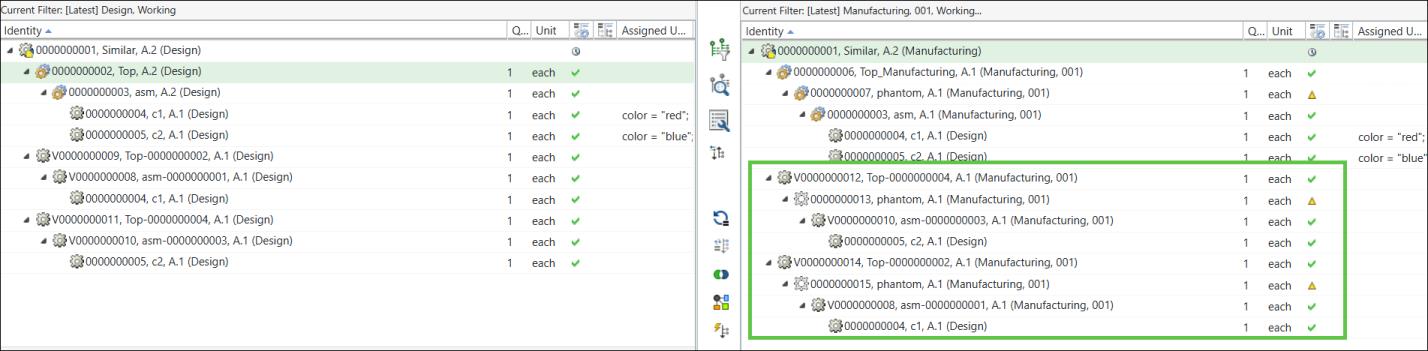
| | The same part numbers have been reused. |
| | The system generates variant structures from the selected alternate BOM based on the structure defined in that view. When you create variants, the system includes all assemblies and phantom parts present in the alternate structure. This ensures that the variant accurately reflects the configuration of the selected alternate. If a part exists in the alternate BOM, the system carries it forward into the corresponding variant structure to maintain consistency. The system also reuses variant structures created from the manufacturing branch when it generates variants for alternate BOMs. Variants created in the manufacturing context act as the base and are reused through branching instead of creating new structures. This behavior applies to assemblies, phantom parts, and complete structures. |