Tutorial 4: Generating Multiple Variant mBOMs for Selected Generic mBOMs
You can generate multiple variant mBOMs for selected generic mBOMs. Select the root nodes of the generic mBOMs in the downstream view of the BOM Transformer and then click the  Generate Mass Downstream BOMs action.
Generate Mass Downstream BOMs action.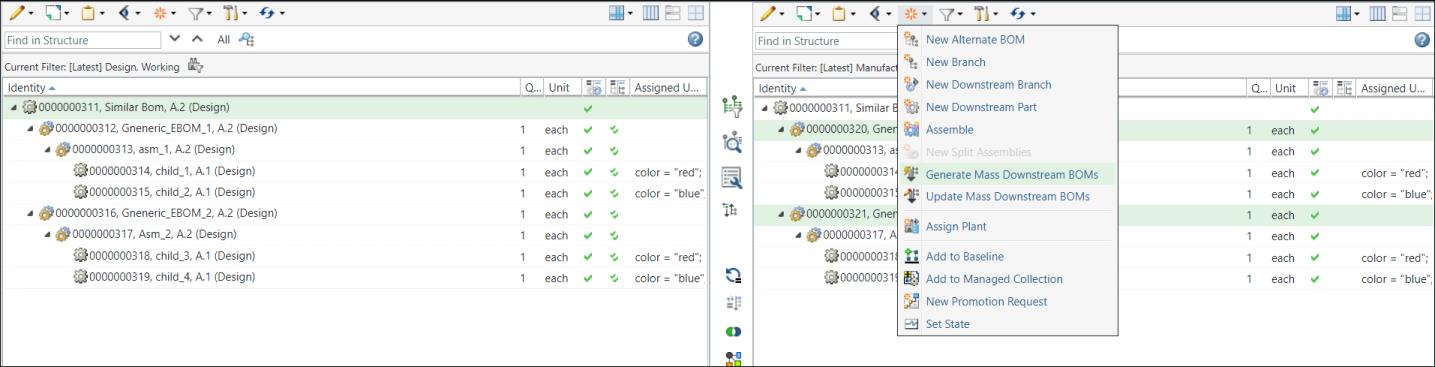
After the Generate Downstream BOMs action is complete, the system generates variant mBOMs which are relevant to the selected variant mBOMs.
Generate Downstream BOMs action is complete, the system generates variant mBOMs which are relevant to the selected variant mBOMs.Use Case
Consider that the following structure is present in the BOM Transformer:

• Two generic eBOMs, 00000000312 and 00000000316, are present in the upstream view. These two generic eBOMs are present under the part Similar Bom (Design).
• Two generic mBOMs 00000000320 and 00000000321, are present in the downstream view. These two generic mBOMs are present under the part Similar Bom (Manufacturing).
The requirement is to generate variant mBOMs from the selected generic mBOMs. Perform the following steps:
1. Select the generic eBOM 00000000312 in the upstream view.
2. Create variants from configurable modules using variant specifications. In this case, the variant specification for color red and blue are configured. For more information, see Tutorial 1: Generating Mass mBOMs and Creating and Managing Variants.
The information page of the variant specification for color red is as follows:
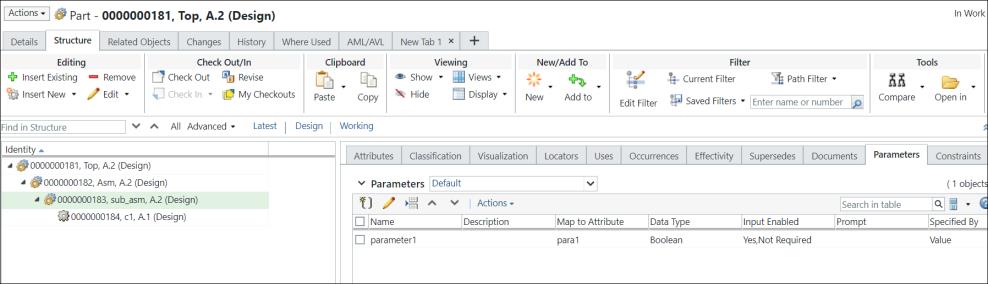
For more information, see Customizing Information Page Tabs.
3. Select the generic eBOM 00000000316 in the upstream view.
4. Create variants from configurable modules using variant specifications. In this case, the variant specification for color RED and BLUE are configured.
5. Select the generic mBOMs 00000000320 and 00000000321 in the downstream view.
6. In the downstream view, select  New/Add > Generate Mass Downstream BOMs. The following message appears:
New/Add > Generate Mass Downstream BOMs. The following message appears: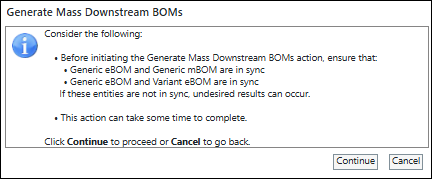
Click Continue. The Generate Mass Downstream BOMs dialog box opens.
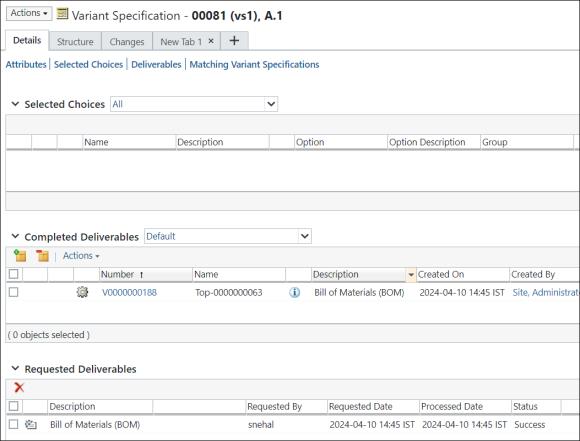
It contains the View Upstream Parameters and Set Downstream Parameters steps.
7. In the View Upstream Parameters step, the variants for which you want to generate the mass downstream BOMs appear.
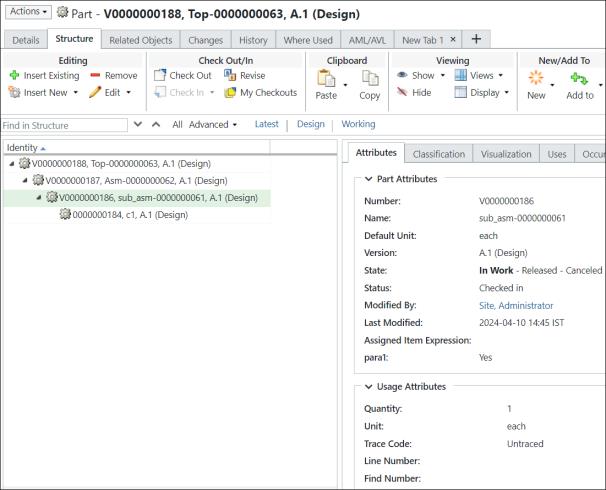
The Upstream Variant Part column displays information about the variants.
The Generate Downstream BOM column displays information about the generic mBOM that is associated with the variant displayed in the Upstream Variant Part column. For example, generic mBOM 0000000321 with variant specification 000123 (RED) is associated with the variant V0000000327.
8. Click Next. The Set Downstream Parameters step appears.
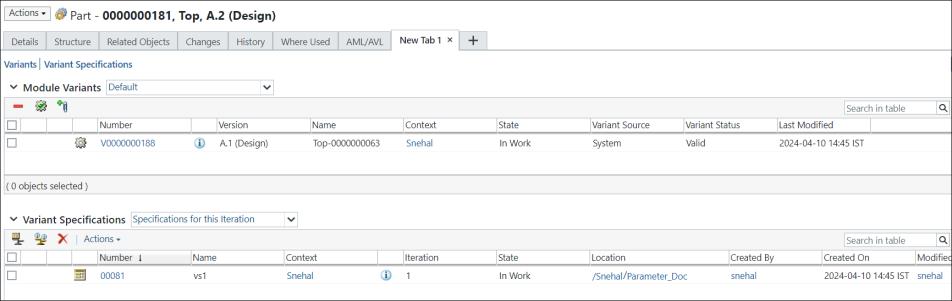
9. Click Finish. The Generate Mass Downstream BOMs dialog box closes. The eBOM and mBOM variants appear in the upstream and downstream views of the BOM Transformer. In the collapsed form, the structure in the BOM Transformer appears as follows:
 | The root node Similar Bom in the upstream and downstream are checked out. |
In the expanded form, the structure in the BOM Transformer appears as follows:
The generic mBOMs 00000000320 and 00000000321 were selected in the downstream view and the Generate Mass Downstream BOMs action was initiated. Due to the this, the system created variant mBOMs for all the variants associated with generic mBOMs 00000000320 and 00000000321. The system created four variant mBOMs because there were two variants associated with generic mBOMs 00000000320 and 00000000321. The newly created four variant mBOMs that appear in the downstream view are V00000000330, V00000000331, V00000000332and V00000000333.
Generate Mass Downstream BOMs action was initiated. Due to the this, the system created variant mBOMs for all the variants associated with generic mBOMs 00000000320 and 00000000321. The system created four variant mBOMs because there were two variants associated with generic mBOMs 00000000320 and 00000000321. The newly created four variant mBOMs that appear in the downstream view are V00000000330, V00000000331, V00000000332and V00000000333.