Use Case: Resolving Discrepancies Related to Routing Plans
Using the  Synchronize Process Plans action, you can synchronize the generated process plan with the latest updates made in the generic process plan. This action compares the latest version of the generic process plan with the latest version of the generated process plan to detect discrepancies related to associations, part allocations, operations, sequences, routing plans, and attributes. The discrepancies are then resolved by updating the generated process plan with the latest changes. In the case of routing plans, the system allows you to resolve discrepancies related to localizing operations, resources, time, routing plan attributes, relocalizing, and resequencing the operations.
Synchronize Process Plans action, you can synchronize the generated process plan with the latest updates made in the generic process plan. This action compares the latest version of the generic process plan with the latest version of the generated process plan to detect discrepancies related to associations, part allocations, operations, sequences, routing plans, and attributes. The discrepancies are then resolved by updating the generated process plan with the latest changes. In the case of routing plans, the system allows you to resolve discrepancies related to localizing operations, resources, time, routing plan attributes, relocalizing, and resequencing the operations.This use case explains how to resolve discrepancies related to routing plans.
The use case has the following parts:
• Steps 1 to 2 — Explains the structure to be used and the preference value.
• Steps 3 to 7 — Explains the process of generating a process plan.
• Steps 8 to 16 — Explains the process of synchronizing a process plan.
1. Structure and Preference Details
Consider the following structure is present in the BOM Transformer.
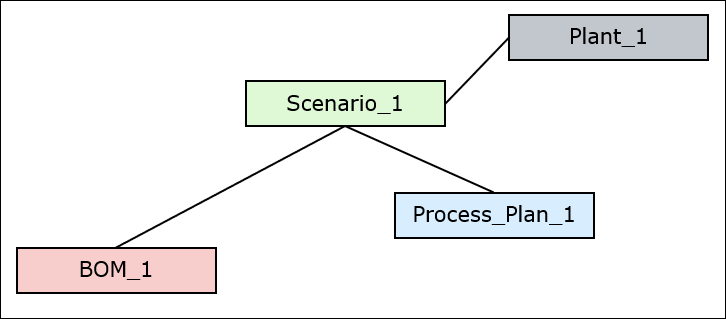
A routing plan Scenario_1 is associated with a generic process plan Process_Plan_1 and an assembly BOM_1. It is also associated with plant Plant_1.
2. Set the value of the Method for Generating Variant Process Plans preference to For each routing plan.
3. Generating Process Plans
Open the generic process plan Process_Plan_1 in the process plan browser for which you want to generate a process plan.
4. Open the relevant BOM BOM_1 in the tree picker using the Open Related Object action.
5. Select BOM_1, right-click the generic process plan Process_Plan_1, and select Generate Process Plans.
6. Click OK to continue the action.
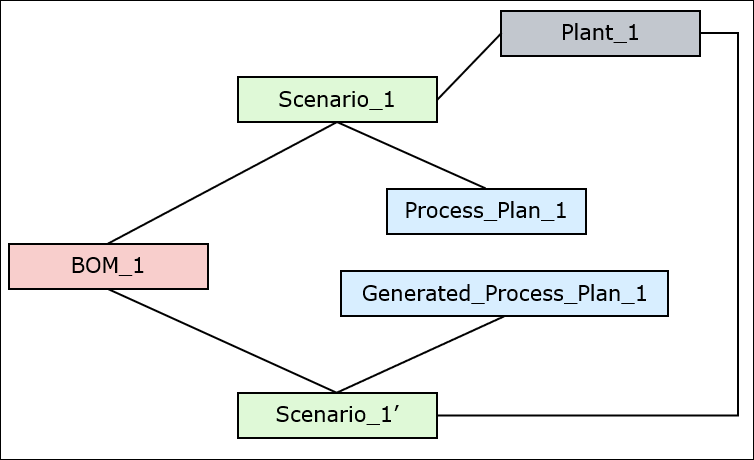
7. The system generates a process plan Generated_Process_Plan_1. A duplicated version of the routing plan Scenario_1, which is Scenario_1', is associated with the newly generated process plan Generated_Process_Plan_1 and plant Plant_1.
 | All valid objects associated with the generic process plan, such as operations, sequences, attributes, allocations, documents, resources, work instructions, standard control characteristics, plants, routing plans, and option sets, are also associated with the new process plans. You can access the information page of the generated process plan to view the associated objects in detail. |
Consider a scenario where you changed the attribute and time values of the associated routing plans after using the Generate Process Plans action.
8. Making changes in the Associated Entities
Open the routing plan Scenario_1.
9. Change the attribute and time values for the routing plan Scenario_1. Also, add two new localized operations and remove an existing localized operation for the routing plan Scenario_1.
For more information, see Actions for Localized Operations.
| | In the case of routing plans, the system allows you to resolve discrepancies related to localizing operations, resources, time, routing plan attributes, relocalizing, and resequencing the operations. |
10. Synchronizing Changes
In the process plan browser, click the Generated Process Plans tab.
11. Select the generated process plan to which the routing plan Scenario_1 is associated. That is, Generated_Process_Plan_1.
12. In the Generated Process Plans table, click  Update Status Indicators. The system displays the status
  . The status indicates discrepancies between the localized information of generated and generic process plans. You can rectify the discrepancies by synchronizing the structures.
Update Status Indicators. The system displays the status . The status indicates discrepancies between the localized information of generated and generic process plans. You can rectify the discrepancies by synchronizing the structures.13. In the Generated Process Plans table, click Synchronize Process Plans to synchronize the generated process plan with the generic process plan. For more information, see Synchronizing Generic and Generated Process Plans.
Synchronize Process Plans to synchronize the generated process plan with the generic process plan. For more information, see Synchronizing Generic and Generated Process Plans.14. Click OK to continue.
15. The Generated Process Plan Updates dialog box opens, displaying two tables—Discrepancy Report and Synchronization Summary. The Discrepancy Report table shows the discrepancies that are resolved for the selected process plan. The discrepancies are grouped under the respective generated process plan header.
The Synchronization Summary table shows information, errors, or warning messages that indicate the synchronization process.
16. Optionally, click Cancel to close the Generated Process Plan Updates dialog box.
| | You can use the rules file to synchronize specific changes in the duplicated routing plan Scenario_1'. For example, if you change four attributes and want to synchronize only two attributes, you can specify appropriate conditions in the rules file. For more information, see Rules File for Generated Process Plans. |