Viewing Concurrent Changes Summary
When you work with multiple concurrent changes on the resulting objects and open BOM redlines,you may encounter conflicting changes and potential suspect conditions. By using the View Concurrent Changes action, you proactively identify specific parts that require review for potential conflicts. This additional visibility allows you to address issues before approving the proposed BOM redline modifications or releasing a resulting object revision.
When several changes are happening simultaneously, you can improve the process by proactively resolving potential conflicts before finalizing the changes.
Launching View Concurrent Changes Action
You can launch this action for the affected objects with open bom redlines or resulting objects that have not been released while the change notice is in process. This is a right-click action available for an affected object and resulting object that are in root view and identify activities across other open change notices.
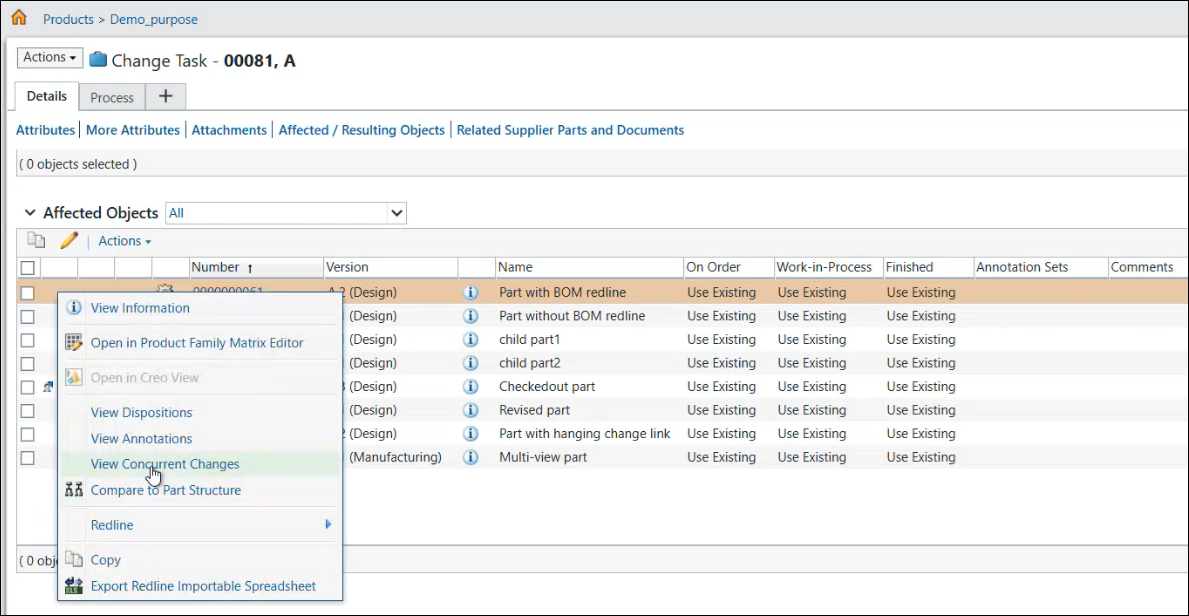
If the seed object is an affected object, then:
• The latest iteration of the BOM redline associated with the affected object is used for the action.
• The checked-out version of the associated BOM redline is used if it is checked out to the current user.
If the seed object is a resulting object, then:
• The latest iteration of the resulting object is used for the action.
• The checked-out version of the resulting object is used if it is checked out to the current user.
• The latest original version of the resulting object is used if it is checked out to another user.
View Concurrent Changes Table
The View Concurrent Changes table displays the seed BOM along with detailed change information. When another user updates the same part in a different change notice, the table promptly displays the updated information for that specific part. It includes change indicators that specify the type of modification made to the part, such as removed, modified, inserted, replaced, and so on. Additionally, the table marks the change notice as  Suspect, if it detects any conflicting changes.
Suspect, if it detects any conflicting changes.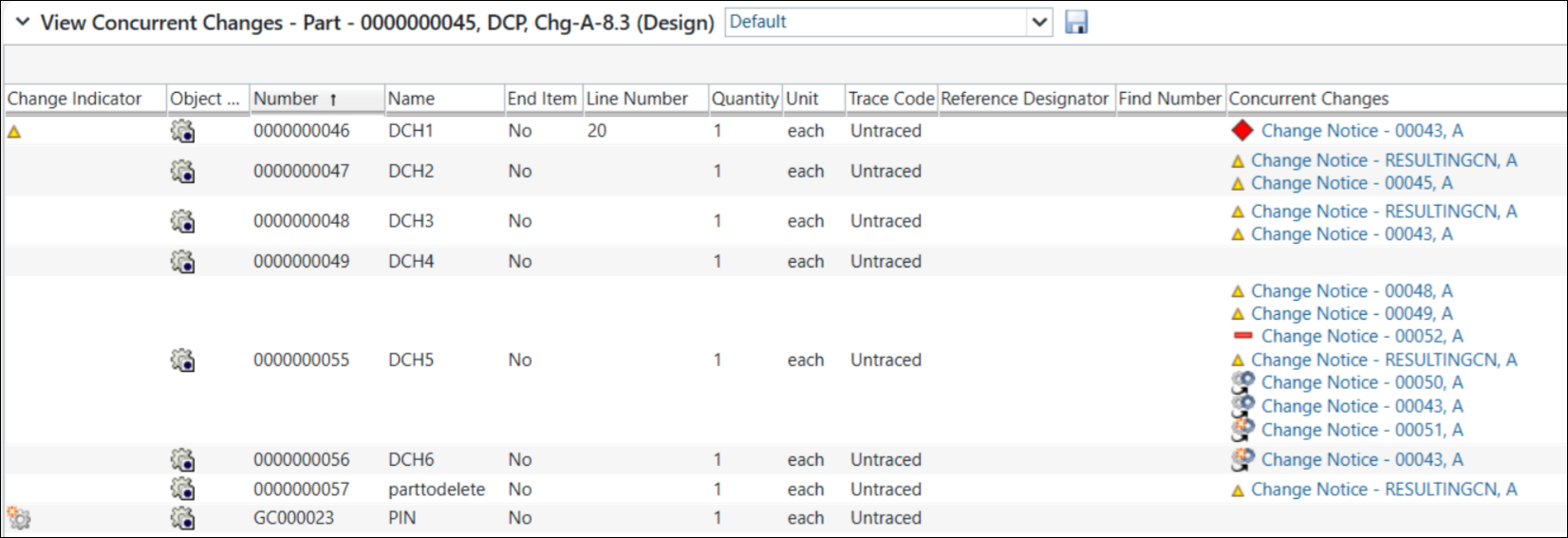
The following table displays the field and description of the View Concurrent Changes table:
Field | Description |
|---|---|
Change Indicator | Indicates the type of change that occurs on seed object when compared with the base object. |
Number | A unique numeric identifier for the part. |
Name | A text-based identifier for the part. |
End Item | The top assembly part in a product structure manufactured and delivered to customers. |
Line Number | Specifies the position of the part in a manufacturing bill of materials (BOM) within the Enterprise Resource Planning (ERP) system. |
Quantity | The number of units of the part used in the assembly. |
Unit | The measurement unit for the part quantity used in the assembly. |
Trace Code | A code used to trace manufactured copies of a part by its serial or lot number. |
Reference Designator | An alphanumeric code to identify individual occurrences of a part used in a product structure. |
Find Number | An attribute to cross-reference a part in a product structure with the same part in an assembly drawing. |
Concurrent Changes | Displays changes made to the same part across multiple open change notices require review for potential conflicts. These changes are indicated by the change indicator. |
Change Indicators Icons
The change indicator icons display a summary of the types of changes that occur on the seed object and across various open change notices. The following table explains the icons and their description in the Change Indicator and Concurrent Changes columns:
Indicator | Icon | Description |
|---|---|---|
Blank | Indicates that the part is unchanged. | |
Edit |  | Indicates modifications to the part’s attributes or its usage. |
Insert New |  | Indicates the insertion of a new part into the redline structure. |
Insert Existing |  | Indicates the insertion of an existing part into the redline structure. |
Replace with Existing |  | Indicates the replacement of the part with an existing part in the redline structure. |
Replace with New |  | Indicates the replacement of the part with a new part in the redline structure. |
Remove |  | Indicates the removal of the part from the redline structure. |
Suspect | | Detects the conflicting changes and indicates the other change notices as Suspect. |
The View Concurrent Changes action offers several advantages, such as:
• Identifies specific parts that require review for potential conflicts
• Provides additional visibility into conflicting changes and potential suspect conditions
• Enables resolution of issues before approving BOM redline modifications or releasing object revisions
• Enhances the overall process by resolving potential conflicts before finalizing changes
Related Topics