Execution of the Jasper Reports
Load Jasper Report in Windchill
You need to create a loader specification file to load Jasper report. Follow these steps to do so:
1. For the loader XML, csvname represents the name of loader specification file and this name should be the same as the name of your JRXML file. A one-to-one relationship exists between a report object and its associated JRXML by name itself.
◦ csvinputPage refers to the input jsp page which is needed for this report object. Developer can check-in their own jsp in their module’s src_web location and that path should be specified under this tag.
◦ csvfolderPath refers to the folder where the report object will get created in the Windchill user interface.
◦ csvreportTemplateName refers to the report template name which is present in the Windchill user interface. This field is optional and can be kept blank, as all the report template information is captured in JRXML.
◦ csvthirdPartyReport refers to the report object that should be executed in the third-party reporting system with value as 1.
◦ csvreportingSystem mentions the name of the reporting system in which the report object should get executed. The value JASPER indicates that it should be a part of JASPER system, An empty value or COGNOS specifies that it should run in the Cognos system.
◦ csvreportExportFormatType is an optional parameter which loads the report with the default format used while executing. You can edit this later through the Windchill user interface.
2. Once loader specification file is created, you can write your own custom input.JSP page and deploy it in the Windchill codebase.
3. Export the created Jasper report using BAC along with the report template (if any).
4. Add the exported BAC zip file, JRXML file, and the related artifacts to the appropriate location as per the modular structure diagram. For more information, see Modular Structure for Customization of Jasper Reports.
 |
By default, Windchill supports all the default fonts supported by JVM and Jasper engine. Any special font needs to be manually added in Windchill.
|
Deploy Customization on Development Environment
For information on the CCD process for deployment, see Deploy Your Customizations on Your Development Environment
Prepare CCD Package for Promotion
For information on the CCD process for promotion, see Deploying Code and Configuration Package.
Execute Jasper Report in Windchill User Interface
Following steps must be followed:
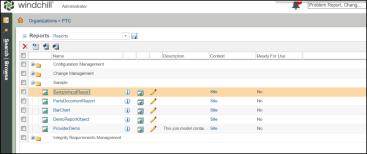
1. This illustrates the execution of Report object. Navigate to Windchilll container and under Report folder, locate this Report object under given folder.
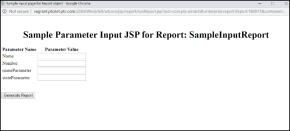
2. If any input page is specified, then that jsp is presented on clicking the report object.
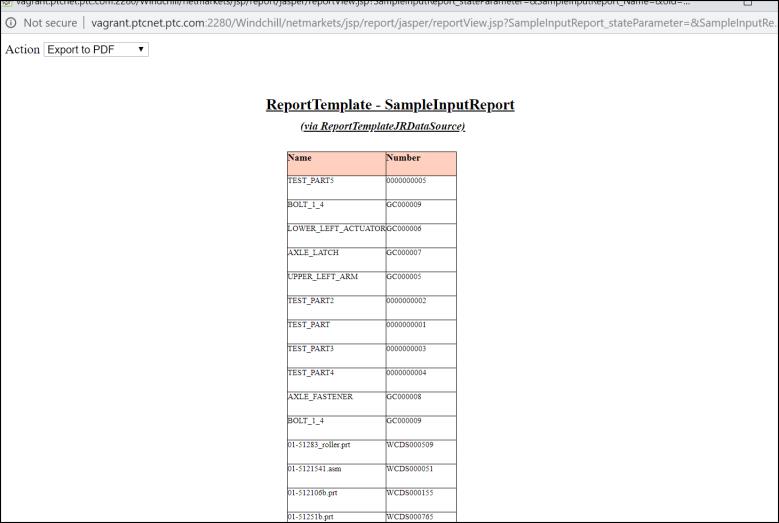
3. If no input file exists, then the output is shown, as below
4. You can have any criteria/parameter defined in QML and same should be part of your input.JSP page. Every criteria that you input through jsp is honored.