Using Save As in Smart Collection
Use the Save As action to create a copy of an existing smart collection. Initiate the Save As action from one of the following locations:
• The Actions menu on a smart collection information page.
• The right-click actions menu for a selected smart collection in the folder browser page.
The Save As action can be configured to specifically create a copy of an existing smart collection that contains parts with certain part types. To do this, an administrator configure the accountabilityMap.newConfiguration.validTypes property to specify one or more part types that you want in a smart collection.
This property is present in the custom.site.xconf file. For more information, see Setting Property Values and Propagating Your Changes.
Configure the property in the following format:
<Property name=" accountabilityMap.newConfiguration.validTypes" default="type 1,type 2"/>
You can add multiple part types in the property using a comma separator.
For more information, see Setting Property Values and Propagating Your Changes.
The following example illustrate the Save As behavior when multiple part types are added in the property.
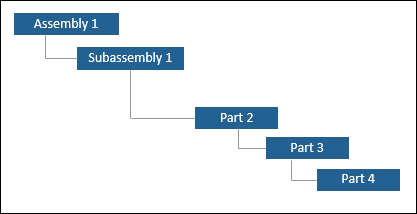
Example 1: Consider the following sample structure in a smart collection

Where, Part 3 is of type wt.part.WTPartSubType1 and Part 7 is of type wt.part.WTPartSubType2. The property is configured as follows:
<Property name=" accountabilityMap.newConfiguration.validTypes" default="wt.part.WTPartSubType1,wt.part.WTPartSubType2"/>
After adding the property to custom.site.xconf, when you initiate the Save As action, the application traverses the entire structure. When one or more parts, which match any one of the part types specified in the property, is identified, the structure is trimmed to display only those parts.
Part 3 and Part 7 are part of the new smart collection. The Contents tab of the new smart collection displays these two parts. The following structure is visible after you open the new smart collection in BOM Transformer:
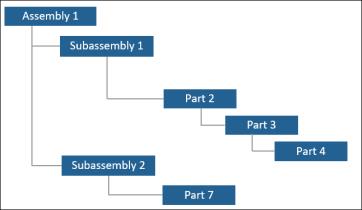
Example 2
Consider the sample structure in example 1. Part 3 is of type wt.part.WTPartSubType1 and Part 4 is of type wt.part.WTPartSubType2. The property is configured as follows:
<Property name=" accountabilityMap.newConfiguration.validTypes" default="wt.part.WTPartSubType1,wt.part.WTPartSubType2"/>
After adding the property to custom.site.xconf, when you initiate the Save As action, the application traverses the entire structure. When one or more parts, which match any one of the part types specified in the property, is identified, the structure is trimmed to display only those parts.
Only Part 3 is part of the new smart collection. The Contents tab of the new smart collection displays only Part 3. The following structure is visible after you open the new smart collection in BOM Transformer: