Automated Build Deployment Process
Introduction
The automated build deployment process helps you simplify the promotion of changes from the development environment to the production environment. A Simple Change Framework (SCF), built on Ant script, is developed by PTC to achieve this automation. SCF helps you setup your environment for the automated deployment that is required for Windchill+. It also helps standardize the packaging and installation process, and reuse of the existing deployment and installation features. The SCF provides support for file deployment, Xconf, and property management, RBInfo and Java compilation, wtSafeArea support, and additional customizations (for example, LoadFiles, LoadFileset, and LCSLoadFiles).
Downloading the Simple Change Framework
To create the package structure, you can use the Simple Change Framework (SCF) provided by PTC.
Use the go scf.latest command to download the SCF ZIP file from the PTC Cloud Server and unzip/extract it to a suitable folder on your computer.
SCF Directory Structure
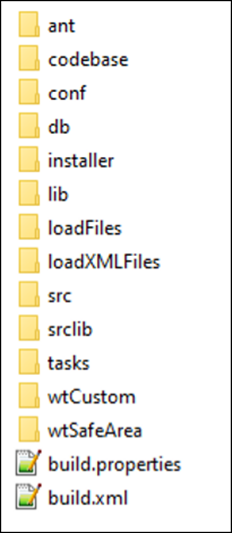
The SCF directory contains the following:
• A structured package template – A zip file with a predefined folder structure. It contains:
◦ build.properties and build.xml files that are used to configure the deployment operations.
◦ ant folder containing the scripts necessary to orchestrate the operations.
◦ Other folders as placeholders for developers’ reference to copy the content at the right place.
• Installation guide templates for four different types of installations - All, Load, Copy, and Deploy.
• Sample of Delivery Note – A document listing the package contents and status of installation steps.
• Samples of build packages illustrating individual use cases.
Creating and Deploying a Build Package
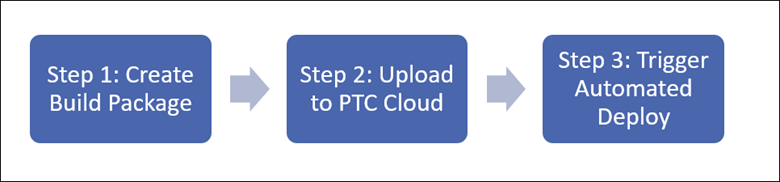
You can create and deploy build packages automatically. There are three main steps to deploy configuration changes with the PTC cloud:
1. Create a Build Package
2. Upload to PTC Cloud
3. Trigger Automated Deployment
Step 1. Create a Build Package
There are three methods to create a build package:
• Using a package template
• From a PTC cloud integration environment
• Using a configuration management system
Create a Build Package Using a Package Template
To create and deploy build package using a package template follow the steps given below:
1. Create the package structure by unzipping the package template.
2. Move the files corresponding to the expected changes to their respective locations in the folder structure.
3. Declare the Load files sequence and specific property changes in build.xml file.
4. Modify the build.properties file to change the version number, component name, and installation type.
5. Zip all the files into a deliverable package.
For detailed instructions for each of the above steps, refer to the video
here.
Create a Build Package from a PTC Cloud Integration Environment
The steps to build a package from a PTC Cloud integration environment are given below:
| The Ant tools used for this method are available only on PTC Cloud environment. |
1. Create an empty package structure using the command go package.prepare.
2. Use the definition exporter to export either Types or Global enumerations: go exporter.type or go exporter.enum.
3. Make manual changes – include Java source files, rbInfo files, load files, or any other required files in the Package structure.
4. Declare the Load files sequence and specific property changes in the build.xml file.
5. Modify the build.properties file to change the version number, component name, and installation type.
6. Zip all changes together using the command go package.gen.zip.
Create a Build Package using a Configuration Management System
This method is specific to your configuration management plan and is equivalent to the first method of creating a build package using a package template.
| • The SCM branch must follow the SCF folder structure. • The ant folder as well as the build.properties and build.xml properties files must be managed in your source control management system. • SCF version update must be managed in this SCM tool. |
The steps to generate a package out of an SCM tool are given below:
1. Use the SCM history mechanism to define the specific content of the build.xml file.
2. Increment the version by modifying the build.properties file.
3. Commit the changes.
| At this stage, it is recommended to create a separate tag to properly identify the delivered package in the SCM tool since a tag can be reused later as reference to create a hotfix. |
4. Zip either the branch or the tag.
Step 2. Upload to PTC Cloud
The generated ZIP file can be uploaded to Azure Blob storage or AWS S3 bucket. This section explains the procedure for uploading the package to AWS S3 bucket.
Prerequisite:
An AWS S3 bucket should be set up and authorization details should be obtained from PTC Cloud.
Upload Package to AWS S3 Bucket
You can upload the build either from a cloud instance or from your local computer.
Upload Build from Cloud Instance
To upload the build to AWS S3 bucket from a cloud instance, execute the following commands:
cd /appl/ptc/builds
s3 --upload <build>.zip data/builds
Upload Build from Local Computer
You can upload the build to AWS S3 bucket from your local computer using Unix Shell, Windows CMD, or PowerShell.
To upload the build to AWS S3 bucket from Linux Shell, execute the following commands:
cd /<path>
aws s3 cp <build>.zip s3://<ptc-customer-xxx>/data/builds/
To upload from Windows CMD or PowerShell, execute the following commands:
cd \<path>
aws s3 cp <build>.zip s3://<ptc-customer-xxx>/data/builds/
Step 3. Trigger Automated Deploy
To deploy the package, you need a manifest file. The manifest file is an YML file that describes where and when a specific build should be deployed. The steps to create a manifest file are given below.
Pre-requisite
The environment that defines the deployment pipeline should be configured by PTC Cloud, and the corresponding environment identifiers should be obtained from the PTC team before proceeding to the next steps.
| • Use any text editor to create the manifest file. • The filename can be any, but the extension must be .yml. • You can reuse the same filename every time or create a new one for each package being deployed. |
Details of the attributes in manifest file are given below:
Attribute | Description | Possible values |
deploy_pipe | Defines the pipeline where the build should be deployed. The pipeline is a definition of one or multiple environments to where you want to deploy the build. Normally, int defines a single Integration environment and pipeline defines a QA and Production environments. | int / pipeline / int,pipeline example:deploy_pipe: pipeline1ordeploy_pipe: int1ordeploy_pipe: int2, pipeline1 |
package_description | Brief description of the build package contents or its purpose. | Free text |
package_name | File name of the build package with extension .zip | <Build>.zip |
duration | Expected deployment duration time in hours. | Number |
date_time_int | Expected date when the build should be deployed on the Integration environment. | Time is in 24H format in Eastern Time. |
| YYYY/MM/DD hh:mm:ss 2021/01/30 14:00:00 |
date_time_qa | Expected date when the build should be deployed on the QA environment. | Time is in 24H format in Eastern Time. |
| YYYY/MM/DD hh:mm:ss 2021/01/30 14:00:00 |
date_time_prod | Expected date when the build should be deployed on the Production environment. | Time is in 24H format in Eastern Time. |
| YYYY/MM/DD hh:mm:ss 2021/01/30 14:00:00 |
notify | Comma-separated list of emails to send notification during the deployment process. | |
An example of the manifest file is given below.
You can also use the Ant tool from the PTC Cloud environment to generate the manifest file:
go package.gen.manifest
Or generate manifest and create ZIP together:
go package.gen.zip.and.manifest
After the manifest.yml file is created, upload it to the shared location using any of the methods described in the next section.
Upload Manifest to AWS S3 Bucket
You can upload the manifest either from a cloud instance or from your local computer.
Upload Manifest from Cloud Instance
To upload the manifest using Linux Tools, execute the following commands:
cd /<path>
s3 –upload <manifest>.yml data/builds/deploy/
Upload Manifest from Local Computer
To upload using Linux shell, execute the following commands:
cd /<path>
aws s3 cp <manifest>.yml s3://ptc-customer-xxx/data/builds/deploy/
To upload using Windows CMD/PowerShell, execute the following commands:
cd \<path>
aws s3 cp <manifest>.yml s3://ptc-customer-xxx/data/builds/deploy/