Customer Onboarding to the PTC Cloud Portal and SaaS Platform
 |
This topic is intended for the Windchill Administrator. For Windchill on-premises environment, Windchill Administrator is the Windchill Site Administrator; however, for the Windchill SaaS environment, Windchill Administrator is the Windchill Business Administrator.
|
The plugin is available to users who are authenticated through the PTC SaaS Platform. To view the Windchill plugin, you must be a Windchill Administrator and have a PTC SaaS Platform account with access to the Windchill product. To install the plugin, you must first be onboarded to the PTC SaaS Platform and sign in to the PTC Admin Center.
PTC sends an invitation email to the initial administrator with instructions for activating the account and accessing the PTC Admin Center.
To install and set up the plugin in a Windchill environment, the initial system administrator receives an email.
To get started, follow these steps:
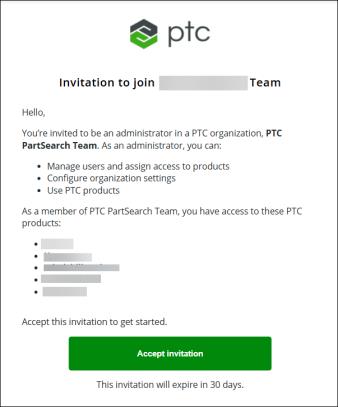
1. Open the invitation email and click the Accept Invitation link. The PTC Admin Center sign‑in page opens.
2. Enter your login credentials.
| | If the initial administrator is also the Windchill Administrator, they must provide credentials for authentication during plugin installation. For more information, see the Authentication section. |
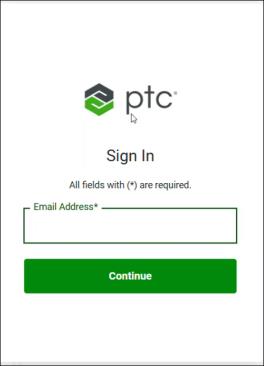
| | If you do not use SSO, your previously used passwords are no longer valid. If you see an Incorrect email or password message on the Sign In page, select Forgot password?. For more information, see Reset Password. |
3. Click Open, and then choose an organization to continue. The PTC Windchill Self-Service Portal page opens.
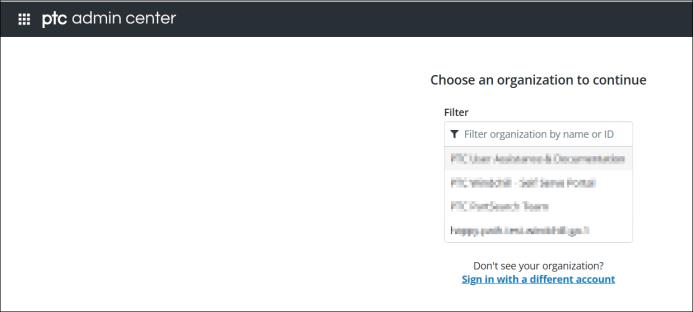
| | • If you belong to multiple organizations, the system displays a list of available organizations. • If you belong to only one organization, this page does not appear. |
After you sign in to the PTC Admin Center, you can perform the following administrative tasks:
◦ View organization details such as name, ID, and preferred region.
◦ Specify a support contact for the organization.
◦ Manage service principals.
◦ Manage user groups.
◦ View the products that the organization is licensed to use.
Invite the Windchill Administrator for AI Plugin Installation
If the initial administrator is not the Windchill Administrator who will install the Windchill AI Assistant plugin, invite the Windchill Administrator using these steps:
1. On the Users page, click Invite Users to add users.
2. In the Invite Users dialog box, enter the email address of the user you want to invite.
You can enter multiple email addresses separated by commas.
3. Select the organization role that you want to assign to the new member, for example, Administrator.
4. In the Products list, select the product and click Invite.
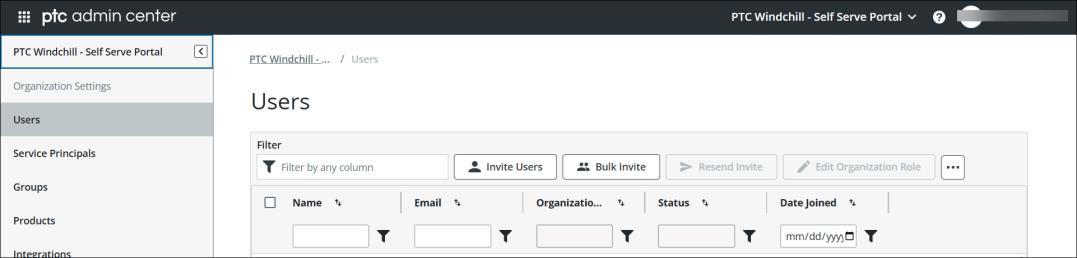
For more information, see Invite Users.
| | When the initial administrator invites the Windchill Administrator to install the plugin, the administrator receives an email invitation. After receiving the invitation, the administrator must accept it and provide the required credentials. These credentials are essential for authentication during the plugin installation process. For more information, see the Authentication section. |