Using the Windchill AI Assistant
The Windchill AI Assistant enables administrators and users to quickly find information and gain insights from the documents stored in the Windchill vault. You can ask questions in natural language and receive responses generated from documents that you are authorized to access.
The Windchill AI Assistant is available from a dedicated tab in the Navigator pane.
Windchill AI Assistant Tab
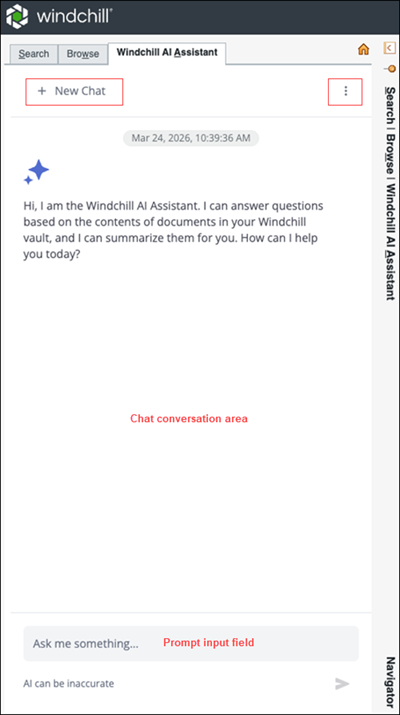
The following table describes the fields on the Windchill AI Assistant tab:
Fields | Description | ||
|---|---|---|---|
Prompt input field (Ask me something...) | Enter a question or prompt in natural language. Examples: • What does the requirements document say about safety protocols? • Summarize the design specification for Project Alpha. • Do we mention ISO 9001 in any documents?  | ||
New Chat | Clears the current conversation and starts a new one.  | ||
Chat conversation area | Displays responses returned by the Windchill AI Assistant.  | ||
Options  | Provides access to the Indexing Dashboard. 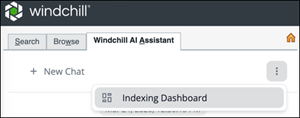
|
Starting a New Conversation
To start a new conversation in the Windchill AI Assistant:
2. Enter your question or prompt in the prompt input field.
3. Click Send  or press Enter.
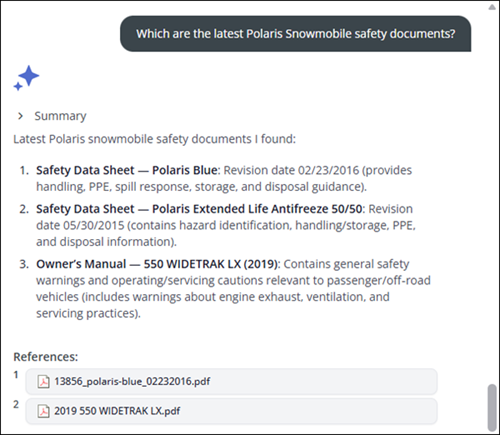
or press Enter.The Windchill AI Assistant returns responses in natural language based on the contents of documents stored in the Windchill vault. Each response includes references to the source documents. Responses are generated only from the documents that you are authorized to access. You must have at least Read and Download permissions for any referenced documents.
 | For best results, click New Chat to start a new conversation before submitting an unrelated query. |
 | • Conversation length is limited. As you approach the limit, the Windchill AI Assistant displays a warning during the last five queries. When the limit is reached, click New Chat to start a new conversation. • If a conversation remains inactive for more than two days, you are prompted to click New Chat to start a new conversation. • The Windchill AI Assistant supports all languages supported by Windchill. Responses are returned in the language of the question. However, supported question languages are limited to the current user interface language and English. |
Example Prompts
Conversations are not limited to simple fact‑based questions. For more detailed insights, you can ask complex questions related to relationships, procedures, or guidelines.
Examples:
• Does the "2019 120 Indy" manual include specific warnings about carbon monoxide and exhaust exposure during operation?
• What are the service precautions when exposed to carbon monoxide during repair?
• How do I install the adjustable gas can holder on the Switchback?
Working with References
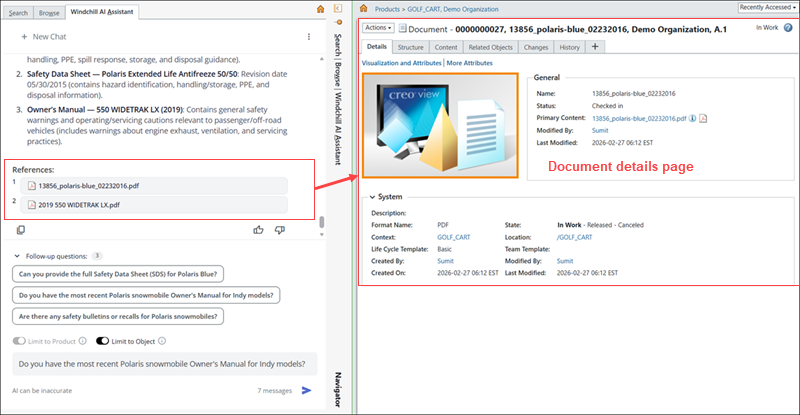
You can interact with references included in AI Assistant responses in the following ways:
• Click a reference to open the document’s detail page in the main Windchill window.
• Hover over a reference to view document details in a tooltip.
• Hover over Download  to activate it and then click it to download the document.
to activate it and then click it to download the document.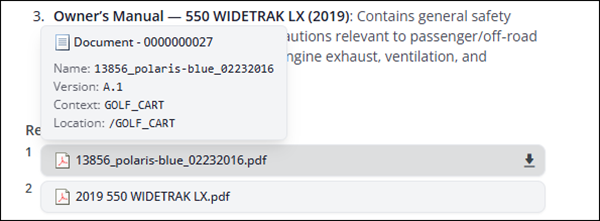
Copying and Rating Responses
You can reuse responses and provide feedback on Windchill AI Assistant responses using the following options:
• Click Copy Response  to copy a response for reuse.
to copy a response for reuse.• Click Good Response  or Bad Response
  to rate the quality of a response.
or Bad Response to rate the quality of a response.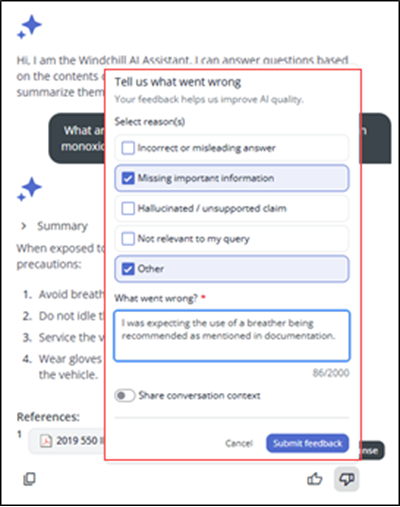
You can provide feedback on Windchill AI Assistant responses to help improve answer quality and accuracy. Feedback is submitted through a feedback form when you rate a response as Bad Response.
To submit feedback on an AI Assistant response:
1. Rate the response as Bad Response.
The feedback form is displayed.
2. Under Select reason(s), choose one or more applicable reasons:
◦ Incorrect or misleading answer
◦ Missing important information
◦ Hallucinated / unsupported claim
◦ Not relevant to my query
◦ Other
3. In the What went wrong? field, describe the issue in detail. This field is required and allows you to explain what you expected or what was incorrect in the response.
4. (Optional) Enable Share conversation context to include your full conversation for debugging purposes.
| | When Share conversation context is enabled, the entire conversation is logged locally. This includes user questions, assistant responses, document references, and relevant portions of documents (retrieved content chunks) and/or document summaries used to generate responses. This information can be shared with PTC to help diagnose and resolve issues. |
5. Click Submit feedback to send your feedback, or click Cancel to discard it.
Follow‑Up Questions
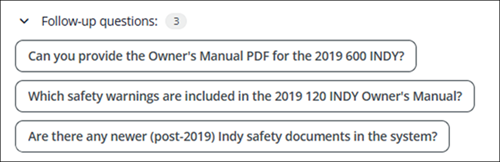
In many cases, the AI Assistant suggests follow‑up questions based on the current conversation.
• Select a suggested question to copy it into the prompt input field.
• Modify the prompt as required, and then submit it.
| | You can refer to documents using contextual terms such as “this” or “the open document”. You can reference documents by name when they appear in the references of the current chat thread. |
Context Controls
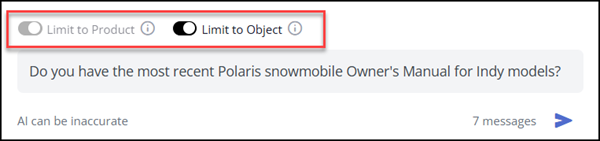
You can control the context of the AI Assistant responses using the following options:
• Limit to Product—Limits responses to the current Windchill context (product, project, or library).
• Limit to Object—Limits responses to the currently open business object. This includes all of its indexed primary and secondary content.
Error Messages
In some cases, a query submitted to the Windchill AI Assistant may not return a response. This can occur when no accessible document contains the required information, when a conversation limit is reached, or when a request times out. When this occurs, the Windchill AI Assistant displays an appropriate error message.
Depending on the case, one of the following may happen:
• The conversation may end, or
• You can resubmit the original query or a modified query in the conversation.
The following table lists the error messages that may be displayed by the Windchill AI Assistant, along with their cause and recommended user action.
Error Message | Cause | Recommended action |
|---|---|---|
“It seems like I can’t chat about this topic. Let’s try a different topic.” | The query cannot be answered because the requested topic violates system or Azure guardrails. | Rephrase your question to ensure it cannot be interpreted as harmful or inappropriate. Avoid providing instructions, and ensure that queries are phrased as questions. |
“Please write in English or in your selected interface language. Other languages aren't supported.” | The detected query language is neither the Windchill interface language nor English. | If the query language is supported by Windchill, switch the Windchill interface to that language, or use English and then submit the query again. |
“The request has timed out. Please contact your administrator.” | The system could not complete processing the request within the allowed time. | Retry the request later. If the issue persists, contact your Windchill administrator. |
"System Busy - Please Try Again” | The system is experiencing a high volume of requests, either from the current user or collectively from all users accessing the system. | If multiple users encounter this error at the same time, increase the allocated capacity for the gpt-5-mini model in the Azure AI Foundry portal. |
“The conversation has reached its limit. Please start a new conversation to continue chatting by clicking New Chat.” | The maximum conversation length has been reached or the chat is older than two days. | Click New Chat to start a new conversation. |
“It seems like the received response is invalid. Please contact your administrator.” | An unexpected system error occurred while generating the response. | Retry the query. If the error continues, contact your Windchill administrator with details of the issue. |
“Something went wrong, please try starting a new conversation by clicking New Chat.” | This issue can occur due to a variety of reasons. The most common causes are unhealthy or unavailable Azure resources and general network connectivity issues. | Start a new chat by clicking New Chat, then retry the request. If the error continues, contact your Windchill administrator. |
Summarizing Documents
You can generate summaries of documents stored in Windchill from either the AI Assistant or the document context menu.
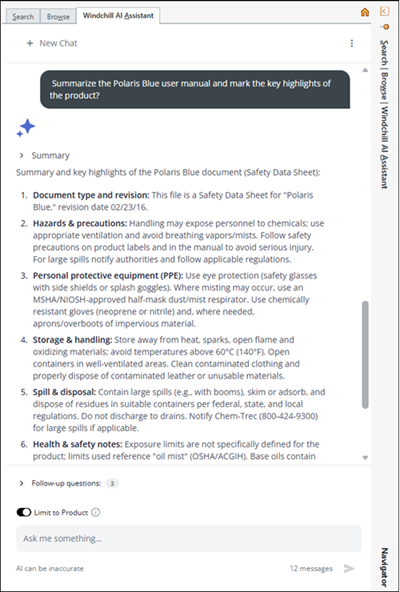
Follow these steps to summarize from the AI Assistant:
• Enter a summarization prompt in the prompt input field.
• Click Send or press Enter.
or press Enter.Example:
Follow these steps to summarize from the document context menu:
1. Navigate to the document you want to summarize.
2. Right-click the document to open the context menu.
3. Select Summarize Document.
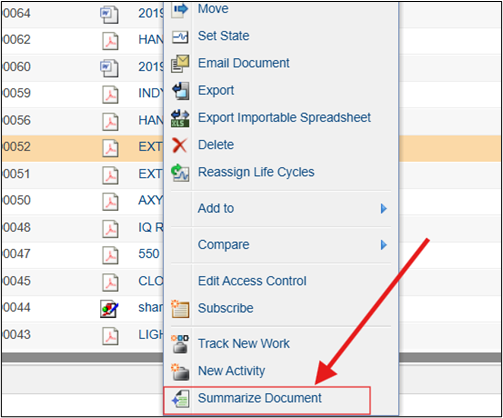
Alternatively, select Summarize Document from the Actions menu on the document detail page.
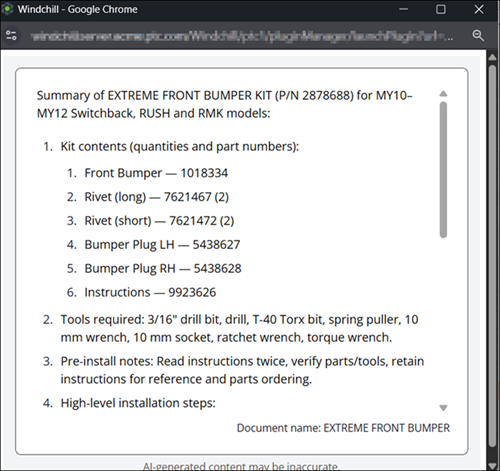
The document summary appears in a pop‑up window.