Configuring the Windchill AI Assistant Plugin
Follow these steps to configure the Windchill AI Assistant Services for the plugin:
1. Go to > > table.
2. Right-click the Windchill AI Assistant plugin, and select Configure Plugin.

3. In the PTC SaaS Platform Service Principal section, click Edit and provide the following details:
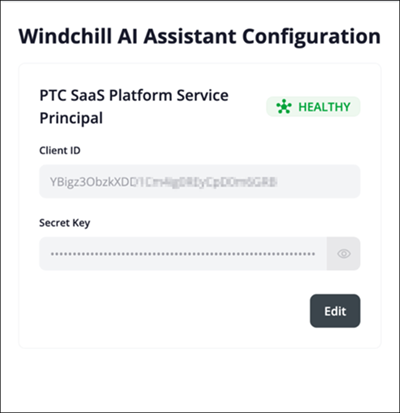
a. Client ID—Enter the client ID displayed on the Connection Details tab of the registered Windchill product instance in the PTC Admin Center.
b. Secret Key—Enter the secret key displayed on the Connection Details tab of the registered Windchill product instance in the PTC Admin Center.
4. Click Save to apply the configuration.
5. Close the Windchill AI Assistant Configuration window.
Verify the health indicators after the configuration. If any indicator is not in HEALTHY status, refer to Troubleshooting for SaaS Environment.