Installing Windchill AI Assistant Plugin on On-prem Environment
This topic is intended for the Windchill on-prem System Administrator.
The plugin can be installed as an additional component alongside Windchill. The deployment and updates of the plugin are managed by the Plugin Manager available in Windchill.
 |
The Windchill AI Assistant plugin is compatible with the Windchill version listed in the Supported Versions and Requirements.
|
The plugin integrates with Windchill in a loosely coupled manner. This means that the plugin can be updated and maintained independently without affecting the core functionality of Windchill.
|
|
If your Windchill system has specific configurations and you choose the Preserve Apache Settings option, the Apache server will not be updated during the upgrade process when installing the latest CPS version that supports the Plugin Manager functionality. This means that the existing Apache configuration will remain unchanged, and any new configuration changes introduced in the update will not be applied automatically.
In such case, follow the instructions in Setup Required Before Installing the Windchill AI Assistant Plugin for On-prem Environment.
|
Authentication
The plugin is made available to the site administrator based on PTC SaaS Platform authentication. To view the Windchill plugin, you must be a Windchill site administrator and have a PTC SaaS Platform account with access to the Windchill product. Follow these steps for the PTC SaaS Platform authentication:
1. Log in to your Windchill account as a site administrator.
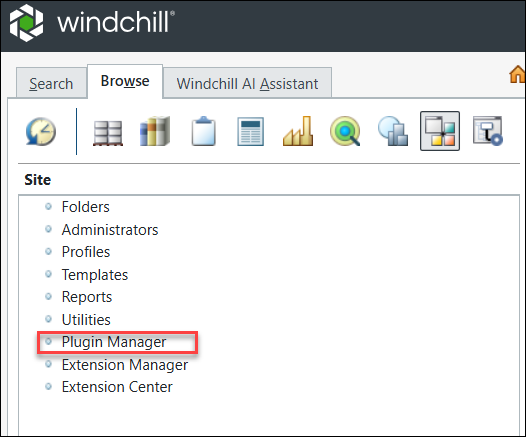
3. Enter your PTC SaaS Platform account credentials. You only need to provide your PTC SaaS Platform credentials once per session. After that, you can continue using the Plugin Manager without re-authenticating. However, re-authentication is required if the session expires.
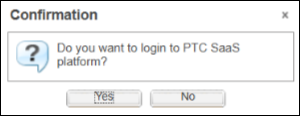
In the Confirmation dialogbox:
◦ If you click No, you cannot view the list of newly available plugins or updated plugins. You will continue to see the installed list of plugins and their previous versions.
◦ If you click Yes, you will need to provide your PTC SaaS Platform credentials to proceed. After authentication, you can view the newly listed plugins and the updated versions of existing plugins.
After logging in with your PTC SaaS Platform credentials, you can view the list of available plugins. If the plugin does not appear, verify that your organization has been assigned the Windchill product in the PTC SaaS Platform. For more information, see Customer Onboarding to the PTC Cloud Portal and SaaS Platform.
Install Windchill AI Assistant Plugin
The Plugin Manager allows you to install and configure the available Windchill AI Assistant plugin.
When you click Plugin Manager, the Windchill Plugins page lists the latest versions of available plugins from the PTC SaaS Platform storage in a table format. The row in the table displays the name, version, and status (Installed or Uninstalled).
Fields | Description |
|---|---|
Plugin Name | Indicates the name of the plugin. |
Installed Version | Indicates the installed version of the plugin. This field is blank if the plugin is not installed. |
Latest Version | Lists the latest available version of the plugin for installation. |
Description | Provides a short description of the available plugin. |
Last Modified | Indicates the date on which the plugin was last modified. |
Plugin Status | Indicates whether the plugin is installed. |
Plugin Server | Indicates the status of the plugin server—whether it is operational and running or down. This field is blank if the plugin is not installed. |
To install the plugin, follow these steps:
1. Right-click the plugin, and then select Install from the context menu.
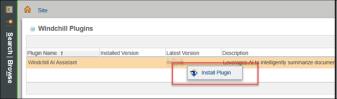
2. Enter the following information in the Install Plugin dialog box. After the installation, Windchill Server Manager starts a new plugin server process.
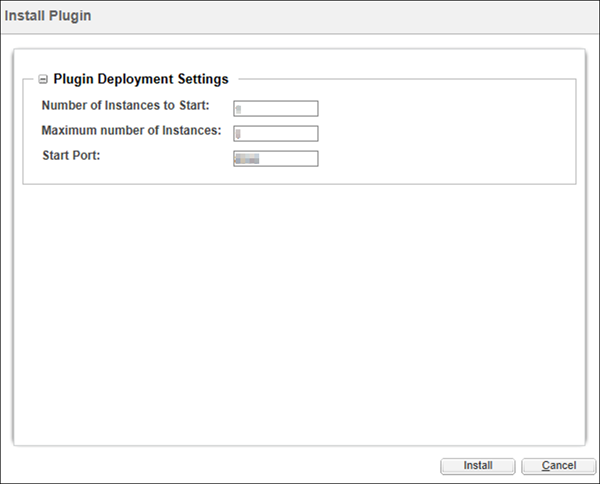
◦ Number of Instances to Start— Number of plugin instances. The number of plugin instances to start should not be more than the maximum number of plugin instances available.
| | You can add multiple plugin instances during installation. However, once the plugin is configured, the number of instances cannot be changed. To modify the number of plugin instances, you must uninstall the plugin, reinstall it, update the instance count, and then reconfigure the plugin. |
◦ Maximum number of Instances—The maximum number of plugin instances you can configure is 5.
◦ Start Port—The first port number in the range where the system should begin. The ports should not be already in use.
3. Click Install. The plugin appears in the Windchill Plugins table.

4. If Windchill is configured with custom certificates for custom applications (for example, the Navigate app), perform the following steps:
a. Manually copy the contents of the custom certificate file to HTTPServer/conf/sslvhostconf.d/allClientCerts.crt.
b. Remove the configuration file that references the custom certificate.
| | During a rehost operation, only plugin certificates are regenerated by default. As a result, custom certificates must be retained manually. If the allClientCerts.crt file, which contains both plugin and custom certificates, is not copied from the source system to the target system before rehosting, the custom certificates are not retained. To preserve custom certificates, either copy the allClientCerts.crt file before rehosting or manually import the custom certificate into the file after rehosting. For more information, see the “WVS Agent Settings” section in the Windchill 12.1.2.0 Rehost Utility Guide. |
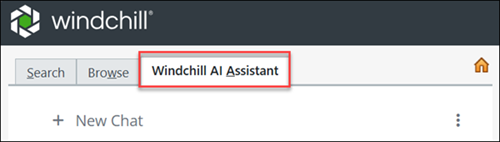
After installing the plugin, the Windchill AI Assistant tab appears in the Navigator pane.
| | • If Windchill is running on a Windows server, restart the Apache server after installation. • If the installation fails with the message, “WindchillAIAssistant installation failed because of a security verification failure. Contact your administrator for assistance,” ensure that you are using the latest Java build for the corresponding Java version. For more information, see Troubleshooting for On-prem Environment. |
After completing the plugin installation, deploy the required Azure resources and then proceed to configure the plugin. For more information, see Creating Azure Resources for On-prem Environment and Configuring Windchill AI Assistant Plugin on On-prem Environment.
Update Windchill AI Assistant Plugin
The Update Plugin action is available once the latest version of the plugin is available. To update the plugin, right-click the plugin and click Update Plugin. The plugin version is automatically updated.
Once the latest version of the plugin is updated on the PTC SaaS Platform, and in the Windchill Plugins table, you can see the new version number of the plugin. For example, if you previously installed version 2026.0.0.2, and version 2026.0.0.3 is now available on the PTC SaaS Platform. The Latest Version column of the Windchill Plugins table displays the 2026.0.0.3 version.