CWC Specific Configuration
CWC Equipment Configuration
The configuration of an Equipment allows the modeling of the entire plant hierarchy, set up an equipment for production, IoT data capture, and more. For information on creation and configuration of an equipment click here.
The plant model hierarchy setup is very flexible, but we recommend adhering to the ISA-95 standard:
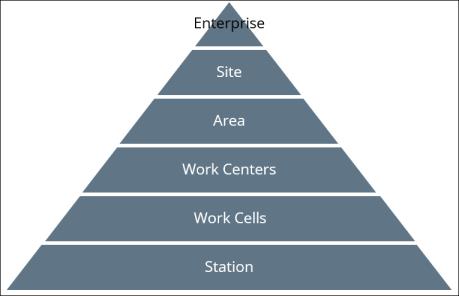
CWC specifically requires the > hierarchy for work cells.
Stations
Stations are indicated by the  icon.
icon.
icon.The following configurations are required for a work station:
1. In the General Information tab, ensure Equipment Type is configured to Station equipment type.
2. In the Advanced Settings tab, ensure that Event Sub Type and Time Zone are configured.
3. In the Attributes tab, configure one attribute of type Production Event Quantity and one attribute of type Waste Event Quantity.
Parallel Execution Stations
Configuring a station for parallel execution is similar to a non-parallel station, with the following additional required configuration:
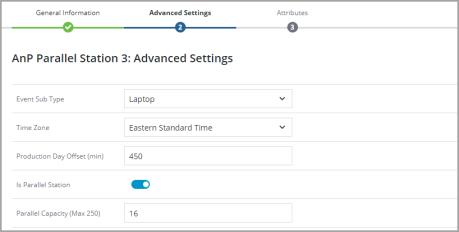
1. In the Advanced Settings tab, ensure that Is Parallel Station toggle is ON.
2. Enter a value for Parallel Capacity(Max 250). This is the number of positions that can receive data at once.
 |
Value entries between 0 to 250 are only permitted.
|
Work Cells and Work Cell Stations
A work cell is defined as a collection of stations performing the same tasks, on a first-in first-out basis. Work cells can help with assembly bottlenecks for tasks that take more time.
To create the work cell as an equipment corresponding to the Work Cell hierarchy, ensure that in the General Information tab Equipment Type is configured to
To create work cell stations as children of the work cell follow below steps:
1. In the General Information tab Equipment Type is configured to Work Cell Station equipment type.
2. Follow the rest of the configuration for a station.
Smart Tools
The Smart Tool Configuration allows you to model your IoT-ready smart tools, configure them for data collection, and organize them with smart tool types. For CWC, smart tools and their attributes must be set up for execution
For more information on Smart Tool configuration, click here.
Parallel Execution
Smart tools can be setup for parallel execution, allowing them to collect IoT data for multiple serial numbers on assembly execution.
To configure a smart tool for parallel execution, complete the following steps:
1. In the General Information tab, ensure that Parallel Execution toggle is ON.
2. Enter a number for Parallel Execution Capacity.This is the number of positions that can receive data at once.
3. In the Attributes tab add attributes within an attribute group for each position and map them to IoT tags. These attributes will read/write data on execution.
|
|
It is recommended to identically name attribute groups/attributes between smart tools that are compatible for tool substitution. This will ensure the tool is available for substitution during execution.
|
CWC Specific User Configuration
User management can be used to configure user data as well manage user groups information and members.
For more information on User configuration, see User Group Configuration.
Raise Hand Functionality — The operators using execution display can click on  in the application header to request assistance. This tool allows the user to send an email message. Complete the following steps to populate the Message Recipient field
in the application header to request assistance. This tool allows the user to send an email message. Complete the following steps to populate the Message Recipient fieldBefore beginning, ensure each desired recipient has a user created within ThingWorx and an associated email address (See Email Configuration for instructions).
1. Navigate to > > .
2. Search for the group: PTC.SCA.SCO.MnfgCommonRoleLineManagerUserGroup.
3. Click  or Edit.
or Edit.4. Navigate to the Members tab.
5. Search and select all appropriate users.
|
|
Users must have an associated email address.
|
6. Click  and
and  to add and remove members appropriately.
and to add and remove members appropriately.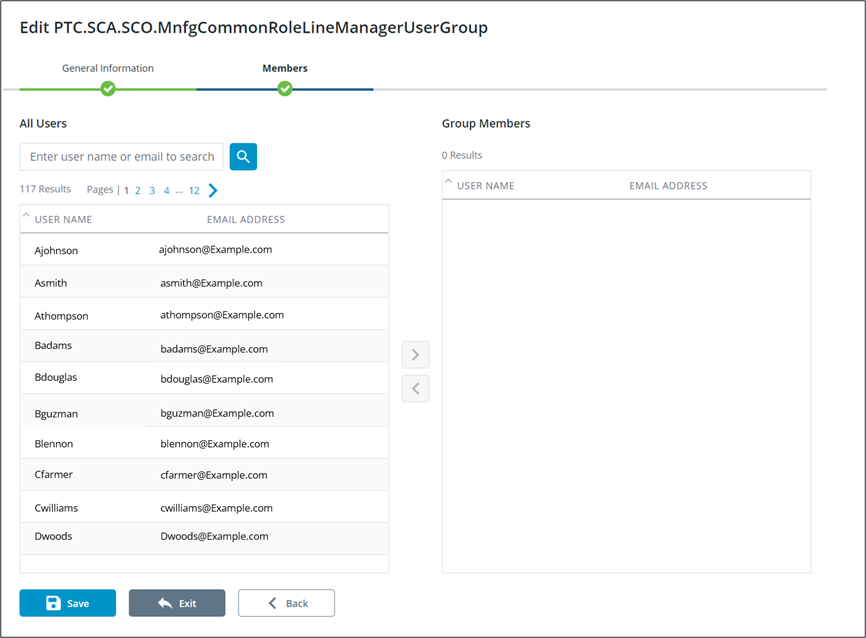
7. Once all members have been set appropriately click Save.
Secondary Signoff Functionality
1. Search for and select the user group that should be used as a secondary signoff group.
2. Toggle Use as CWC execution secondary signoff group to mark the members of this group as available to act as secondary witnesses for work instruction steps.
