Example: Configuring a Grid with JSON Data
Overview
This example shows how to configure the Grid widget to service data using dynamic configuration JSON. The JSON configuration shows the following features:
• Five columns: asset ID, location, temperature, status, and last maintenance date
• Multiple row selection with check boxes
• Sorting by any column
• Number formatting for temperature
• Date formatting for maintenance
• Inline editing for status (dropdown), location (text), temperature (number), and last maintenance (date-time)
• State-based formatting that highlights status with color
• Row numbers and total row count
Data structure
The InfoTable data source includes these fields and base types:
• id: Integer
• assetId: String
• location: String
• temperature: Number
• status: String
• lastMaintenance: DateTime
For example, a row shows data for a machine, such as PUMP-101 at Assembly Line A with its temperature, status, and last maintenance date.
Example data service
The following JavaScript service generates 50 rows of infotable data. To use this service, you must create a service for a Thing in Composer, set the output type to InfoTable, then paste the code into the service editor.
var result = Resources["InfoTableFunctions"].CreateInfoTableFromDataShape({
    infoTableName: "InfoTable",
    dataShapeName: "MachineMonitoringDataShape"  // Replace with your DataShape name
});

var locations = ["Assembly Line A", "Assembly Line B", "Packaging Line 1", "Packaging Line 2", "Quality Control"];
var statuses = ["Running", "Idle", "Maintenance", "Fault"];
var assetTypes = ["PUMP", "MOTOR", "CONVEYOR", "VALVE", "SENSOR"];

// Generate 50 rows of data
for (var i = 1; i <= 50; i = i + 1) {
    var assetType = assetTypes[(i - 1) % assetTypes.length];
    var assetNum = Math.floor((i - 1) / assetTypes.length) + 101;
    var location = locations[(i - 1) % locations.length];

    // Generate temperature between 60 and 95 degrees
    var temp = 60 + (Math.random() * 35);

    // Weight status probabilities: 60% Running, 25% Idle, 10% Maintenance, 5% Fault
    var randStatus = Math.random();
    var status;
    if (randStatus < 0.60) {
        status = "Running";
    } else if (randStatus < 0.85) {
        status = "Idle";
    } else if (randStatus < 0.95) {
        status = "Maintenance";
    } else {
        status = "Fault";
    }

    // Generate random maintenance date within the last 180 days
    var daysAgo = Math.floor(Math.random() * 180);
    var maintenanceDate = new Date();
    maintenanceDate.setDate(maintenanceDate.getDate() - daysAgo);

    var newEntry = new Object();
    newEntry.id = i;
    newEntry.assetId = assetType + "-" + assetNum;
    newEntry.location = location;
    newEntry.temperature = Math.round(temp * 10) / 10;  // Round to 1 decimal
    newEntry.status = status;
    newEntry.lastMaintenance = maintenanceDate;

    result.AddRow(newEntry);
}

// Sort by asset ID and return the result
var sortParams = {
    t: result,
    sortField: "assetId",
    ascending: true
};

result = Resources["InfoTableFunctions"].Sort(sortParams);

return result;
 |
Before you use this service, create a DataShape named MachineMonitoringDataShape with the following fields: id integer, assetId string, location string, temperature number, status string, and lastMaintenance date and time.
|
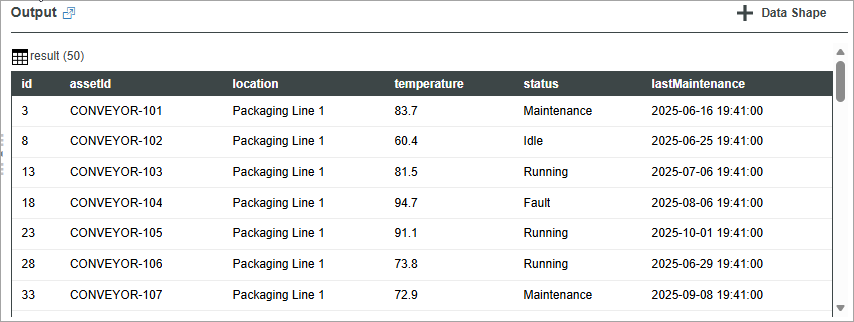
The following image shows an example of the generated machine monitoring data.
JSON configuration
Add the following JSON configuration to the Grid widget Configuration property. This version is validated and does not include comments.
{
    "columns": {
        "idFieldName": "id",
        "header": {
            "hide": false,
            "singleLine": true,
            "verticalAlignment": "center",
            "maxHeight": 40
        },
        "columnDefs": [
            {
                "targets": 0,
                "fieldName": "assetId",
                "title": "Asset ID",
                "autoWidth": true,
                "inLayout": true,
                "sortable": true,
                "initialSort": "ascending",
                "cellHorizontalAlignment": "left",
                "cellVerticalAlignment": "center",
                "headerHorizontalAlignment": "left",
                "headerVerticalAlignment": "center",
                "columnMinimumWidth": 120,
                "columnMaximumWidth": 200
            },
            {
                "targets": 1,
                "fieldName": "location",
                "title": "Location",
                "autoWidth": true,
                "inLayout": true,
                "sortable": true,
                "cellHorizontalAlignment": "left",
                "cellVerticalAlignment": "center",
                "headerHorizontalAlignment": "left",
                "headerVerticalAlignment": "center",
                "columnFormatter": {
                    "type": "string",
                    "format": "full",
                    "cellEditor": {
                        "enabled": true,
                        "cellEditor": "text",
                        "required": false
                    }
                }
            },
            {
                "targets": 2,
                "fieldName": "temperature",
                "title": "Temperature (°C)",
                "autoWidth": true,
                "inLayout": true,
                "sortable": true,
                "cellHorizontalAlignment": "right",
                "cellVerticalAlignment": "center",
                "headerHorizontalAlignment": "center",
                "headerVerticalAlignment": "center",
                "columnFormatter": {
                    "format": "0.0",
                    "type": "number",
                    "cellEditor": {
                        "enabled": true,
                        "cellEditor": "number"
                    }
                }
            },
            {
                "targets": 3,
                "fieldName": "status",
                "title": "Status",
                "autoWidth": true,
                "inLayout": true,
                "sortable": true,
                "cellHorizontalAlignment": "center",
                "cellVerticalAlignment": "center",
                "headerHorizontalAlignment": "center",
                "headerVerticalAlignment": "center",
                "columnFormatter": {
                    "type": "string",
                    "format": "full",
                    "cellEditor": {
                        "enabled": true,
                        "cellEditor": "dropdown",
                        "dropdownSource": "configuration",
                        "dropdownConfiguration": {
                            "items": [
                                "Running",
                                "Idle",
                                "Maintenance",
                                "Fault"
                            ]
                        }
                    },
                    "stateDefinition": {
                        "name": "machineStatusStates",
                        "fieldName": "status",
                        "type": "non-fixed",
                        "states": [
                            {
                                "name": "Running",
                                "value": "Running",
                                "comparator": "==",
                                "styleName": "runningStyle"
                            },
                            {
                                "name": "Idle",
                                "value": "Idle",
                                "comparator": "==",
                                "styleName": "idleStyle"
                            },
                            {
                                "name": "Maintenance",
                                "value": "Maintenance",
                                "comparator": "==",
                                "styleName": "maintenanceStyle"
                            },
                            {
                                "name": "Fault",
                                "value": "Fault",
                                "comparator": "==",
                                "styleName": "faultStyle"
                            }
                        ]
                    }
                }
            },
            {
                "targets": 4,
                "fieldName": "lastMaintenance",
                "title": "Last Maintenance",
                "width": "150px",
                "autoWidth": false,
                "inLayout": true,
                "sortable": true,
                "cellHorizontalAlignment": "center",
                "cellVerticalAlignment": "center",
                "headerHorizontalAlignment": "center",
                "headerVerticalAlignment": "center",
                "columnFormatter": {
                    "format": "MMM DD, YYYY",
                    "type": "datetime",
                    "cellEditor": {
                        "enabled": true,
                        "cellEditor": "datepicker"
                    }
                }
            }
        ]
    },
    "rows": {
        "minHeight": 40,
        "maxHeight": 60,
        "singleLine": false,
        "selection": "multi",
        "defaultSelectedRows": "",
        "verticalAlignment": "center",
        "selectedRowsChangedCallback": true
    },
    "styles": {
        "runningStyle": {
            "backgroundColor": "#d4edda",
            "foregroundColor": "#155724",
            "fontWeight": "bold"
        },
        "idleStyle": {
            "backgroundColor": "#d1ecf1",
            "foregroundColor": "#0c5460"
        },
        "maintenanceStyle": {
            "backgroundColor": "#fff3cd",
            "foregroundColor": "#856404"
        },
        "faultStyle": {
            "backgroundColor": "#f8d7da",
            "foregroundColor": "#721c24",
            "fontWeight": "bold"
        }
    },
    "editButtons": {
        "enabled": true,
        "editButton": true,
        "editLevel": "cell",
        "rowDeleteButton": false,
        "rowAddButton": false,
        "editControlVisibility": "hover",
        "editControlType": "icon",
        "editControlIcon": ""
    },
    "showRowNumbers": true,
    "rowsInfo": {
        "labelType": "title",
        "labelPosition": "bottom",
        "hideSelectedRowsCount": false,
        "showRowTotalNumber": true
    },
    "filter": {
        "show": true
    },
    "resetButton": {
        "enabled": true
    },
    "resizeColumns": true,
    "reorderColumns": true,
    "columnsMenu": {
        "options": "both",
        "visibleItems": 6,
        "label": "Columns"
    },
    "label": {
        "label": "Production Line Machine Status",
        "type": "title",
        "alignment": "left"
    }
}
Configure the Grid widget using JSON data
1. In ThingWorx Composer, create a Thing with a data service that returns data as an InfoTable.
2. Make sure the data service output includes these fields: id, assetId, location, temperature, status, and lastMaintenance.
3. In Mashup Builder, add a Grid widget to the canvas.
4. Bind the data service output to the Data property of the Grid widget.
5. On the Properties panel, select Add next to the Configuration property.
6. Copy the JSON from the JSON configuration section and paste it into the configuration dialog box. Make sure the JSON is well structured.
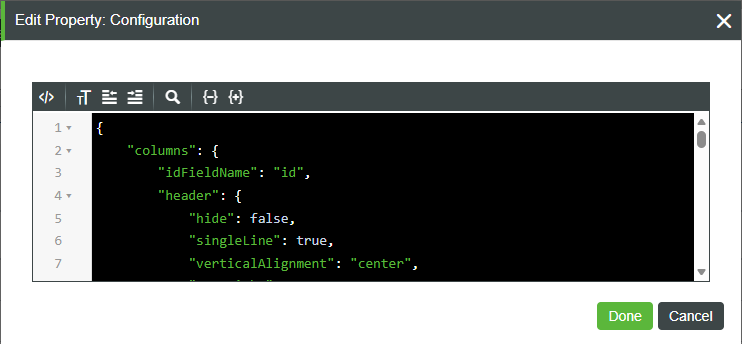
7. Click Done to apply the configuration.
8. Click Save to save the mashup, then click View to preview the configured grid.
|
|
To save edits, bind Grid CellEdited or RowEdited to a Thing service that validates and saves the row, then refresh the data service.
|
Result
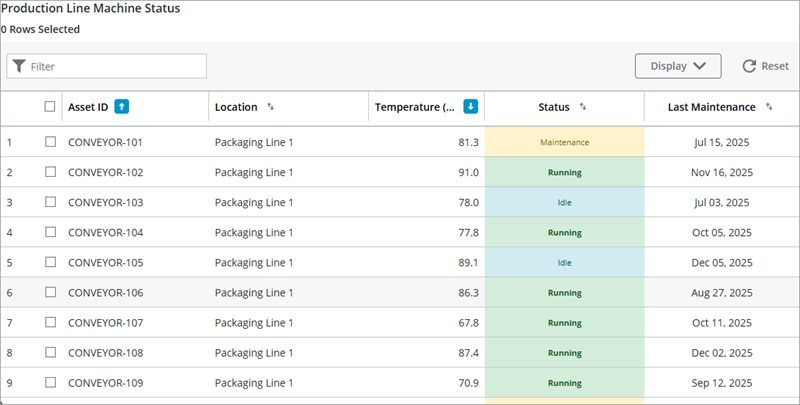
The configured grid shows machine status data with formatting, state colors, sortable columns, selection, filtering, and inline editing.
The following image shows the grid at runtime with the JSON configuration applied.