Caching Service Data in a Mashup
You can enable caching data for services that are used to retrieve data in a mashup. Caching helps reduce the number of network requests to the server, which improves performance and user experience. For example, caching a service that takes several seconds to load can reduce network, especially when the service is executed frequently and the returned data does not change often. When caching is enabled and the CacheDuration property is set, the service result is stored temporarily by the browser until the cache expires after the specified duration. You can also bind an event to the InvalidateCache service parameter to clear cached data for a service manually. This gives you programmatic control over the cache lifecycle. For example, if a user updates data in a specific place in a mashup, you can trigger InvalidateCache to force the next call to fetch fresh data.
For example,. consider a mashup that uses a service to display real-time weather data. You can enable caching by selecting CacheReturnedData on the Data Properties panel. Set CacheDuration to 60000 milliseconds (1 minute) and choose Mashup Name as the CacheStrategy to share cache between mashup instances. If users reload the mashup within a minute, ThingWorx serves the cached result. After the duration expires, it calls the service again. If the mashup accepts input parameters—such as a selected city—you can configure CacheKeyParameters to cache data separately for each input.
Best Practices for Caching Mashup Data
• Use caching selectively and enable it only for services that return static or slow-changing data.
• Set reasonable cache durations. Avoid long cache times unless data updates are infrequent.
• Avoid caching large datasets. Instead, paginate results or limit data to only what is required.
• Test cache strategies. Use the caching debugger tool during development to validate caching behavior.
Enabling Caching for Services in a Mashup
To enable caching for a service in a mashup, follow these steps:
1. In Mashup Builder, open the Data panel, then select the data service that you want to cache to view its data properties.
2. On the Data Properties panel, under Advanced, select the check box next to the CacheReturnedData property.
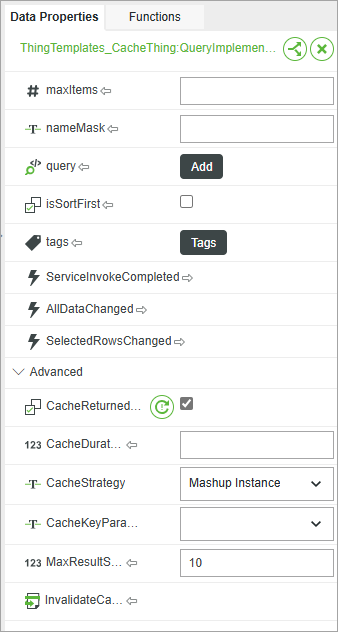
3. Specify the number of milliseconds to keep the result stored using the CacheDuration property.
4. Optionally, specify the cache storage strategy using the CacheStrategy property.
5. To cache results for specific parameters inputs, select the parameter from the drop-down list of the CacheKeyParameters values.
6. Click Save, then View Mashup.
At runtime, the service data is cached when the service is executed for the first time. Any data returned based on input parameters that are selected for the service using the CacheKeyParameters property are cached. When the service is executed again, the data is retrieved from the stored cache until the time set in CacheDuration expires.
Choosing a Caching Strategy
You can use the CacheStrategy property to store the cached data in one of two ways:
• Mashup Instance— A cache is generated based on a unique identifier for the current mashup instance. Use this strategy to ensures that each instance of a mashup has a separate cache, which is useful when each mashup instance displays different data, even when the entity and service are the same.
• Mashup Name—A cache is generated based on the mashup, entity, and service names. Use this strategy when the same data is expected to be displayed across multiple instances of a mashup, such as in a Collection widget or when a mashup is embedded within other mashups. This strategy is less specific than instance caching and the cache is shared across all instances of the same mashup.
Service Caching Properties
The following table list caching properties that are available for services on the Data Properties panel.
|
Property
|
Description
|
Base Type
|
Default Value
|
Bindable?
|
||
|---|---|---|---|---|---|---|
|
CacheReturnedData
|
Enable this to cache the data returned from the server.
|
BOOLEAN
|
False
|
No
|
||
|
CacheDuration
|
Sets the time to live duration for cached data in milliseconds. When data is cached, new data is retrieved from the server only after the duration expires.
|
INTEGER
|
Yes
|
|||
|
CacheStrategy
|
Controls the way that cache is stored. You can choose to store the cached results based on the Mashup Instance or the Mashup Name.
|
STRING
|
Mashup Instance
|
No
|
||
|
CacheKeyParameters
|
Opens a drop-down list that enables you to select the input parameters to use for generating the cache key. When a service input parameter is selected, the service results for that input are cached.
|
STRING
|
No
|
|||
|
MaxResultSets
|
Controls the maximum number of results to store for the data service. A new result is cached when the input parameters are updated. The oldest result is deleted when the maximum is reached.
|
INTEGER
|
10
|
Yes
|
||
|
InvalidateCache
|
Clears the cached result for a service. Only available when caching is enabled. You can trigger this service to refresh cached data when a server change occurs or to manually force new data retrieval.
|
Service
|
Yes
|
Validating and Troubleshooting Caching Performance
While caching improves network performance, storing too much data in memory can reduce mashup responsiveness and may cause performance issues. To mitigate these issues, ThingWorx automatically limits the amount of memory that can be used for caching. If an application exceeds the maximum cache size, the system automatically purges older cache entries—starting with the oldest—until enough space is available to store the new result set. You can use the runtime debugger tool to monitor and manage cached data used by mashups. To open the debugger tool at runtime, then click the Show/Hide Debug Info button on the mashup toolbar if it is visible, or press CTRL+ALT+SHIFT+F9 to show the runtime toolbar.
 |
ThingWorx automatically removes cached items when a service reaches its maximum number of stored results or when the total cache size exceeds the limit. If the cache exceeds the total size limit, ThingWorx deletes the oldest cached entries first until it creates enough space to store the new result set. These limits help ensure optimal performance and prevent excessive memory use in the browser.
|
The following image shows the debugger at runtime. At the top of the Cache Data tab, you can see a summary showing the total number of cached items, an approximate total size of the cache, and the maximum allowed cache size. This summary helps you quickly assess whether caching might be affecting performance.
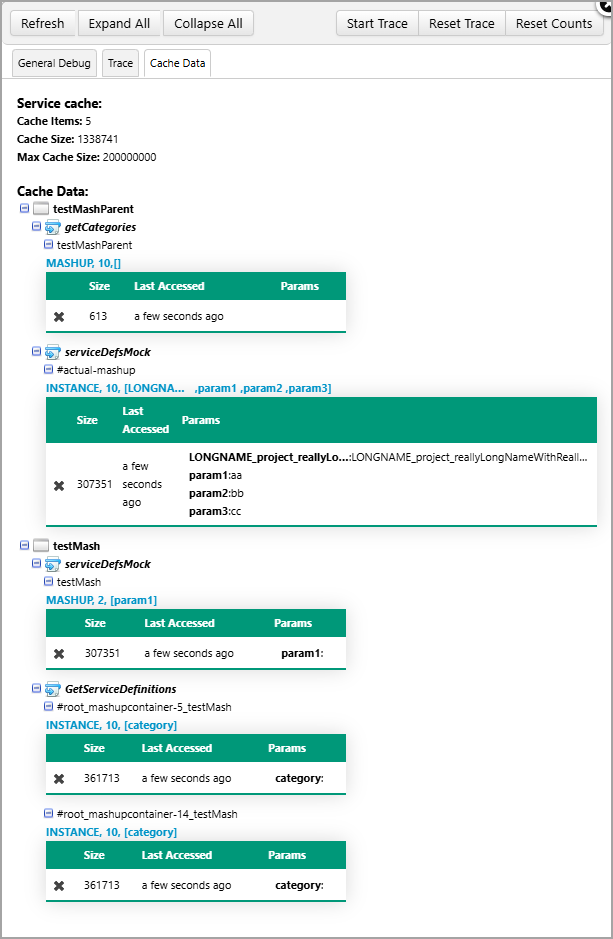
The debugger displays the following information for each cached service:
• Mashup name—The mashup that called the service.
• Service name—The specific service that cached the data.
• Cache ID—An internal identifier used to group and identify cached results.
• The cached result entries. Each item shows:
◦ The caching strategy for the cached item.
◦ The size of the cached result.
◦ The last accessed time.
◦ The input parameters that used in the service call and their value.
◦ A delete button to manually remove the cache entry.
When cached items are deleted manually or automatically, the summary is updated. You can also expand and collapse each section. In this example, the first service, getCategories is cached for the Mashup Name. Other services such as serviceDefsMock are cached for the Mashup Instance. The cached input parameters and their values for this service are also listed.