CGM 이미지를 SVG로 변환
Servigistics InService에서는 데이터의 CGM 이미지를 SVG 이미지로 변환하는 기능을 제공합니다. SVG 이미지의 품질은 CGM 이미지의 품질과 동일하지만 SVG 이미지를 보기 위해 웹 브라우저 플러그 인이 필요하지 않습니다.
CGM 그래픽을 SVG로 변환하려면 CGM-SVG 변환기가 있어야 합니다. 시스템에 로드하기 전에 데이터를 게시하면 변환이 발생합니다. Larson CGM 엔진 변환기는 Servigistics InService의 설치 추가 기능으로 제공됩니다. Larson이 설치된 경우 해당 옵션을 선택하면 CGM 이미지가 자동으로 SVG로 변환됩니다.
다른 변환기를 사용하려면 해당 변환기를 지원하도록 시스템을 구성해야 합니다. 변환기가 게시자 서버에 플러그 인으로 설치됩니다. 변환기를 구현하려면 다음 단계를 따르십시오.
1. 사용자 정의 콘텐츠 구성 파일에서 이름이 CustomCGMtoSVGConverter인 컴포넌트를 정의합니다.
구성 파일은 INSERVICE_CONFIG/System/Config 디렉토리에 있어야 합니다. 여기에서 customizedContext_3.conf.xml과 같은 기존 파일을 사용할 수 있지만 새 파일을 생성하는 것이 좋습니다. 파일의 이름은 customizedContext_X.conf.xml이어야 합니다. 여기에서 X는 번호입니다. 컴포넌트는 둘 이상의 파일에 있을 수 있지만 시스템에서는 항상 번호가 더 높은 파일의 컴포넌트를 사용합니다.
이 컴포넌트에서 변환기별 특성을 구성할 수 있습니다. 컴포넌트 클래스에서는 다음 메소드를 통해 이러한 특성에 액세스할 수 있습니다.
public void configure(IConfiguration conf) throws ConfigurationException {
구성 파일에서 선언된 구성 매개 변수는 패키지 경로가 IConfigurationcom/enigma/sdk/framework/configuration인 Framework.jar 파일의 인터페이스에서 정의된 다양한 메소드를 사용하여 액세스할 수 있습니다. Framework.jar 파일은 INSERVICE_HOME\InS_SW\SW\System\WildFly\modules\system\layers\base\com\ptc\e3c\main에 있습니다.
2. SCEImageConverter.jar 파일에 있는 com.enigma.imageConverter.ImageConverter 클래스를 확장하여 CGM-SVG 변환기에 대한 Java 클래스(예: CustomCGMtoSVGConverter)를 생성합니다.
3. 이름이 convertCGMToSVG이며 input folder, output folder 및 output format의 3개 문자열 매개 변수가 있는 메소드를 생성합니다.
이 메소드는 입력 폴더에 있는 CGM 이미지를 SVG 이미지로 변환하여 출력 폴더에 배치합니다.
4. execute(Map variables, String method) 메소드를 덮어씁니다.
메소드 이름이 convertCGMToSVG인 경우 변수 맵에서 다음 매개 변수를 추출할 수 있습니다.
//input folder
String input = (String) variables.get("input");
//output folder
String output = (String) variables.get("output");
//output format
String outputFormat = (String) variables.get("outputFormat")
그런 다음 위의 매개 변수로 2단계에서 정의한 메소드를 호출합니다. 입력 폴더에 있는 CGM 파일이 SVG 파일로 변환되어 출력 폴더에 배치됩니다.
5. 이미지 변환을 위해 로드 특정 플로우를 업데이트합니다.
6. CGMtoSVGConverterSubFlow_PD.xml 하위 플로우의 ConvertCGMToSVGNode 노드에 사용된 CGM-SVG 변환기 컴포넌트 및 메소드 이름을 업데이트합니다.
컴포넌트 및 메소드 이름이 2단계 및 4단계에서 정의된 것과 동일해야 합니다. 호출될 메소드는 1단계에서 생성된 사용자 정의 클래스에서 정의되어야 합니다.
변환기를 구현한 후 다음 단계를 따라 CGM-SVG 처리를 사용자 정의합니다.
1. INSERVICE_CONFIG/System/Config 디렉토리에 있는 customizedContext_3.conf.xml 파일에 다음 특성을 추가합니다.
<Component Name="CustomCGMToSVGConvertor">
<Creation Type="JavaObject">
<!-- class name with package -->
<Class>com.custom.imageConverter.CustomCGMToSVGConvertor</Class>
</Creation>
<Config>
<!-- Pass various configuration parameters for converter into the Component -->
<!-- User can define attributes as
<attribute1>value</attribute1>
<attribute2>value</attribute2>
-->
</Config>
</Component>
2. 다음 사전 처리 노드를 포함하도록 INSERVICE_CONFIG/System/Config/Flows/ContentManager 디렉토리에 있는 contentManagerFlow_PD.xml 파일을 업데이트합니다.
<start-state name="start">
<transition to="runConvertImagesSubFlow"/>
</start-state>
<!-- Normalize sources -->
<node name="runCMPublishNormalizeSubFlow">
<action class="com.enigma.workflowengine.handlers.FlowActionHandler" config-type="handler">
<processDefinitionPath>${enigma.config.home}/System/Config/Flows/ContentManager/
cmPublishNormalizeFlow_PD.xml</processDefinitionPath>
</action>
<transition name="failure" to="End"/>
<transition name="success" to="runConvertImagesSubFlow"/>
<transition name="reenter" to="runCMPublishNormalizeSubFlow"/>
</node>
<node name="runConvertImagesSubFlow">
<action class="com.enigma.workflowengine.handlers.FlowActionHandler" config-type="handler">
<processDefinitionPath>${enigma.config.home}/System/Config/Flows/ContentManager/
convertImagesFlow_CustomPD.xml</processDefinitionPath>
<monitoringName>Run Convert Images Flow</monitoringName>
</action>
<transition name="failure" to="End"/>
<transition name="success" to="runCheckGlobalDiskSpaceFlow"/>
<transition name="reenter" to="runConvertImagesSubFlow"/>
</node>
<node name="runCheckGlobalDiskSpaceFlow">
<action class="com.enigma.workflowengine.handlers.FlowActionHandler" config-type="handler">
<processDefinitionPath>${enigma.config.home}/System/Config/Flows/ContentManager/
checkGlobalDiskSpaceFlow_PD.xml</processDefinitionPath>
<monitoringName>Check Disk Space</monitoringName>
</action>
<transition name="failure" to="End"/>
<transition name="success" to="runHandlePDFLinksFlow"/>
<transition name="reenter" to="runCheckGlobalDiskSpaceFlow"/>
</node>
<!-- Setup profile path.
<node name="getProfilePath">
<action class="com.enigma.workflowengine.handlers.ProcessActionHandler" config-type="handler">
<contextName>ContentManager.Application.BusinessLogic</contextName>
<componentName>PacketDeployer</componentName>
<methodName>getProfilePath</methodName>
<profileName>${profile_name}</profileName>
<monitoringName>Retrieve Profile Path</monitoringName>
</action>
<transition name="failure" to="End"/>
<transition name="success" to="runHandlePDFLinksFlow"/>
<transition name="reenter" to="getProfilePath"/>
</node>
-->
<node name="runHandlePDFLinksFlow">
<action class="com.enigma.workflowengine.handlers.FlowActionHandler" config-type="handler">
<processDefinitionPath>${enigma.config.home}/System/Config/Flows/ContentManager/
handlePDFLinksFlow_PD.xml</processDefinitionPath>
<monitoringName>Handle PDF Links</monitoringName>
</action>
<transition name="failure" to="End"/>
<transition name="success" to="TypeOfCMScriptDecision"/>
<transition name="reenter" to="runHandlePDFLinksFlow"/>
</node>
<decision name="TypeOfCMScriptDecision">
<transition name="failure" to="End"/>
<transition name="CreateCMScriptFlow" to="runCreateCMScriptFlow">
<condition expression="#{S1000D_publication != 'true'}" />
</transition>
<transition name="CreateCMScriptForS1000DFlow" to="runCreateCMScriptForS1000DFlow">
<condition expression="#{S1000D_publication == 'true'}" />
</transition>
</decision>
<node name="runCreateCMScriptFlow">
<action class="com.enigma.workflowengine.handlers.FlowActionHandler" config-type="handler">
<processDefinitionPath>${enigma.config.home}/System/Config/Flows/ContentManager/
createCMScriptFlow_PD.xml</processDefinitionPath>
<monitoringName>Create Script</monitoringName>
</action>
<transition name="failure" to="End"/>
<transition name="success" to="extractFeedIds"/>
<transition name="reenter" to="runCreateCMScriptFlow"/>
</node>
<node name="runCreateCMScriptForS1000DFlow">
<action class="com.enigma.workflowengine.handlers.FlowActionHandler" config-type="handler">
<processDefinitionPath>${enigma.config.home}/System/Config/Flows/ContentManager/
createCMScriptFlowForS1000D_PD.xml</processDefinitionPath>
<monitoringName>Create Script For S1000D</monitoringName>
</action>
<transition name="failure" to="End"/>
<transition name="success" to="extractFeedIds"/>
<transition name="reenter" to="runCreateCMScriptForS1000DFlow"/>
</node>
<!-- Copy contents before this node -->
<node name="extractFeedIds">
3. INSERVICE_CONFIG/System/Config/Flows/ContentManager 디렉토리에 있는 convertCGMToSVGFlow_PD.xml 파일에 새 특성을 추가합니다.
이렇게 하려면 먼저 파일의 다음 부분에 있는 마지막 두 줄을 주석 처리합니다.
<node name="ConvertCGMToSVGNode">
<action class="com.enigma.workflowengine.handlers.ProcessActionHandler" config-type="handler">
<contextName>DataProcess.Application.BusinessLogic</contextName>
<componentName>CGMToSVGConverter</componentName>
<methodName>doConvertViaPTCTool</methodName>
그런 다음 주석 처리된 줄 아래에 다음 특성을 추가합니다.
<componentName>CustomCGMToSVGConvertor</componentName>
<methodName>convertCGMToSVG</methodName>
4. CustomCGMToSVGConvertor.java 파일을 컴파일하고 INSERVICE_HOME/InS_SW/SW/System/WildFly/modules/system/layers/base/com/ptc/e3c/main/SCEImageConverter.jar/com/ptc/sce/imageConverter 디렉토리에 있는 CustomCGMToSVGConvertor.class 파일을 복사합니다.
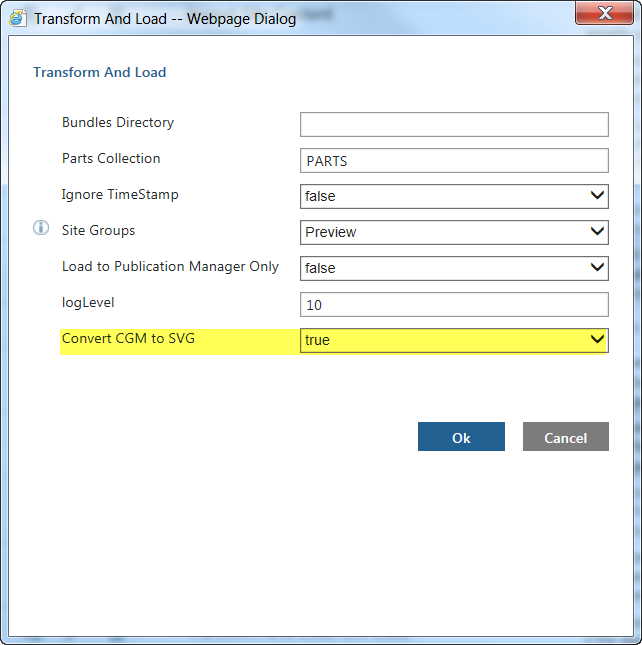
구성을 완료한 후 그래픽을 변환하려면 Convert CGM to SVG 옵션을 true로 설정하여 Transform and Load 작업 또는 Transform and Load CSV Data 작업을 실행합니다.