Servigistics InService オフラインシステム管理者のパスワードの変更
Servigistics InService オフラインシステムの管理者のパスワードを変更した後、次のステップを完了する必要があります。
1. パス環境変数に以下を追加します。
<InService>\InS_SW\SW\System\Java\bin;
<InService>\InS_SW\SW\Applications\Windchill.ear\ant\bin;
<InService>\InS_SW\SW\Applications\Windchill.ear\bin
2. Windchill のシェルを開きます。
3. 次の場所に移動します: <InService>\InS_SW\SW\Applications\Windchill.ear\bin\adminTools\sip
4. 次のコマンドを実行します。
ant -f EncryptPasswords.xml encryptPw -DpropertyName=com.ptc.sc.data.install.userPassword -Dpassword=<new_password>
5. InS_SW\SW に移動し、ご使用のオペレーティングシステムに応じて PasswordEncryptionUtility.bat または PasswordEncryptionUtility.sh を実行します。
6. オプション 2、FTP Password encryption を選択します。
7. 新しい管理者のパスワードを入力します。パスワードは大文字小文字を区別します。
8. 新しく暗号化されたパスワードを書き留めておきます。
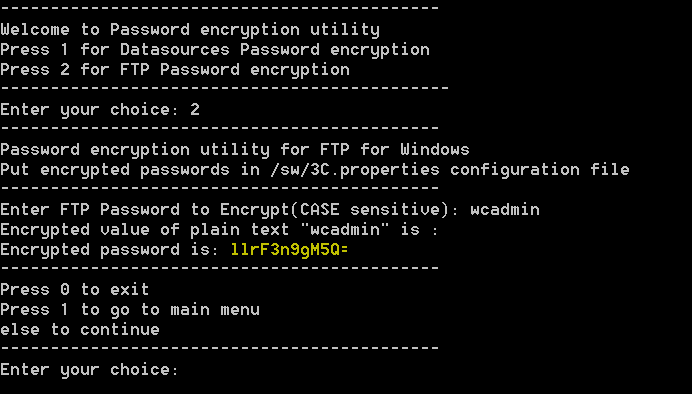
9. InS_SW\Config\System\Config\customizedContext_3.conf.xml に移動して開きます。
10. 次のプロパティを検索し、値を新しく暗号化されたパスワードに置き換えます。
Property Name="SystemPassword"
Value="new encrypted password"/
| DefaultAdmin の名前が変更された場合、InS_SW\SW に移動し、ご使用のオペレーティングシステムに応じて PasswordEncryptionUtility.bat または PasswordEncryptionUtility.sh を実行し、適宜 SystemUserName プロパティを更新します。 |
