Configuring Part Settings for Solution
Define which parts appear in the Add Parts and Manage Parts windows for Investigation Solutions by applying an expression-based filter, a product structure filter, or both, so Remote Service Engineers see only the parts that are relevant to a Solution.
You can configure Part Settings to define which parts are available for selection in Investigation Solutions. Part Settings support an expression-based filter, a product structure filter, or both to restrict the default parts list.
These settings apply only to Solutions without Work Plans and do not affect Work Plan Part Settings behavior.
|
Prerequisites
|
|---|
|
Expression-based filters require expressions created on the SFM Expressions page. Only saved expressions appear in the Expression dropdown. For more information on how to create expressions, see Creating SFM Expressions.
|
To configure Part Settings for solutions:
1. Navigate to ServiceMax Setup > Investigations > Product Applicability Rules.
The Product Applicability Rules page is displayed.
2. Select the Solution tab.
3. The Part Settings section is expanded by default. Expand it if it is collapsed.
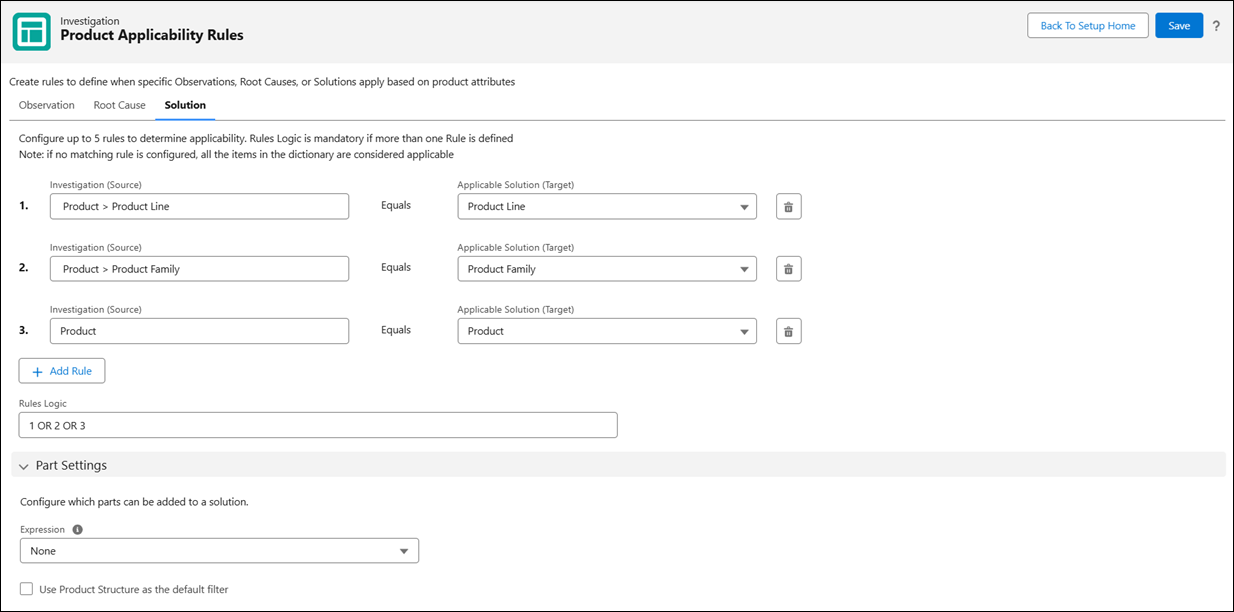
4. From the Expression dropdown, select an expression to filter the parts available to RSEs when they add or manage parts for a Solution.
The dropdown defaults to None, which applies no expression filter. The dropdown lists expressions created on the SFM Expressions page (for example, an expression where Product Family = Cooling Equipment).
 |
To add an expression to this dropdown, create it on the SFM Expressions page first. Only saved expressions appear in the Expression dropdown. For more information on how to create expressions, see Creating SFM Expressions
|
5. Select the Use Product Structure as the default filter checkbox to restrict the parts list to the Product Structure. When enabled, the parts list defaults to the Product Structure instead of showing all products.
|
|
• If this checkbox is not selected, no product filter is applied and all parts are displayed.
• If no Product Structure is defined for the Product and this checkbox is selected, the parts list displays the Product itself instead of its structure.
|
6. Click Save to apply the changes.
|
|
Any changes made will only be applied when you click Save. Navigating away without saving will discard your changes.
|
Part Settings Runtime Behavior
When an RSE opens the Add Parts or Manage Parts window for a Solution, the configured Part Settings control which parts are displayed and available for selection.
Expression filter behavior
• If an expression is selected (for example, Product Family = Medical Imaging Equipment), only parts matching the expression criteria are displayed. The expression restricts parts across all views in the Add Parts and Manage Parts windows.
• When Show All Products is selected in the Filter by Product dropdown, only parts matching the expression are displayed, not all parts in the system. For example, if the expression is set to Medical Imaging Equipment, only imaging-related parts such as transducer cables, imaging modules, and display assemblies are displayed.
• When a product is selected in the Filter by Product dropdown, either by default or manually, only parts matching the expression criteria appear within that Product Structure. For example, if you select a product such as Soniscape SSI 1000, only imaging-related parts within the SSI 1000 structure are displayed.
• If no expression is selected (None), no expression-based filter is applied and all eligible parts are displayed.
Product Structure filter behavior
• If Use Product Structure as the default filter is enabled, the Filter by Product dropdown defaults to the Product Structure, narrowing the parts list to that product's components.
• The RSE can change the selection to Show All Products to see all eligible parts. Any configured expression filter still applies.
• If Use Product Structure as the default filter is not selected, the Filter by Product dropdown defaults to Show All Products and all parts are visible. Any configured expression filter still applies.