Connecting External Document Sources
As an administrator, you can connect external document sources to ServiceMax AI so that the system can access and manage documents from repositories such as Microsoft OneDrive and Microsoft SharePoint.
To connect external document sources, perform the following steps.
1. Navigate to > > .
The ServiceMax AI Console is launched.
 |
You can also log in to the ServiceMax AI console directly at https://console.servicemax.io/ai with your Salesforce org credentials.
|
2. On the sidebar, click > > .
The Knowledge Access page is displayed.
3. Click Add Document to upload a document to ServiceMax AI.
The Add Document window is displayed.
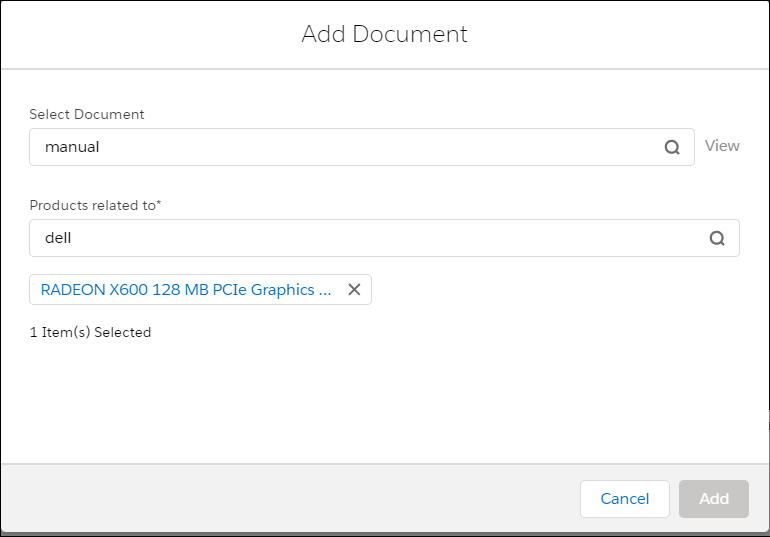
4. Provide the details for the fields as described in the following table.
|
Field
|
Description
|
|---|---|
|
Manage Sources
|
Configures document sources such as Salesforce Files, Microsoft OneDrive, and Microsoft SharePoint.
|
|
Dropdown Menu
|
Currently set to Salesforce Files, suggesting that you can choose from multiple document repositories.
|
|
Search Bar
|
Search field for specific documents within the selected source.
|
|
Cancel
|
Closes the pop-up window without saving changes.
|
|
Add documents
|
Confirms the selection and adds the selected documents.
|
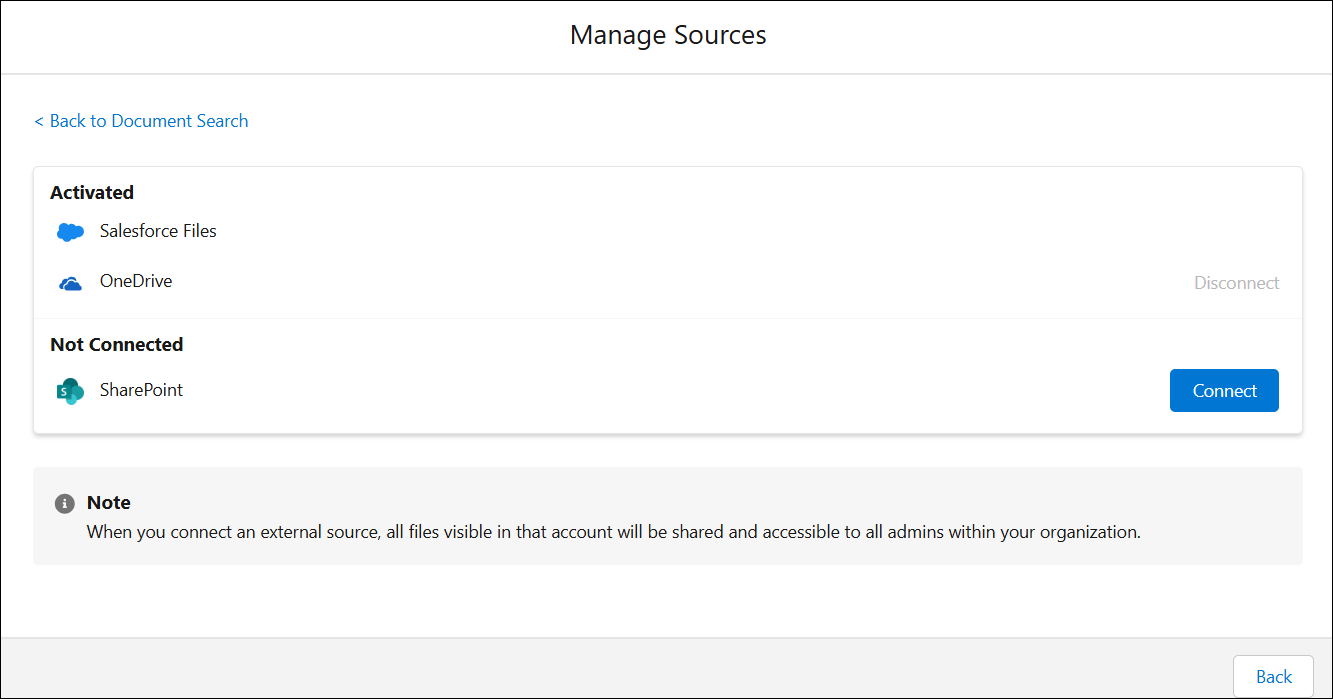
5. Click Manage Sources and select the required source, such as OneDrive.
The Manage Sources window is displayed with the following details.
|
Field
|
Description
|
|---|---|
|
Back to Document Search
|
Returns to the previous window where document searches are performed.
|
|
Activated Sources
|
Lists external sources currently connected. By default, Salesforce Files is activated.
|
|
Connect
|
Links external document sources like OneDrive and SharePoint. After authentication and authorization, the source is added to the system, making its files accessible to admin for document search, upload, and product association.
|
|
Disconnect
|
Removes access to an external document source like OneDrive or SharePoint. This prevents new document uploads from the source but retains access to previously processed documents. Sources cannot be disconnected while documents are in a processing state.
|
|
Not Connected Sources
|
Lists sources that are available but not yet connected.
|
|
Back
|
Exits the Manage Sources window.
|
6. Click Connect.
The File Storage Connection pop-up window is displayed.
7. Click Authorize.
The OneDrive external source is authorized.
8. In the Drive field, select OneDrive (business) and click Save.
OneDrive is now configured and added as an external repository, available for document search and upload.
9. To add Salesforce, return to the Manage Sources window, and repeat steps 6 to 7.
10. In the SharePoint Site field, select a default site and click Save.
SharePoint is now configured and added as an external repository, available for document search and upload.