Exporting Demand Forecast Results
Export a completed demand forecast as a PDF, CSV, or Excel file from the forecast results overlay.
PTC Orbit enables you to export the results of a completed demand forecast so that you can share the forecast result outside the application. The exported file captures the forecast results displayed in the results overlay, including the workload summary, the bar chart of forecasted work orders and work hours, the monthly data table, and the persisted parameters that were used to generate the forecast. Exporting is useful when you need to circulate the forecast with stakeholders or when you want to archive a snapshot of the forecast for future reference. You can choose between PDF, CSV, and Excel formats, depending on whether the recipient needs a printable summary or a structured data file for further analysis.
|
Prerequisite
|
|---|
|
A demand forecast with a status of Completed must exist in the Demand Forecasting list. You must have access to the Demand Forecasting module in PTC Orbit.
|
1. Log in to PTC Orbit and click the  icon to launch the navigation pane.
icon to launch the navigation pane.2. Click Demand Forecasting from the left navigation menu. The Demand Forecasting list is displayed.
3. Click a forecast with a status of Completed in the list.
The forecast results overlay opens, displaying the forecast name, description, the Created On date, and the Export to: options at the top right.
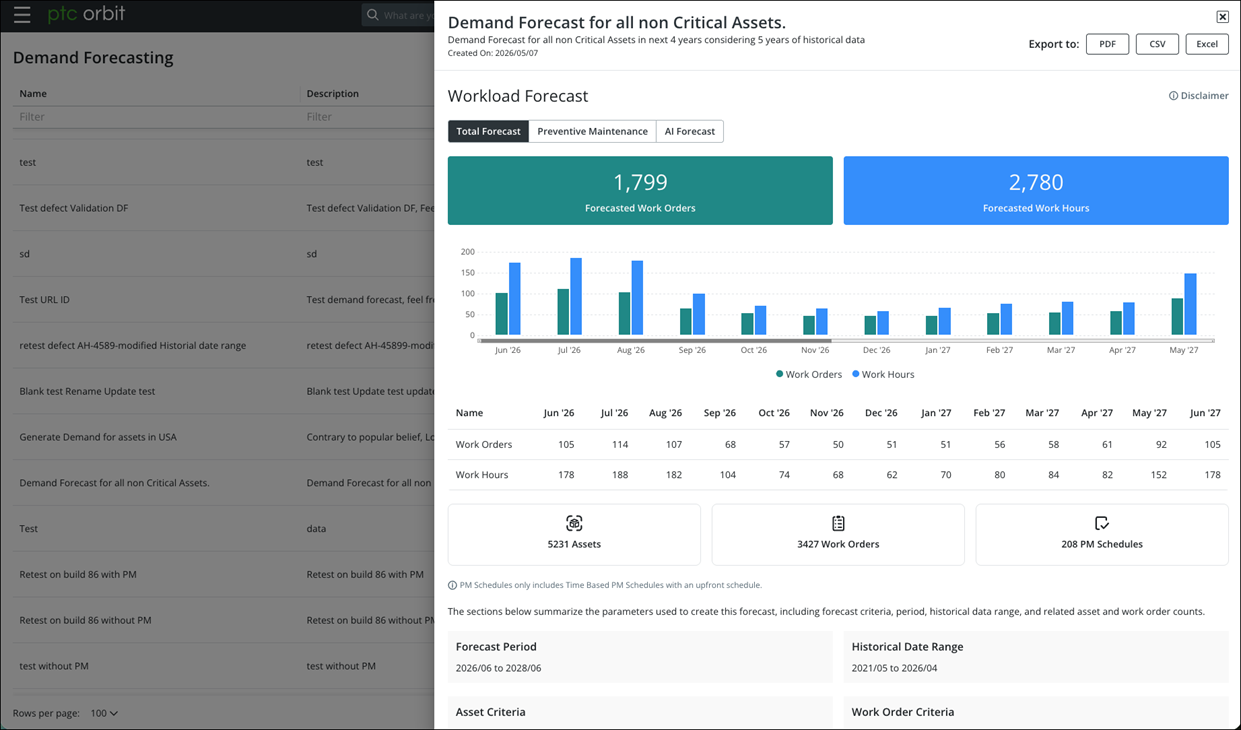
4. Review the forecast data in the overlay.
The Workload Forecast section provides the Total Forecast, Preventive Maintenance, and AI Forecast tabs, along with summary cards for Forecasted Work Orders and Forecasted Work Hours, a bar chart of work orders and work hours over the forecast period, and a data table aligned to the forecast time frame. A Disclaimer text in the section header shows additional information about how the forecast values are calculated. Below the chart, the persisted parameters from the forecast creation are displayed in cards for Forecast Period, Historical Date Range, Asset Criteria, and Work Order Criteria.
5. From the Export to: options at the top right of the overlay, click the format you need: PDF, CSV, or Excel.
The file is generated and downloaded to your local machine. The exported file contains the forecast results shown in the overlay.
The demand forecast results are exported in the selected format. You can share the file with stakeholders.
Related Topics