Creating a Revenue Campaign
Create a Revenue Campaign to generate targeted sales opportunities such as upgrades, renewals, or cross-sell initiatives.
You can create a revenue campaign that focuses on driving new business opportunities and increasing revenue through targeted sales actions. Unlike service campaigns, which revolve around asset maintenance, a revenue campaign is centered on generating and managing sales opportunities, such as product upgrades, cross-sells, renewals, or promotional offers, across selected customer accounts or asset segments.
When a revenue campaign is launched, it enables you to define opportunity details and rollout plans at scale, reducing the manual effort of creating individual sales tasks. This campaign type empowers sales or customer success teams to engage prospects in a timely and structured manner, ensuring consistency in messaging, prioritization, and follow-up. The use of revenue campaigns helps organizations capitalize on recurring revenue cycles, align selling efforts with marketing strategies, and improve pipeline visibility. Ultimately, it serves as a proactive tool to accelerate business growth, strengthen customer relationships, and measure the effectiveness of revenue-generating initiatives.
1. Log in to PTC Orbit and click the  icon to launch the navigation pane.
icon to launch the navigation pane.2. Click Campaigns. The default list of campaigns is displayed.
3. Click New Campaign. The New Campaign page is displayed with Service selected by default.
4. Click Revenue.
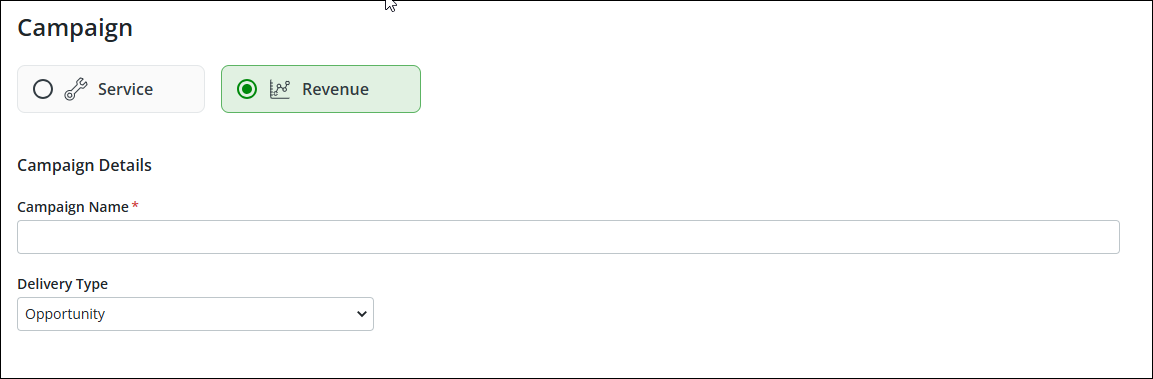
5. In the Campaign Details section, enter a name for the campaign and select the delivery type as Opportunity.
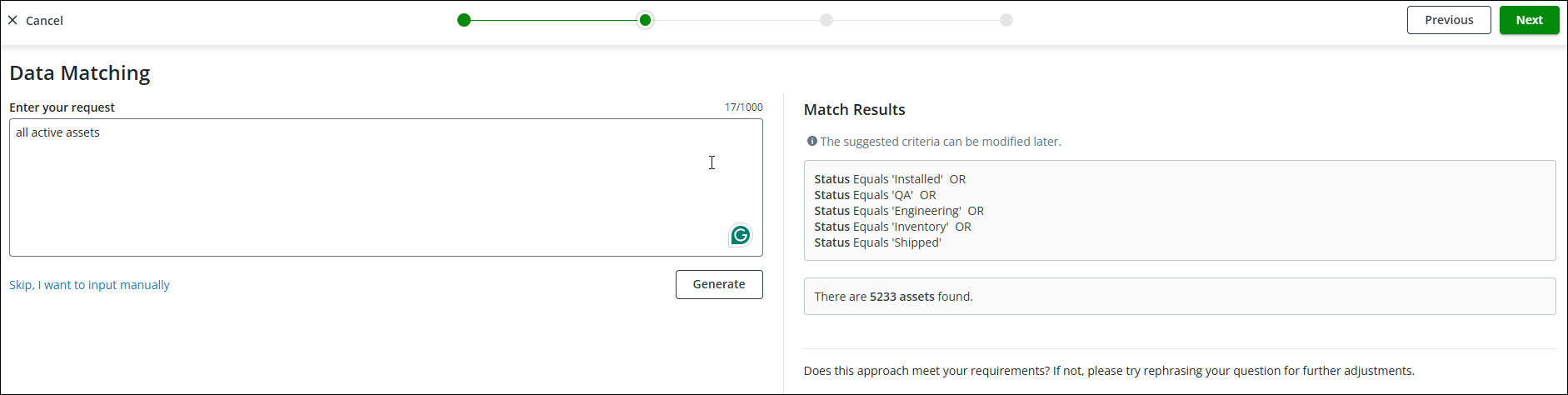
6. Click Next. The Data Matching screen is displayed.
7. In the Request box, enter your request and click Generate. This is an LLM-powered search capability that creates criteria based on the input. The suggested criteria are displayed on the right-side pane of the page with the number of assets qualified for the request. You can modify the suggested criteria on the next screen, if required.
 |
You can click the Skip, I want to input manually link to create criteria option manually.
|
8. Click Next. The list of assets from the suggested criteria is displayed with the list of criteria on the left-side pane.
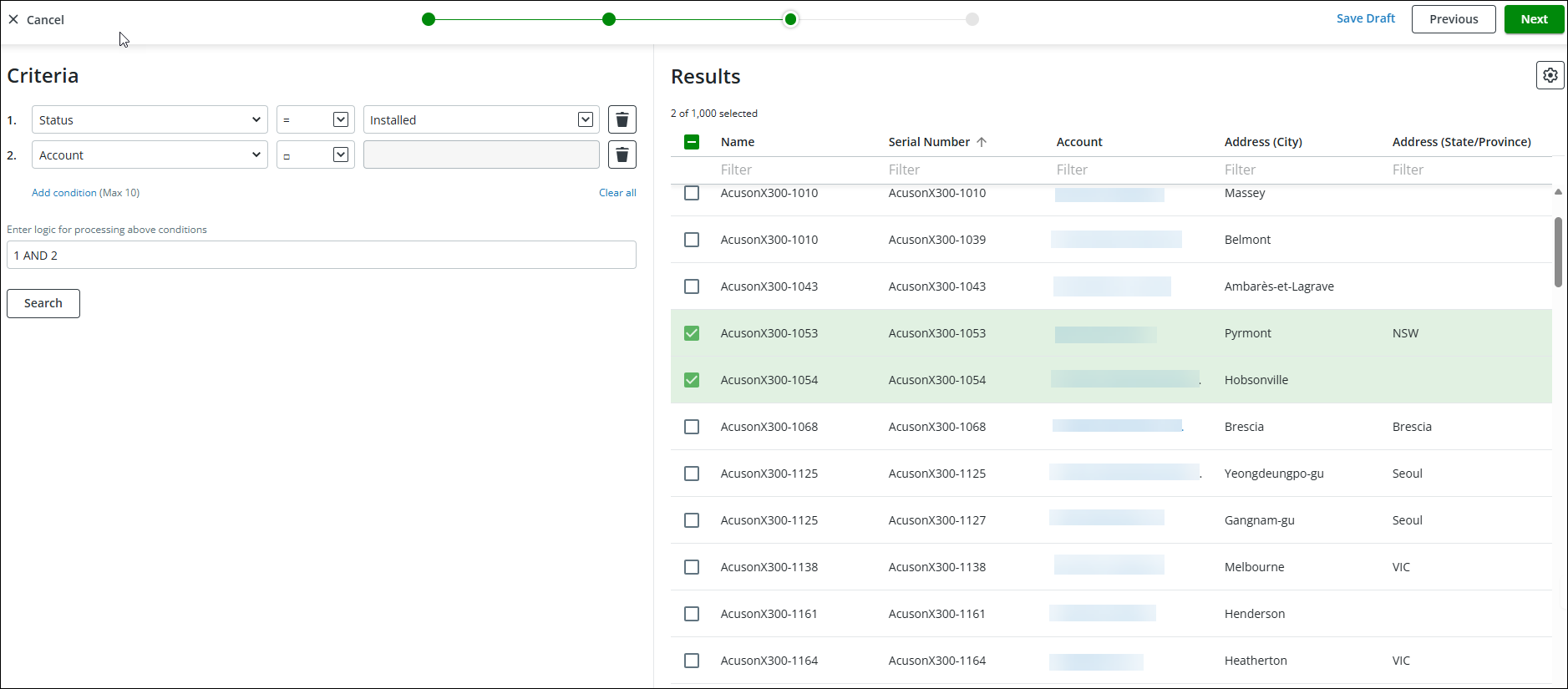
9. Modify the criteria on the left-side pane, if required, and click Search to update the search result on the right-side pane.
10. On the Results pane on the right-side, select the assets from the list.
|
|
• You can click the checkbox on the header row to select all on the current page or select all assets on the result.
• You can filter each column with keywords to refine the search result.
• You can click the account name to see the details and the number of associated assets.
• You can click the gear icon to filter columns.
• You can select the number of rows displayed on a page from the Rows per page drop-down at the lower-left of the list.
• You can navigate through pages using the next and previous arrows at the lower-right of the list.
• You can click the up or down arrow on the column header to sort the list based on the column values.
|
11. To save the campaign as draft, click Save Draft.
12. To start the campaign, click Next. The Campaign Delivery page is displayed with campaign summary.
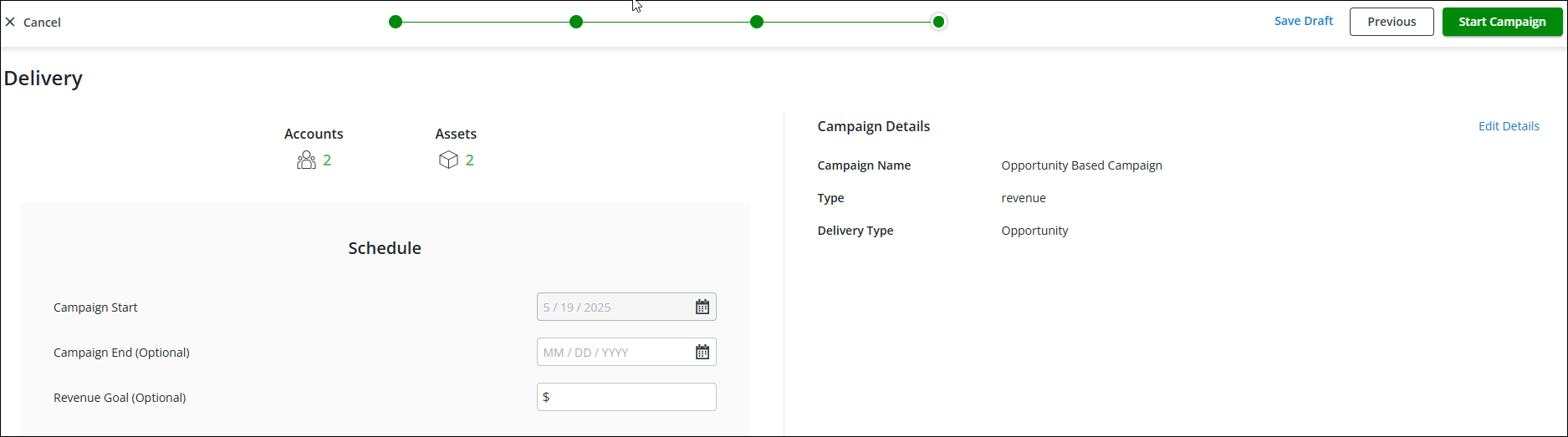
13. Select an end date for the campaign. No new Opportunity records are created after the campaign end date.
14. Enter a revenue goal that defines the targeted monetary outcome that the campaign aims to achieve and serves as a benchmark for performance tracking, motivation, and strategic alignment.
15. Click Start Campaign. The campaign status is updated to In Progress, and you are redirected to the campaign list page.
What to Do Next
You can review and change the campaign status. For more information, refer to Changing campaign status.