Configuring Salesforce Authentication
Create a Salesforce External Client App with OAuth Client Credentials Flow to establish a secure, machine-to-machine connection between PTC Orbit and your ServiceMax Core environment.
PTC Orbit authenticates to ServiceMax Core through an External Client App configured with the OAuth 2.0 Client Credentials Flow. The access token generated by this flow represents the app's configured Run As user, not an interactive end user; this model fits machine-to-machine integrations where no browser login occurs.
This topic is intended for administrators and implementers who configure Salesforce connectivity for Matillion pipelines.
|
Prerequisites
|
|---|
|
• Salesforce administrator access to the target org.
• The target org URL with My Domain enabled. For example, https://your-org.my.salesforce.com
• A licensed, active Salesforce user account to serve as the Run As user for the integration.
|
Creating the External Client App
1. Log in to Salesforce Lightning Experience, click the gear icon to open Setup, type External Client App Manager in Quick Find, and open it.
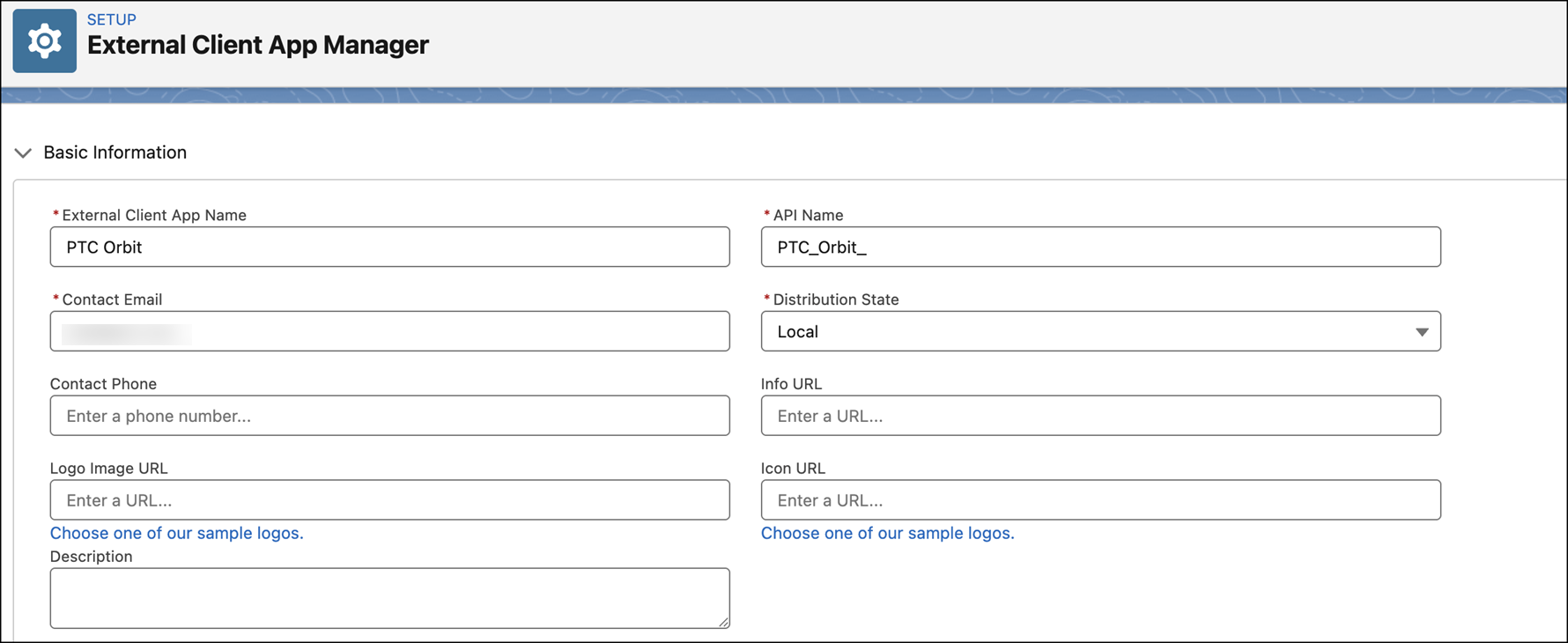
2. Click New External Client App. Enter values for External Client App Name, API Name, and Contact Email in the Basic Information section.
3. In the API (Enable OAuth Settings) section, check Enable OAuth. Enter a callback URL. For the Client Credentials Flow, the callback URL is not used during token exchange, but the UI requires a value. Use your org's token endpoint as the callback URL.
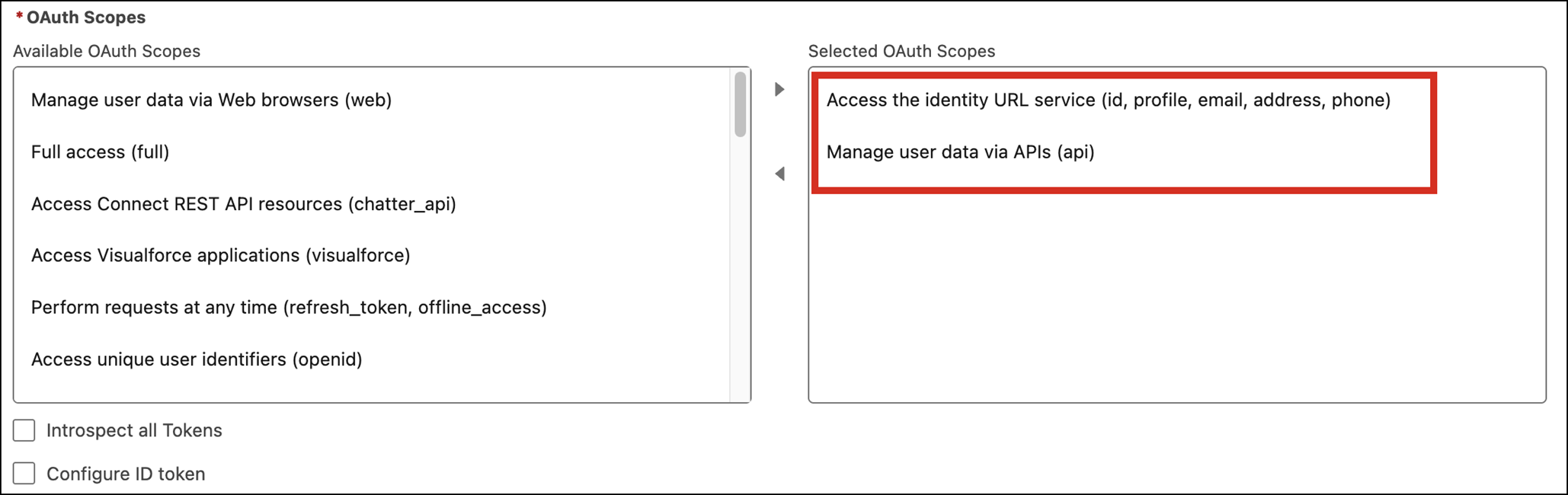
4. Add two OAuth scopes: identity (id, profile, email, address, phone) and api (REST and SOAP access).
5. Check Client Credentials Flow. Uncheck Require Proof Key for Code Exchange (PKCE); PKCE applies to authorization code flows, not Client Credentials.
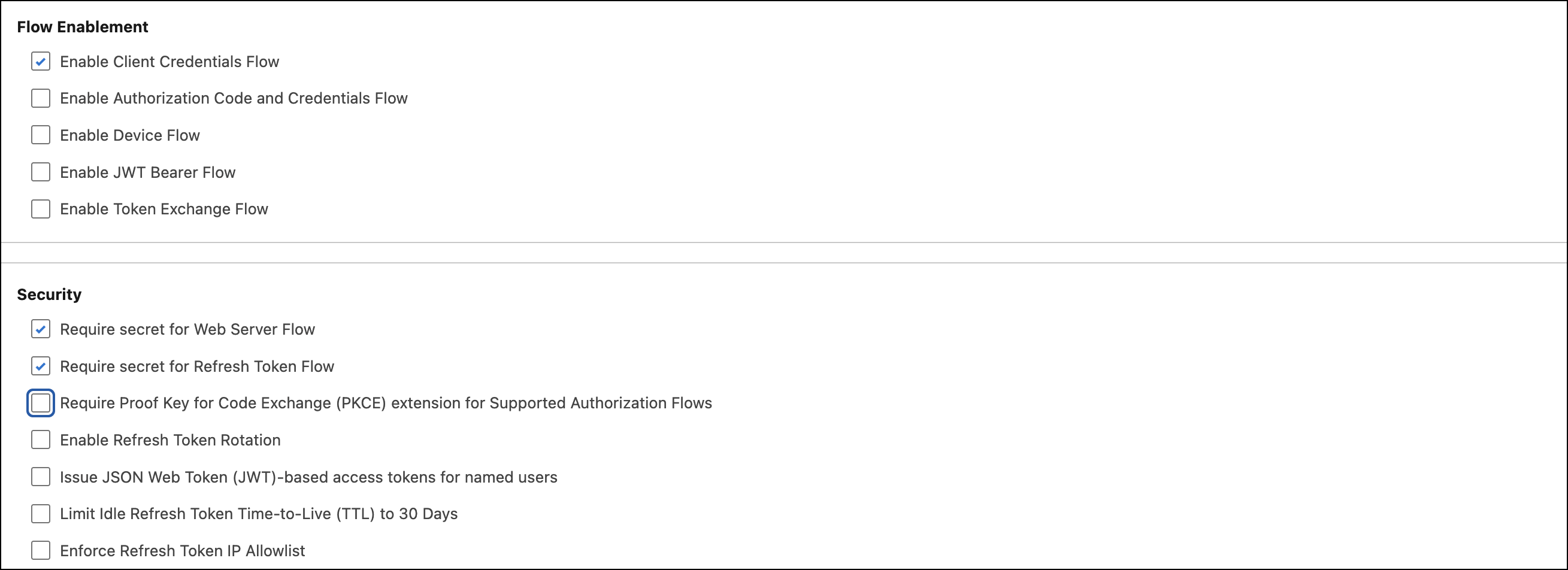
6. Click Create.
Configuring OAuth Policies
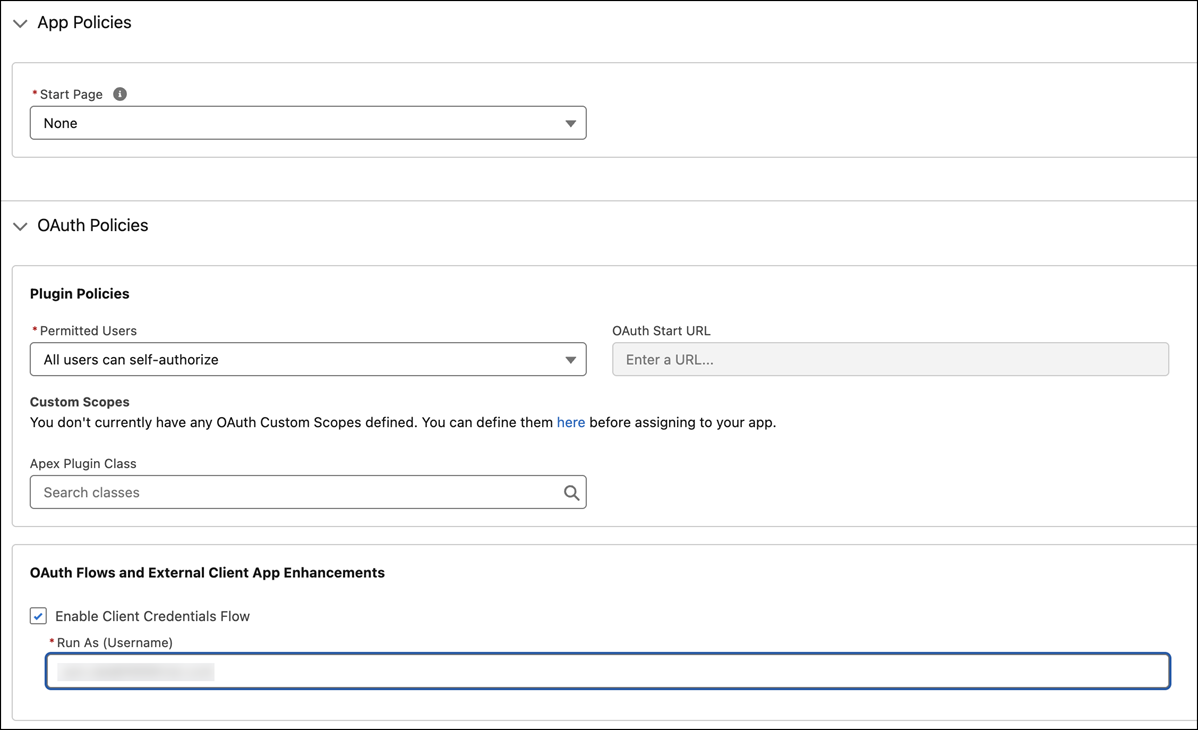
1. Open the new app record in External Client App Manager. Verify that Client Credentials Flow is enabled under Policies in the OAuth Flows and External Client App Enhancements section.
2. Set Run As Username to the integration user. The access token inherits all permissions from this user; assign profiles and permission sets that follow the principle of least privilege.
 |
Ensure the user has permissions to access the Salesforce objects used by Matillion pipelines.
|
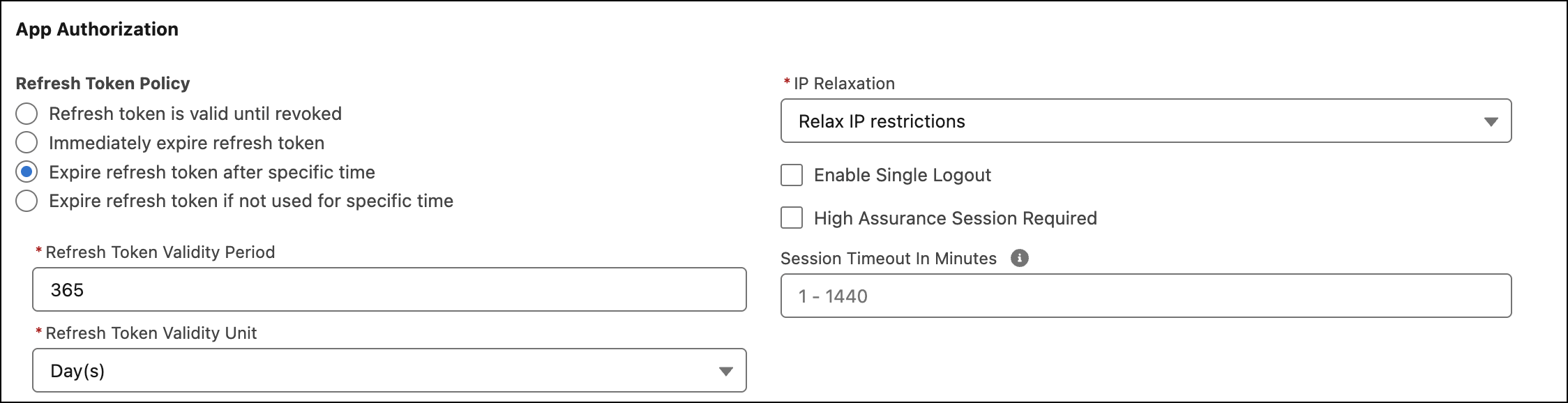
3. Set IP Relaxation to Relax IP Restrictions if the client resides outside your trusted IP ranges.
|
|
Coordinate with your security team to either whitelist client IPs or relax restrictions for this app only if your org enforces IP restrictions.
|
4. Click Save.
Retrieving Client Credentials
1. From the Settings tab, expand the app’s OAuth Settings section.
2. Click Consumer Key and Secret.Salesforce generates the credentials after verifying the user identity.
3. Copy the Consumer Key and Consumer Secret. Store both values securely; you need them when configuring the connection in PTC Orbit.
 |
Do not commit Client Secrets to source control or share them through email or chat. Rotate secrets periodically and whenever personnel changes occur.
|
Verifying the Connection
To confirm the External Client App is configured correctly, generate an access token by sending a POST request to your org's token endpoint:
POST https://YOUR_MY_DOMAIN.my.salesforce.com/services/oauth2/token
Include these parameters in the request body (application/x-www-form-urlencoded):
• grant_type=client_credentials
• client_id=YOUR_CONSUMER_KEY
• client_secret=YOUR_CONSUMER_SECRET
• scope=api identity
A successful response returns a JSON payload containing an access_token, instance_url, and token_type of Bearer. Verify the access_token value is present and non-empty. You can optionally call a Salesforce REST endpoint such as /services/data/vXX.X/limits with the Bearer token to confirm API access.
What to Do Next
After confirming a valid access token, provide the Consumer Key and Consumer Secret to the PTC Orbit integration configuration. HTTP Notifications from PTC Orbit can then push corrected or enriched data back to ServiceMax Core using this OAuth connection.
Related Topics