Scheduling a Data Source
Scheduling a data source in PTC Orbit allows organizations to automate the process of importing and updating asset details at predefined intervals. This feature is essential for maintaining data accuracy and consistency, especially when asset information is frequently updated in external systems such as ERP, PLM, or IoT monitoring platforms. For example, a company may schedule daily or weekly imports from Windchill or other enterprise databases to ensure asset records, such as serial numbers, locations, installation dates, and maintenance statuses, remain up to date. By automating data imports, you can reduce manual effort, minimize errors, and ensure asset information is always current for tracking, compliance, and maintenance planning. This capability improves operational efficiency by providing real-time, synchronized asset data for better decision-making and resource management.
Perform the following steps to schedule a data source.
1. Log in to PTC Orbit and click the  icon to launch the navigation pane.
icon to launch the navigation pane.2. Click Data Source and then click the Schedule Sources tab. The scheduled jobs list view is displayed.
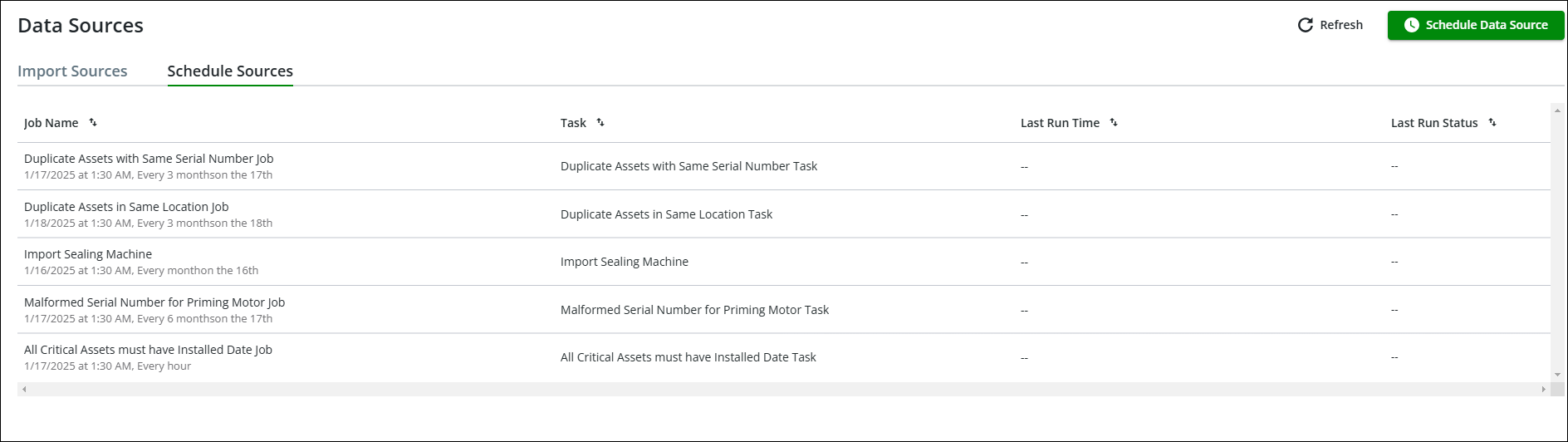
3. Click Schedule Data Source from the upper right corner of the page. The Create Job page is displayed.
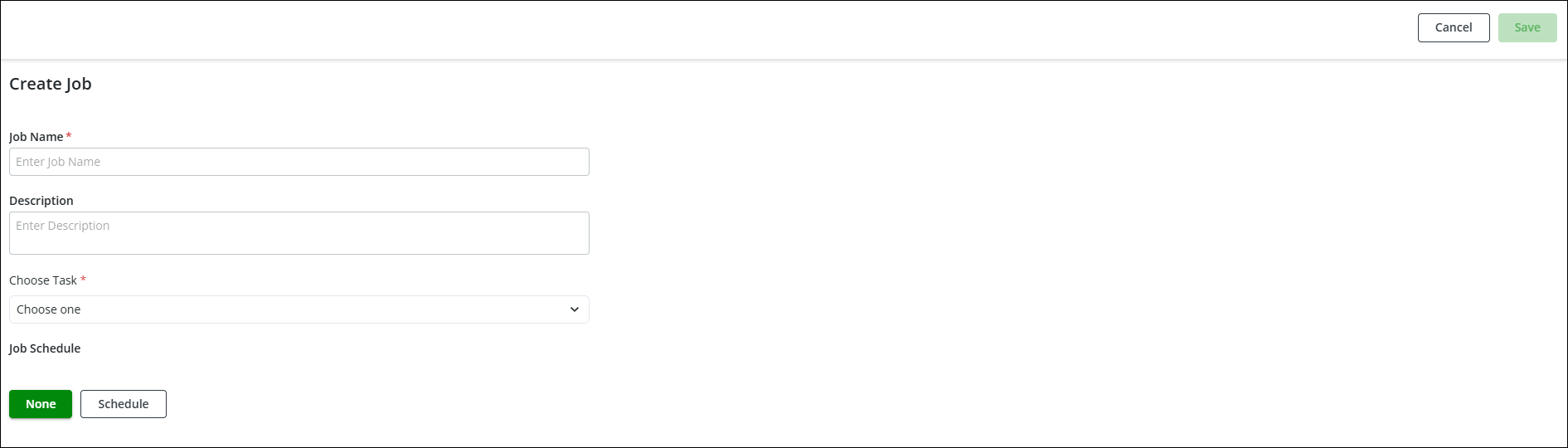
4. Enter a job name and description.
5. Select a task from the available list.
6. Click Schedule. The scheduler section is displayed.
7. Select the start date and time, and the schedule interval as hourly, daily, weekly, or monthly.
8. Click Save.
A confirmation window is displayed after successful validation.