Deleting a Matching Rule
Permanently remove a matching rule and its associated logic and execution history from PTC Orbit.
Deleting a matching rule permanently removes it from Asset Hub, along with its associated logic and history of execution. Once deleted, the system no longer evaluates records against that rule, which means any data validations, duplicate checks, or survivorship actions tied to it are discontinued.
Perform the following steps to delete a matching rule.
1. Log in to PTC Orbit and click the  icon to launch the navigation pane.
icon to launch the navigation pane.2. Click Data Foundry to expand it, and then click Rules. The Rules page is displayed with the list of configured matching rules.
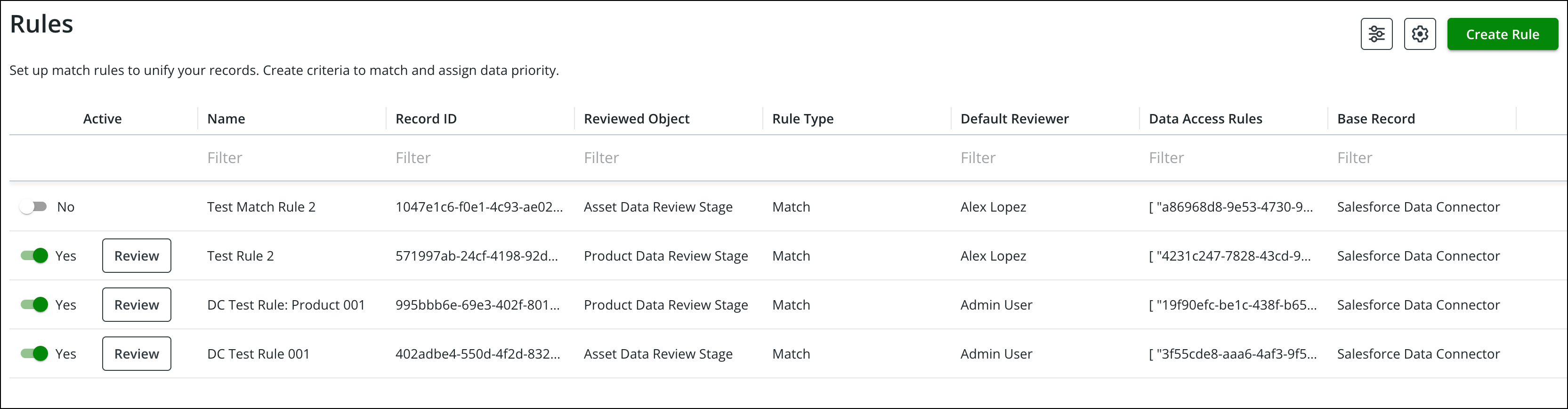
3. Hover over a record row and click Delete from the menu. A confirmation pop-up is displayed to confirm the action.
4. Click Delete. The matching rule is removed after successful validation.