Configuring Form Layout
Design a form layout in Max Designer by arranging fields, setting mandatory or read-only attributes, and controlling field order.
Defining a form layout with a specific set of fields in PTC Orbit allows you to control how information is presented to users when they view or edit a record. Using Max Designer, you can drag and arrange fields in logical sections, choose which fields are mandatory, optional, or read-only, and determine the order in which they appear. By tailoring the layout to display only the most relevant fields for a given record type or user role, organizations create a streamlined interface that reduces clutter and improves data accuracy.
Perform the following steps to design a form layout.
1. Launch Max Designer.
2. Click the Developer Tools button from the upper left section of the page, and then click Object Designer. The Getting Started page is displayed.
3. From the left pane, click the search icon to search for and select the object for which you want to create or modify a list view, for example, Resource.
4. From the left navigation pane, click Forms. The forms list view is displayed with the list of available forms.
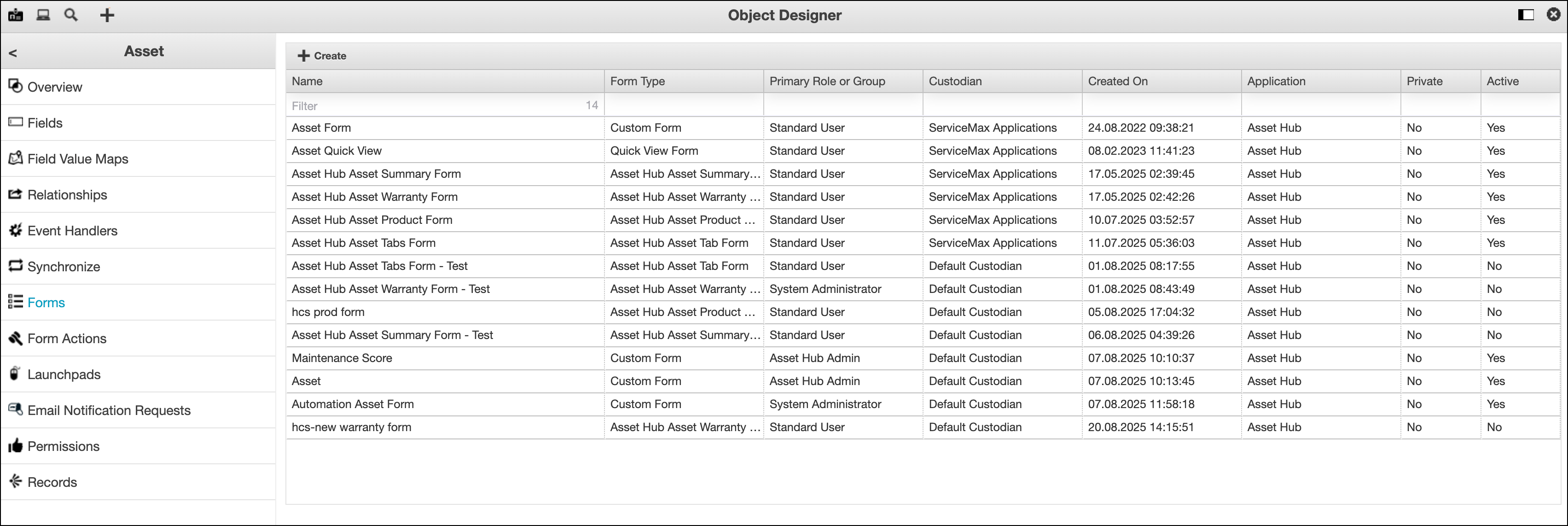
5. Click a form to open it, and the click the  icon to open the form in a new tab.
icon to open the form in a new tab.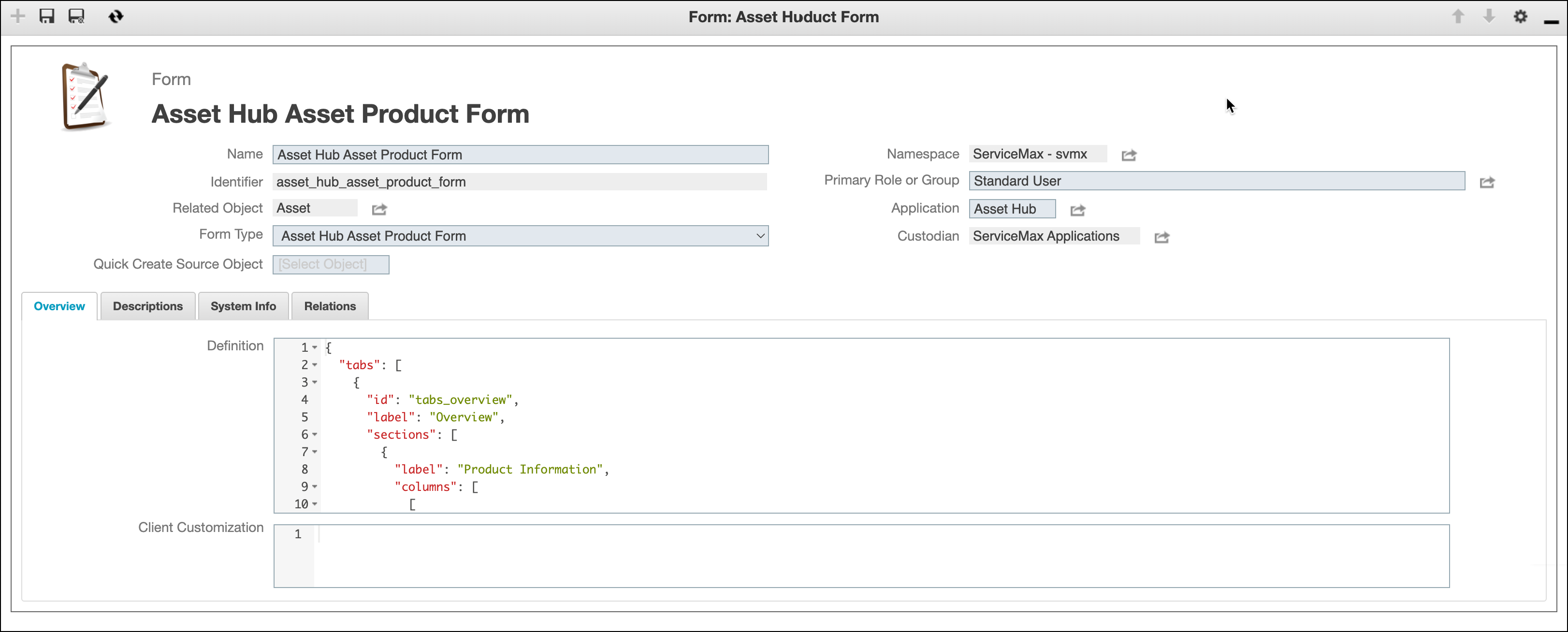
6. Click inside the Definition field to update the JSON based on the business needs.
7. Click Save. The form is updated with the details and is available in PTC Orbit in the configured target record page.