Property Grid
Overview
PTC Modeler 10.3 introduces the Property Grid, a new feature that is similar to the Properties pane but offers enhanced functionality. This topic explains more about the Property Grid.
The Property Grid displays the properties of the selected item or diagram. This grid has a few categories that are similar to the Properties pane, and additionally, it also displays information in a more structured and consistent way than the old Properties pane.
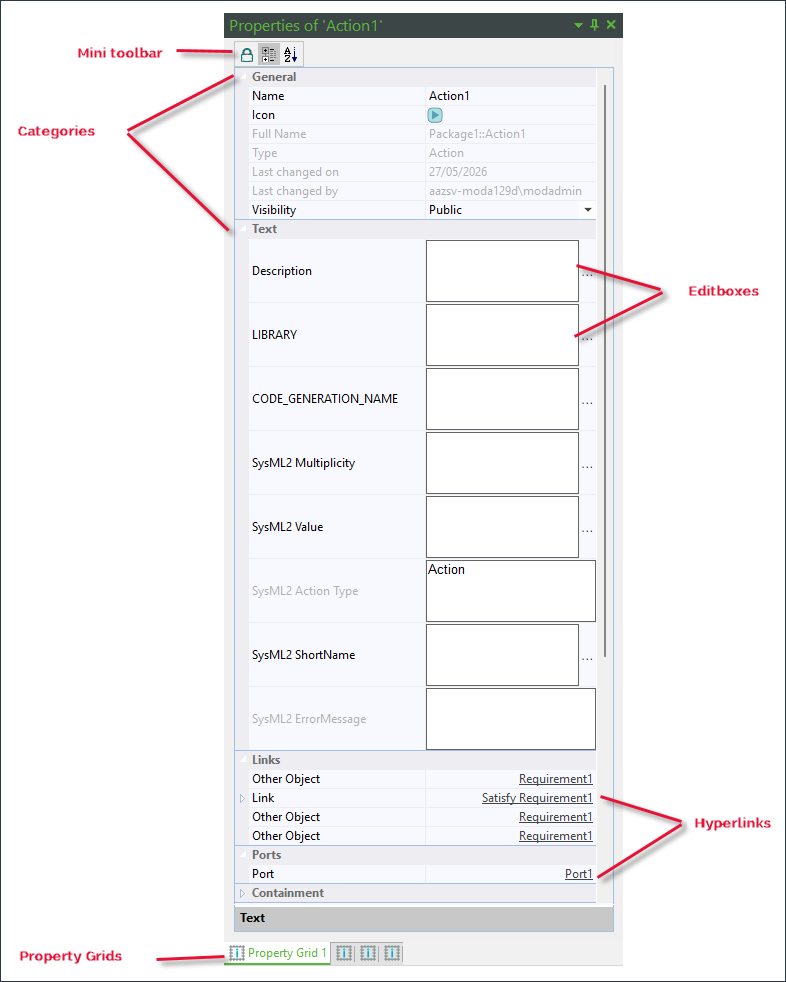
You can open a new Property Grid from the Home ribbon tab, Window ribbon tab or from the Pane dropdown. The grid behaves exactly as the other panes in Modeler. You can also reset the position and size with the Reset Layout button.
You can have a maximum of four Property Grids open at a time. You can lock a currently open Property Grid with the current selection so you can compare the selected properties. To lock a grid, you can click on the  lock icon. After you lock a currently open grid, you have to open another grid from the Pane dropdown or from the Window or Home ribbon tabs. Once all four Property Grids are locked then you cannot open another one.
lock icon. After you lock a currently open grid, you have to open another grid from the Pane dropdown or from the Window or Home ribbon tabs. Once all four Property Grids are locked then you cannot open another one.By default, the grid is sorted by category. Click on the alphabetical sort  icon to sort the items alphabetically in the grid.
icon to sort the items alphabetically in the grid.Categories displayed on the Property Grid
The various categories displayed in the Property Grid depend on the item that is selected.
• General: Displays information consistent with the Property pane.
• Text: Displays information consistent with the Property pane.
• Links: Displays hyperlinks of all elements that the selected item is connected with including the type of connection.
• Containing Items: Displays the name of the item that the selected item is contained within.
• Containment: Displays hyperlinks of items that are contained within the selected item.
• Ports: Displays hyperlinks of all Ports that are connected to the selected item.
• Reference Objects: Displays hyperlinks of all the objects that are connected with this item (for Flows and Connection types).
• Options: Displays information consistent with the Property pane.
• Tag Definitions: Displays information consistent with the Property pane.having the same name of the selected item.
• Connection Start: Displays hyperlinks of items that the selected connection is connected with (for Flows and Connection types).
• Connection End: Displays hyperlinks of items that the selected connection is connected with (for Flows and Connection types).
• Related Item: Displays hyperlinks of the item that the selected item is related to.
All editable textboxes have an ellipsis  icon, you can click the icon to open the editor where you can enter your text.
icon, you can click the icon to open the editor where you can enter your text.Advantages of the Property Grid over the Properties pane
• You can select hyperlinks to navigate to the connected items. You can use the Backwards and Forwards buttons in the Home ribbon tab to navigate forwards and backwards.
• You can compare up to four different selected items with the Property Grid.
• You can view and trace through the inheritance / connected items of the selected items in the Property Grid.
• The Property Grid has more structured, generic and consistent way of viewing properties of items in Modeler.