Adding an instance (Model Explorer)
1. Start Model Explorer.
For more information, refer to Starting Model Explorer.
2. Right-click the SQL icon, and then click Add Instance. The Add Instance dialog opens.
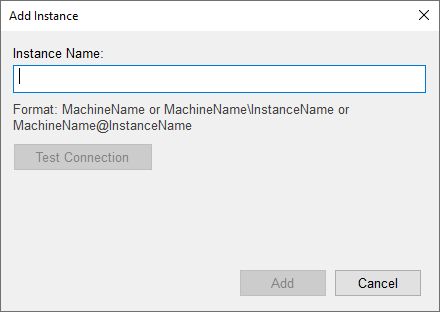
3. Type the name of the SQL Server instance in the following format:
<MachineName>[@ or \]<SQLInstance> or only MachineName, where
“<MachineName>” — The name of the computer on which the PTC Modeler SQL Server instance resides.
“<SQLInstance>” — The name of the SQL Server instance that is used by PTC Modeler.
For example:
Typing “computer1@MODELER” connects to a SQL Server instance named MODELER on a local or remote computer named computer1.
 |
The computer name must also be typed for Standalone PTC Modeler installations.
|
4. Click Test Connection. This checks the connection of the SQL Server instance. If the connection fails, an error message is displayed.
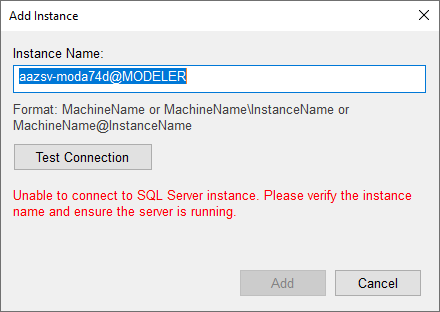
5. If the connection is successful, click Add. The new instance is now added.
|
|
If the SQL instance already exists, then a duplicate instance is not added to Model Explorer.
|
After adding a server to Model Explorer, you can show its databases and bookmark the databases you want to work with. For more information, refer to Bookmarking a database (Model Explorer), and Showing a server's databases (Model Explorer).
Note that if you add a server to Model Explorer and do not bookmark any databases in that server, next time you start Model Explorer the server will not be shown.