CV-1 Vision (UPDM - DoDAF aliases)

Creation
To create a CV-1 Vision:
• Right-click the Architectural Description or Service Description that is to own the CV-1 Vision, point to New, point to Diagram, point to DoDAF, and then click CV-1 Vision.
Purpose
On a CV-1 Vision:
• Create Enduring Task, Enterprise Goal, Enterprise Phase, Vision and Whole Life Enterprise elements.
• Create Structural Part and Temporal Part elements for Enterprise Phase and Whole Life Enterprise elements.
• Create Vision Statement elements and apply them to Vision elements.
Diagram Elements
For information about showing compartments on diagram symbols, setting up default view options and adding existing elements to the diagram, see the following topics:
For information about the creation and appearance of elements that can be shown on all Product diagrams (Representation, Definition, Information, Metadata, Overlap and Same As elements), see Creation and appearance of elements that appear on all product diagrams (UPDM - DoDAF aliases).
Architectural Description

To create an Architectural Description: click the  Architectural Description button, and then click in free space on the diagram.
Architectural Description button, and then click in free space on the diagram.To populate elements from an Architectural Description: add the Architectural Description to the diagram, and then populate those elements from the Architectural Description.
Architectural Reference

To create an Architectural Reference: click the  Architectural Reference button, click the source Architectural Description, and then click the destination Architectural Description.
Architectural Reference button, click the source Architectural Description, and then click the destination Architectural Description.Architecture Metadata
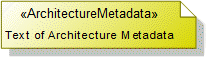
To create an Architecture Metadata: click the  Architecture Metadata button, and then click in free space on the diagram.
Architecture Metadata button, and then click in free space on the diagram.Define the text of the Architecture Metadata through its Full Text property.
To apply an Architecture Metadata to an Architectural Description: click the  Note Link button, click the Architecture Metadata, and then click the Architectural Description to which the Architecture Metadata applies.
Note Link button, click the Architecture Metadata, and then click the Architectural Description to which the Architecture Metadata applies.Capability
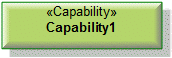
To create a Capability: click the  Capability button, and then click in free space on the diagram.
Capability button, and then click in free space on the diagram.Use Capability Of Performer relationships to link the Capability to Enterprise Phase and Whole Life Enterprise elements that exhibit that Capability.
Capability Of Performer

To create a Capability of Performer: click the  Capability of Performer button, click the source Enterprise Phase or Whole Life Enterprise, and then click the exhibited Capability.
Capability of Performer button, click the source Enterprise Phase or Whole Life Enterprise, and then click the exhibited Capability.Capability Property
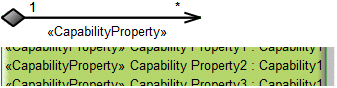
To create a Capability Property: click the  Composite Association button, click the owning Capability, and then click the Capability that is the type of the Capability Property.
Composite Association button, click the owning Capability, and then click the Capability that is the type of the Capability Property.
 |
Only UML Role based Capability Property elements can be shown as Composite Associations. For more information, see Capability property (UPDM - DoDAF aliases).
|
To hide Capability Property elements shown on the Capability: through the View Options of the owning Capability, do not show Attributes.
Enduring Task
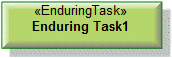
To create an Enduring Task: click the  Enduring Task button, and then click in free space on the diagram.
Enduring Task button, and then click in free space on the diagram.Enterprise Goal
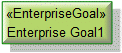
To create an Enterprise Goal: click the  Enterprise Goal button, and then click in free space on the diagram.
Enterprise Goal button, and then click in free space on the diagram.Enterprise Phase
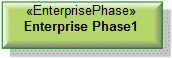
To create an Enterprise Phase: click the  Enterprise Phase button, and then click in free space on the diagram.
Enterprise Phase button, and then click in free space on the diagram.Use Composite Associations to create Structural Part and Temporal Part elements for the Enterprise Phase.
Structural Part
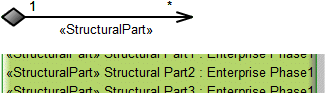
To create a Structural Part:
• Click the Composite Association button, click the owning Enterprise Phase or Whole Life Enterprise, and then click the Enterprise Phase or Whole Life Enterprise that is the type of the Structural Part. From the dialog, select Structural Part.
Composite Association button, click the owning Enterprise Phase or Whole Life Enterprise, and then click the Enterprise Phase or Whole Life Enterprise that is the type of the Structural Part. From the dialog, select Structural Part.• Click the  Structural Part button, and then click the owning Enterprise Phase or Whole Life Enterprise. From the Select Type dialog, create or select the Enterprise Phase or Whole Life Enterprise that is the type of the Structural Part, or create an untyped Structural Part.
Structural Part button, and then click the owning Enterprise Phase or Whole Life Enterprise. From the Select Type dialog, create or select the Enterprise Phase or Whole Life Enterprise that is the type of the Structural Part, or create an untyped Structural Part.Temporal Part
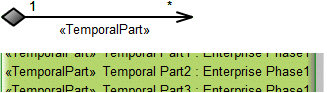
To create a Temporal Part:
• Click the Composite Association button, click the owning Enterprise Phase or Whole Life Enterprise, and then click the Enterprise Phase or Whole Life Enterprise that is the type of the Temporal Part. From the dialog, select Temporal Part.
Composite Association button, click the owning Enterprise Phase or Whole Life Enterprise, and then click the Enterprise Phase or Whole Life Enterprise that is the type of the Temporal Part. From the dialog, select Temporal Part.• Click the  Temporal Part button, and then click the owning Enterprise Phase or Whole Life Enterprise. From the Select Type dialog, create or select the Enterprise Phase or Whole Life Enterprise that is the type of the Temporal Part, or create an untyped Temporal Part.
Temporal Part button, and then click the owning Enterprise Phase or Whole Life Enterprise. From the Select Type dialog, create or select the Enterprise Phase or Whole Life Enterprise that is the type of the Temporal Part, or create an untyped Temporal Part.Vision
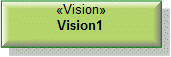
To create a Vision: click the  Vision button, and then click in free space on the diagram.
Vision button, and then click in free space on the diagram.Use Note Links to link the Vision to Vision Statement elements that apply to that Vision.
Vision Statement
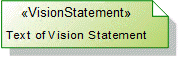
To create a Vision Statement: click the  Vision Statement button, and then click in free space on the diagram. Use the Full Text property to specify the text of the Vision Statement.
Vision Statement button, and then click in free space on the diagram. Use the Full Text property to specify the text of the Vision Statement.To apply a Vision Statement to a Vision on the diagram: click the Note Link button, click the Vision Statement, and then click the Vision to which the Vision Statement applies.
Note Link button, click the Vision Statement, and then click the Vision to which the Vision Statement applies.Whole Life Enterprise
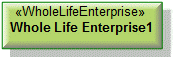
To create a Whole Life Enterprise: click the  Whole Life Enterprise button, and then click in free space on the diagram.
Whole Life Enterprise button, and then click in free space on the diagram.Use Composite Associations to create Structural Part and Temporal Part elements for the Whole Life Enterprise.
The following sections provide information about how a CV-1 Vision is used in the model.
Create a CV-1 Vision from

Creates or shows these UPDM elements
In addition to the common UPDM elements that can be shown on all Product diagrams (Representation, Definition, Information, Metadata, Overlap and Same As elements):
