Transitions
Transition usages connect various State usages, which in turn, activate and deactivate the State usages. Transitions define the sequence in which the States can be activated.
Creating a Transition
To create a Transition between State usages
1. On the System Structure Diagram ribbon toolbar, in the Flows section, click the  Transition button.
Transition button.2. On the diagram, click the first State Usage item and then click the other State Usage item with which you want to have a Transition connection.
Transitions have the following parameters:
• Transition Guard
• Effect Action
• Accepter Action
Transition Guards
A Guard is a boolean-valued expression that decides whether the transition should proceed to the next State or not. If the value of the Guard is True, then the transition is taken to the next State, if the value is set to False, the transition is not taken. To set the value of a Transition Guard, perform the following steps:
1. Select the Transition in the diagram.
2. In the Transition Property view, click the Transition tab.
3. Locate the Guard tag definition.
4. Double-click to enter a value for the Guard. You can enter True to ensure the transition is taken to the next State or False to prevent the transition from moving to the next State.
Effect Actions
An Effect action is an Action item that is triggered when a transition fires before entering into the next State. To assign an Effect Action to a Transition, perform the following steps:
1. In the Packages browser, select the Transition for which you want to assign the Effect Action.
2. Create an Action usage. Right-click the Transition and select > > > .
A new Action is created.
3. Drag this Action usage from the Package browser and drop it on to the relevant Transition on the diagram. A popup menu is displayed. Select the Set Effect option.
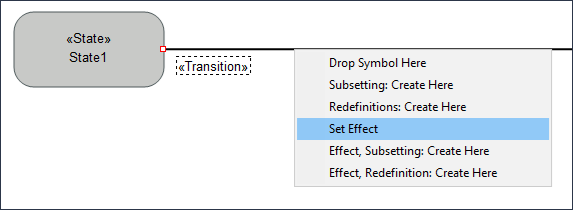
The Effect Action is now assigned to the Transition.
Accepter Action
A Transition can have an Accepter which is an Accept Action usage that is used to trigger the Transition. To assign an Accepter Action to a Transition, perform the following steps:
 |
You cannot use an Accepter Action for Transitions from Start actions.
|
1. In the Packages browser, select the Transition for which you want to assign the Accepter Action.
2. Create an Accept Action usage. In the Package browser, right-click the Transition and select > > > .
A new Accept Action is created.
3. Drag this Accept Action from the Package browser and drop it on to the relevant Transition on the diagram. A popup menu is displayed. Select the Set Accepter option.
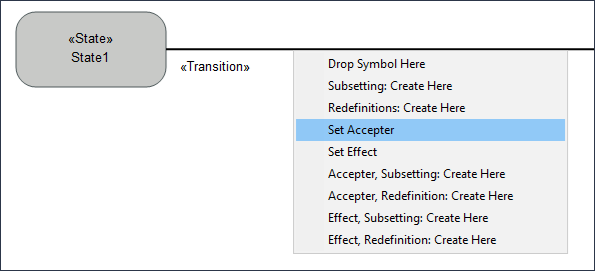
The Accept Action is now assigned to the Transition.