Trade-off Analysis
A trade-off analysis is used to evaluate and compare alternatives. It is an analysis with the objective of selecting the optimum alternative from a given set based on an evaluation of each alternative. The TradeStudies domain library model provides a general framework for defining basic trade study analyses.
Creating a Trade-Off Analysis item
The first step in creating a Trade-Off Analysis item is to create a Standard Library Package. To create a Standard Library Package:
1. Create a Library Package. Right-click on the model or a package and select > > .
2. Select the Library Package and in the Properties section, in the Library Package tab, set the value of the IsStandard tag definition to TRUE.
Next, you must create a TradeStudy Analysis case. Perform the following steps to create a TradeStudy Analysis case:
1. Right-click on the Library Package which has been configured as the Standard Library package and select > > > . This creates an Analysis Definition.
2. Rename this Analysis Definition to TradeStudy.
Now, you can create the Trade-Off Analysis item in the diagram.
1. On the System Structure Diagram ribbon, in the Cases section, click the Trade-Off Analysis button.
2. Click on the empty space in the diagram to create the Trade-Off Analysis item.
A Trade-Off Analysis item is now created.
Parameters used in a Trade-Off Analysis item
A Trade-Off Analysis has the following parameters:
• Alternatives
• Objective
• Result
Alternatives
Alternatives are primarily Action usage items that are evaluated to find the optimum alternative based on the given Objective. Perform the following steps to add an Alternative to a Trade-Off Analysis item
1. In the Package browser, right-click on the Trade-Off Analysis item for which you want to add an Alternative and select > > > . A new Action usage is now created.
2. Drag this Action usage from the Package browser and drop it on the Trade-Off Analysis item on the System Structure Diagram. A pop-up menu is displayed.
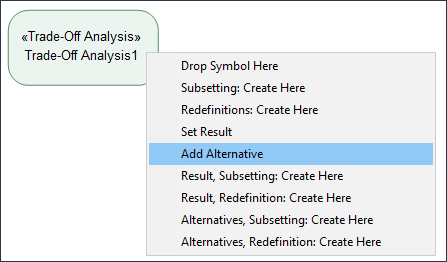
3. Select Add Alternative. An Alternative is now added to the Trade-Off Analysis.
You can add multiple Alternatives as required to the Trade-Off Analysis item.
Objective
An Objective is primarily a Requirement usage that determines the goal of the Trade-Off Analysis. Perform the following steps to set an Objective to the Trade-Off Analysis item
1. In the Package browser, right-click on the Trade-Off Analysis item for which you want to set the Objective and select > > > . A new Requirement usage is now created.
2. Drag this Requirement usage from the Package browser and drop it on the Trade-Off Analysis item on the System Structure Diagram. A pop-up menu is displayed.
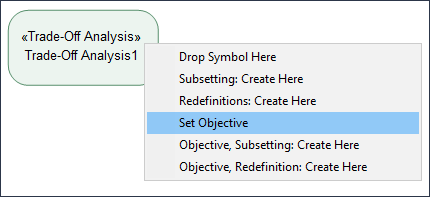
3. Select Set Objective. This sets the Objective for the selected Trade-Off Analysis.
Result
The result of the Trade-Off Analysis is an Action item with either the maximum or minimum evaluated value. Perform the following steps to set the Result for the Trade-Off Analysis
1. In the Package browser, right-click on the Trade-Off Analysis item for which you want to set the Result and select > > > . A new Action usage is now created.
2. Drag this Action usage from the Package browser and drop it on the Trade-Off Analysis item on the System Structure Diagram. A pop-up menu is displayed.
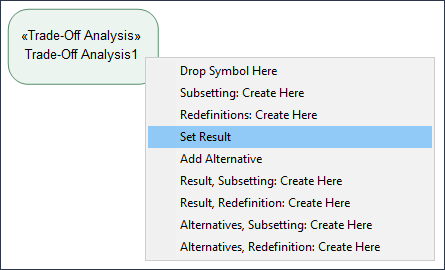
3. Select Set Result. This sets the Result for the selected Trade-Off Analysis.