System Structure Diagram

A System Structure Diagram shows a view of the structure of your SysML 2.0 model and is the only type of diagram that you can create for your SysML 2.0 models. You can create the System Structure Diagram through the context menu from the SysML 2.0 Package or Library Package. Right-click the Package and select > > > or > > > .
You can also create the System Structure Diagram from the Item Creator dialog. Select the Package and open the Item Creator and select the SysML2 check box. This displays all the items that you can create for your SysML 2.0 model. Select the diagrams and the items that you want to add to the diagram and click Create.
Shows the following items
The System Structure diagram shows the following items on the diagram: As with other diagrams, you can change the appearance and the presentation using the Style view options (see Style view options - all diagrams.
 Allocation Definition
 Allocation Usage
 Annotation Link
 Attribute Definition
 Attribute Usage
 Comment
 Connection Definition
 Connection Usage
 Dependency
 Enumeration Definition
 Enumeration Usage
 Feature Typing
 Import
 Interface Definition
 Interface Usage
 Part Definition
 Part Usage
 Port Definition
 Port Usage
 Redefinition
 Requirement Definition
 Requirement Usage
 Item Definition
 Item Usage
 Occurrence Definition
 Occurrence Usage
 Subclassification
 Subsetting
 Textual Representation
 Use Case Definition
 Use Case Usage
Showing or hiding compartments in diagram symbols
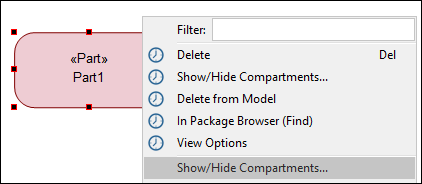
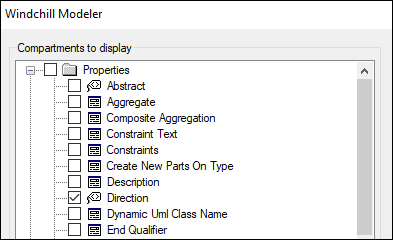
In the System Structure Diagram, you can select what items are displayed in the diagram symbols. Right-click on the diagram symbol and click Show/Hide Compartments. A dialog opens up. Select the Properties or Roles that you want to hide or display on the diagram symbol, and click OK. In the following example, for the Part symbol, we select the Direction property to be displayed in the symbol.
Select and right-click on the symbol.
Select the Direction property that we would like to display on the symbol.
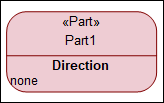
The value of the Direction property is now displayed on the symbol.