States
States are used to describe state-based behavior, where the execution of any particular state is triggered by events. State definitions or usages are primarily connected by transitions that are triggered upon acceptance of item transfers. States can contain Action usages that are performed only when the State is activated.
Creating a State Definition
To create a State Definition from the ribbon
1. On the System Structure Diagram, on the System Structure Diagram ribbon, click the  State Definition button.
State Definition button.2. Click on the empty space on the diagram to create the State Definition.
To create a State Definition from the context menu
1. Right-click on the Package or Package library in which you want to create the State Definition.
2. Select > > > . This creates a State Definition within the Package or Package Library. To add it to the diagram, drag the State Definition and drop it on the diagram.
Creating a State usage
To create a State usage from the ribbon
1. On the System Structure Diagram, on the System Structure Diagram ribbon, click the  State button.
State button.2. Click on the empty space on the diagram to create the State usage.
To create a State usage from the context menu
1. Right-click on the Package or Package library in which you want to create the State usage.
2. Select > > > . This creates a State usage within the Package or Package Library. To add it to the diagram, drag the State usage and drop it on the diagram.
Action elements in a State
States primarily contain the following types of Action elements:
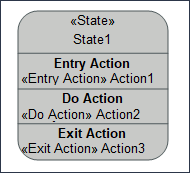
• An Entry action that is activated when the state is activated.
• A Do action that starts after the Entry action and continues to perform the tasks till the State is active.
• An Exit action that starts when the Do action is completed. The State action becomes inactive when the Exit action is completed.
Adding Action elements to a State
To add an Action element to a state:
1. Create an Action item in the State. In the Packages browser, right-click on the State for which you want to create the Action and select > > > .
2. Drag this Action item in to the State in the diagram. A popup menu is displayed which contains, among other options, the following:
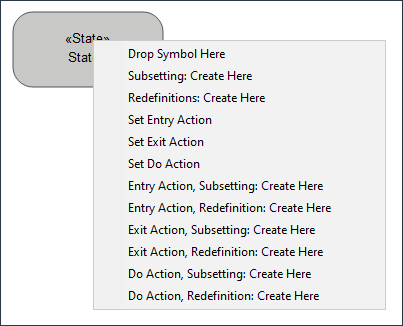
◦ Set Entry Action — To create an Entry action.
◦ Set Do Action — To create a Do action.
◦ Set Exit Action — To create an Exit action.
Select the required option to create the Action element. However, by default, the Action elements are not visible in the diagram. To view these elements, right-click on the State in the diagram, select Show/Hide Compartments, expand Roles, select the Actions option, and click OK. The Action elements are now visible in the diagram. The image below shows a State with all three Action items.