Analysis
An Analysis case defines the computation of the result of analyzing a subject and meeting an objective. It specifies a set of steps with an objective to evaluate a result of the subject of the Analysis. Each step can contain an Action, a calculation or another Analysis case containing a subject, an objective, input and output parameters, and the result. The analysis case can include a set of analysis actions, each of which can specify calculations that return results. This topic explains how to create Analysis definitions and usages.
Creating an Analysis definition
To create an Analysis definition usage from the ribbon
1. On the System Structure Diagram ribbon, in the Cases section, click the  Analysis Definition button.
Analysis Definition button.2. Click on the empty space in the diagram to create the Analysis definition.
This creates an Analysis definition symbol on the diagram.
To create an Analysis definition from the context menu
1. Select the Package or Package Library in which you want to create the Analysis definition.
2. Right-click on the Package or Package library and select > > > . This creates an Analysis definition within the Package or Package Library. To add it to the diagram, drag the Analysis definition and drop it on the diagram.
Creating an Analysis usage
To create an Analysis usage from the ribbon
1. On the System Structure Diagram ribbon, in the Cases section, click the  Analysis button.
Analysis button.2. Click on the empty space in the diagram to create the Analysis usage.
This creates an Analysis usage symbol on the diagram.
To create a Analysis usage from the context menu
1. Select the Package or Package Library in which you want to create the Analysis usage.
2. Right-click on the Package and select > > > . This creates an Analysis usage within the Package or Package Library. To add it to the diagram, drag the Analysis usage and drop it on the diagram.
Parameters used in Analysis usages / definitions
Analysis usages / definitions usually contain the following parameters:
• Objective
• Subject
• Result
Creating an Objective for an Analysis
To create an Objective for an analysis, perform the following steps:
1. In the Package browser, right-click on the Analysis for which you want to create an Objective and select > > > . A new Requirement is created under Analysis in the Package browser.
2. Drag and drop this newly created Requirement on the Analysis item on the System Structure Diagram. A popup menu is displayed.
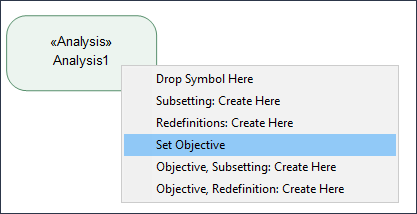
3. Select Set Objective. The Objective for the Analysis is now created.
Creating a Subject for an Analysis
To create a Subject for an Analysis, perform the following steps:
1. In the Package browser, right-click on the Analysis for which you want to create the Subject and select > > > . A new Part item is created under Analysis in the Package browser.
2. Drag this newly created Part from the Package browser and drop it on the Analysis item on the System Structure Diagram. A popup menu is displayed.
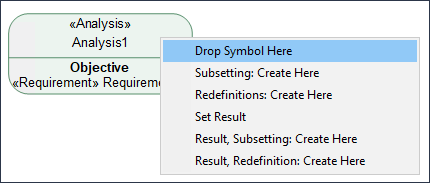
3. Select Drop Symbol Here.
4. Select the Part and in the Properties section of the Part, in the Part tab, change the value of the Direction tag to in. The Subject for the Analysis is now created.
Creating a Result for an Analysis
To create a Result for an Analysis, perform the following steps:
1. In the Package browser, right-click on the Analysis for which you want to create a Result and select > > > . A new Action item is created under Analysis in the Package browser.
2. Drag this newly created Action item from the Package browser and drop it on the Analysis item on the System Structure Diagram. A popup menu is displayed.
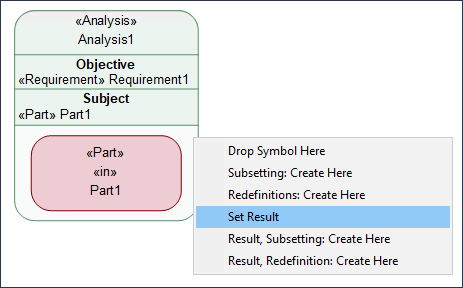
3. Select Set Result. The Result for the Analysis is now created.