Performing a Client-only Installation
To perform a Client Only installation:
1. Log on to Windows as a user that has Local Administrator rights. Additionally, you must also have to Modeler SQL Server instance.
2. If you plan to use XMI Import/Export, you must download and install the 32–bit version of Oracle Java 8 JRE or Amazon Coretto 8.x. Refer the Modeler Release Notes document for the supported versions.
3. To start a standard installation of Modeler, run the Modeler installation application PTCModelerx_xSetup.exe.
4. Follow the installation program instructions.
 |
Installation of the Windows .NET Framework can take up to 10 minutes; during installation, the Cancel button on the dialog is not available.
|
◦ On the Setup Type page, select the Client Only option.
◦ On the Custom Setup page, the following options are selected by default:
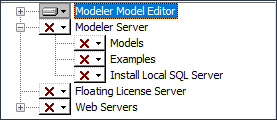
On the Custom Setup page, expand the Modeler Model Editor entry and review the add-ins, documentation and profiles that are selected for installation. If you do not want to install a feature, click the entry, and then click This feature will not be available.
◦ You cannot add Model Manager to an existing installation of PTC Modeler. To add Model Manager, reinstall PTC Modeler and make sure that Model Manager is selected.
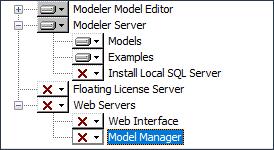
◦ On the Default Servers page, enter a SQL Server instance and a Modeler License Server:
▪ To connect to a SQL Server instance, click Browse..., then select a SQL Server instance from the list of available servers.
▪ To connect to a Modeler License Server, type the name of the license server computer.
|
|
The Integration for IBM Rational DOORS is available only if DOORS is installed and has been run on the computer. The Publisher add-in requires Microsoft Word. The IDL Profile requires Microsoft Excel for some reports. For information about which versions of Microsoft Word and Excel are supported, see the Modeler Release Notes.
|
5. After the installation is complete, perform the necessary post-installation tasks. For more information, see Post-Client Only installation tasks.
You must have permissions to access the Modeler server to work on models. To gain access to the Modeler server, contact the Modeler System Administrator and / or Modeler Database Administrator to provide permissions to work on models.
|
|
If you are also installing an additional component Modeler Server, then you must follow the upgrade instructions listed in the Upgrade to Modeler 10.1 or later topic.
|
Performing a Client-Only Silent Install
Here is an example of an actual command to for a clean Client installation of PTC Modeler 10.2 from the command line.
msiexec /i "E:\BuildDIR\CD\Setup\PTCModeler10_2.msi" /qn /L*v C:\Programdata\PTCIntegrityModeler_MSI_10_2_MRClient.log ART_INSTALLATION="Full" ART_LICENSE="ARTISANRTS" ART_PRODUCT_NAME="PTCModeler 10.2" ART_UPGRADE="0" ART_SETUP_TYPE="Client" INSTALL_MODEL_EDITOR="1" INSTALL_MODELER_SERVER="0" ART_DEFAULT_LICENSE_SERVER="AAZSV-MODA162D" LIC_TYPE.40204B5B_4AEA_4F66_8504_14A8FEEF9618="Local" ART_INSTALL_SYNC_IDL="1" ART_INSTALL_SYNC_ACS="1" ART_INSTALL_SYNC_ADA="1" ART_INSTALL_SYNC_ARINC="1" ART_INSTALL_SYNC_C="1" ART_INSTALL_SYNC_C_PLUS="1" ART_INSTALL_SYNC_C_SHARP="1" ART_INSTALL_SYNC_JAVA="1" ART_INSTALL_SYNC_SHADOW_TDK="1" ART_INSTALL_SYNC_VB="1" INSTALL_LICENSE_SERVER="0" IS_SQLSERVER_SERVER=“<<Servername>>@<<Instancename>>“
The following is an example of upgrading the Client-only version PTC Modeler 10.2 from the command line.
msiexec /i "E:\BuildDIR\10.1\CD\Setup\PTCModeler10_2.msi" /qn /L*v C:\Programdata\PTCModeler10_2_MSI_9_5_1012MRClient.log ART_INSTALLATION="Full" ART_LICENSE="ARTISANRTS" ART_PRODUCT_NAME="PTCModeler 10.2" ART_UPGRADE="1" ART_SETUP_TYPE="Client" INSTALL_MODEL_EDITOR="1" INSTALL_MODELER_SERVER="0" ART_DEFAULT_LICENSE_SERVER="ABC123-LicenseServer" LIC_TYPE.40204B5B_4AEA_4F66_8504_14A8FEEF9618="Local" ART_INSTALL_SYNC_IDL="1" ART_INSTALL_SYNC_ACS="1" ART_INSTALL_SYNC_ADA="1" ART_INSTALL_SYNC_ARINC="1" ART_INSTALL_SYNC_C="1" ART_INSTALL_SYNC_C_PLUS="1" ART_INSTALL_SYNC_C_SHARP="1" ART_INSTALL_SYNC_JAVA="1" ART_INSTALL_SYNC_SHADOW_TDK="1" ART_INSTALL_SYNC_VB="1" INSTALL_LICENSE_SERVER="0" IS_SQLSERVER_SERVER"<<Servername>>@<<Instancename>>"