Example: Editing an Excel Component
|
|
You cannot copy the expressions from this example.
|
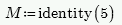
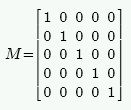
1. Define a 5 x 5 identity matrix.
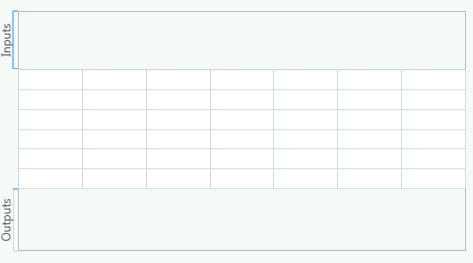
2. Press Ctrl+Shift+E to insert a blank Excel component.
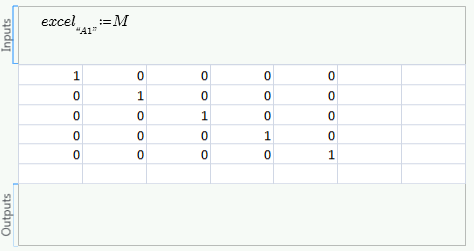
3. Assign matrix M to the Excel component, placing the first matrix element in the first Excel cell A1.
|
|
If you are referring to Sheet1, you do not have to mention the sheet number.
|
|
|
Besides typing in data, you can also copy data from an external Excel file, and paste it inside the Excel component.
|
4. Double-click the Excel component table and change the value of cell F1 to 999 inside the Excel application.
5. Press Ctrl+S and close the Excel window. Cell F1 is set to 999.
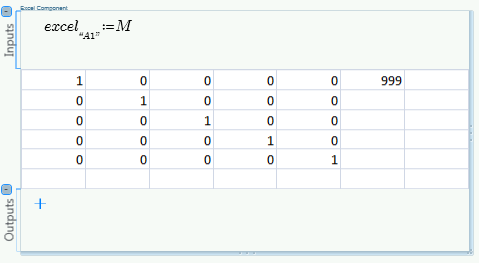
6. Double-click the Excel component table, change the value of cell A1 to 999, and press Ctrl+S. Cell A1 changes to 999.
7. Close the Excel window. The value of cell A1 is 1 again, since the input expression overwrites whatever is in Excel.
8. Add an output expression that assigns the value of cells E1-F2 to a variable x.
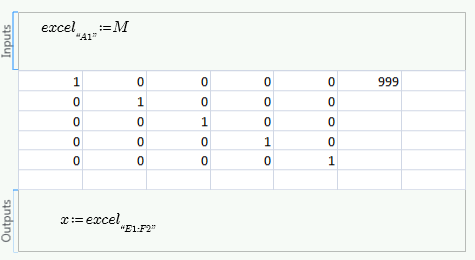
9. 8. Evaluate x.

Empty cells in Excel are assigned as 0 to variables in a PTC Mathcad worksheet.
10. Set the value of cell A2 to 111.
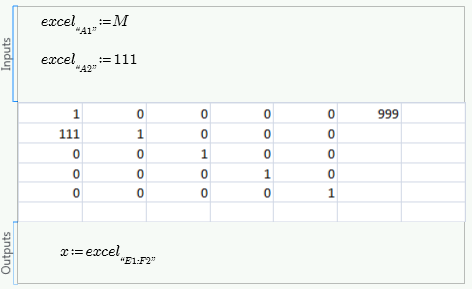
11. Change the order of the two input variables.
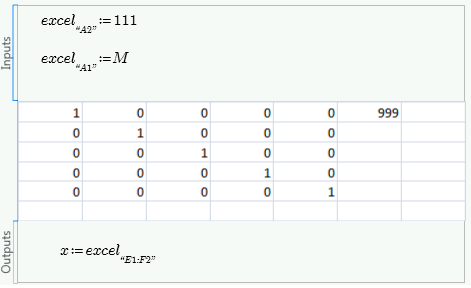
Now the value of cell A2 reflects M because this assignment occurs after 111 was assigned to A2.
12. Set the value of cell F1 to NaN.
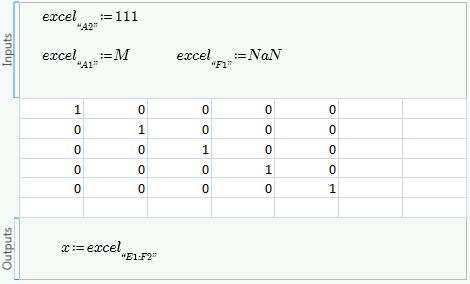
When you assign NaN to a cell, it becomes a blank cell.