Worksheet and Application Properties
Create a button to get the worksheet properties: file name, file path, full file name, and the current version of PTC Mathcad Prime.
1. Create a button using the > > menu.
2. Open the Script Editor and paste in the following script:
function PushBtnEvent_Start(Inputs, Outputs) {
};

function PushBtnEvent_Exec(Inputs, Outputs) {
    var Mathcad = new ActiveXObject("MathcadPrime.Application");
    if (Mathcad != null) {
        var Worksheet = Mathcad.ActiveWorksheet;
        if (Worksheet != null) {
            Outputs[0].Value = Worksheet.Name();
            Outputs[1].Value = Worksheet.WorksheetWorkingDirectory();
            Outputs[2].Value = Worksheet.FullName();
            Outputs[3].Value = Mathcad.GetVersion();
            Worksheet = null;
        }
        Mathcad = null;
    }
};

function PushBtnEvent_Stop(Inputs, Outputs) {
};

function PushBtn_Click(Inputs, Outputs) {
};
3. For the outputs of the button, enter the output variable names in the output area.

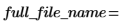
4. To display the properties in your worksheet, evaluate each of the output variables.



|
|
The full_file_name variable displays a value only after saving the worksheet.
|