Formatting the Result Display
To format the display of results and math expressions:
1. Select one or multiple math regions to format, or click outside a math region to apply result formatting to all the math regions in your worksheet.
2. On the Math Formatting tab, in the Results group, configure the formatting options.
3. To discard the changes you made and restore the default result formatting, click Clear Format.
The following paragraph describes the formatting options. The examples assume default settings of Display Precision and Show Trailing Zeros.
Result Format
The Result Format drop-down menu controls the display format of numeric results. It has the following options:
• General—Results are in exponential notation when the exponential threshold is exceeded. The exponential threshold is set to 3 by default, you can modify it in the Threshold menu.
12461.7556=1.246×10⁴
• Decimal—Results are never in exponential notation.
12461.7556 = 12461.756
The longest decimal place PTC Mathcad displays is 15, but only the first 14 digits are accurate. For example:
12345678901234567890 = 12345678901234600000
• Scientific—Results are always in exponential notation.
12461.7556 = 1.246 × 10⁴
• Engineering—Results are always in exponential notation, and the exponents are multiples of three.
12461.7556 = 12.462 × 10³
• Percent—Results are multiplied by 100 and displayed as percent.
12461.7556 = 12462175.56%
Radix
The radix controls whether a number is displayed in decimal, binary, octal or hexadecimal format. The Radix menu can be used when the Result Format menu is set to General or Decimal. When the result format is General, the results display is affected by the setting of exponential threshold.
For example, the number 8 would appear as follows when displayed with different radix values:
|
Radix
|
Displayed Result
|
|---|---|
|
10 (decimal)
|
 |
|
1010b (Binary)
|
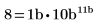 |
|
12o (Octal)
|
 |
|
0ah (Hexadecimal)
|
 |
Display Precision
The Display Precision drop-down menu controls the number of digits displayed to the right of the decimal point, assuming that Show Trailing Zeros is selected. However, if N is the number of digits to the left of the decimal point, then at most 16 − N digits can be displayed to the right of the decimal point, regardless of the setting of Display Precision. This option affects only the display. Calculations occur with full precision no matter how you decide to display the result.
The number of decimal places must be between 0 and 16 inclusive.
•  —Decreases the number of decimal places displayed.
—Decreases the number of decimal places displayed.•  —Increases the number of decimal places displayed.
—Increases the number of decimal places displayed.Show Trailing Zeros
The Show Trailing Zeros button controls whether trailing zeros display to the right of the decimal point to fulfill the current choice of Display Precision.
For example, if the display precision is 3, then:
1.5 = 1.5 when trailing zeros are not displayed and 1.5 = 1.500 when trailing zeros are displayed.
Complex Values
The Complex Values drop-down menu has options in two forms:
• Cartesian Form—Displays the real and imaginary part of complex numbers. The imaginary unit is either i or j.

• Polar Form—Displays the magnitude and the angle of complex numbers. The angle is either in radians or in degrees.

Threshold
You can set the Threshold values for exponential and complex numbers, as well as the zero-threshold value.
1. Complex—Controls how much larger the real or imaginary part of a number must be before the display of the smaller part is suppressed.
For example, the number 1+0.002i would appear as follows when displayed with different complex threshold values:
Complex Threshold | Displayed Result |
|---|---|
2 | 1 |
3 | 1+0.002i |
4 | 1+0.002i |
Complex threshold must be an integer between 0 and 307. The default is 10. This means:
◦ z is shown as pure real if Re(z)/Im(z)>1010
◦ z is shown as pure imaginary if Im(z)/Re(z)>1010
2. Zero—Controls how close a result must be to zero before it is displayed as zero. Acceptable values range from 0 to 307. The default is 15. Numbers smaller than 10−15 are displayed as zero.
For example, the number 0.000125 would appear as follows when displayed with different zero threshold values:
Zero Threshold | Displayed Result |
|---|---|
2 | 0 |
3 | 0 |
4 | 0.000125 |
5 | 0.000125 |
3. Exponential—Controls whether the number is displayed in an exponential notation or not, when the General format is selected. Acceptable values range from 0 to 15.
Exponential Threshold | Displayed Result |
|---|---|
5 | x=1.123581·106 |
6 | x=1.123581·106 |
7 | x=1123581 |
2 | y=0.123581 |
1 | y=1.235813·10−1 |
0 | y=1.235813·10−1 |
The exponential threshold must be between 0 and 15 inclusive. The default is 3. This means that all numbers with powers of 10 greater than or equal to 3 (1000 or larger) or less than or equal to -3 (0.001 or smaller) will be shown in an exponential notation.