Tag Group Properties
From a client standpoint, tag groups allow users to separate data into smaller tag lists, making finding specific tags easier.
The following image used the supplied OPC Quick Client to create Cell1 and Cell2 tag groups and simplify the OPC client browsing.

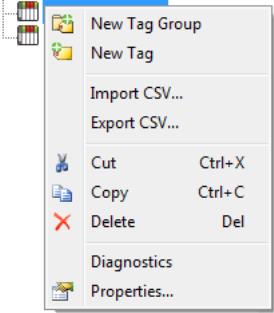
To add a new tag group to the project, right-click on either an existing device or tag group branch and select New Tag Group from the context menu. Alternatively, click on either an existing device or tag group branch and click the New Tag Group icon on the toolbar.
Tag groups can be added at any level from the device-level down, and multiple tag groups can be nested together to fit the application's needs. As seen in the OPC Quick Client dialog above, the fully qualified OPC item path is "Channel1.Device1.Machine1.Cell1.Tag1". For this OPC item, "Machine1" and "Cell1" segments are nested tag groups.
 Note: With the server's online full-time operation, these properties can be changed at any time. Any changes made to the tag groups take effect immediately. If the name is changed, Clients that have already used that tag group as part of an item request are not affected until they release the item and attempt to reacquire it. New tag groups added to the project immediately allows browsing from a client. Utilize the User Manager to restrict access rights to server features to prevent operators from changing the properties.