Device Properties — Tag Generation
The automatic tag database generation features make setting up an application a plug-and-play operation. Select communications drivers can be configured to automatically build a list of tags that correspond to device-specific data. These automatically generated tags (which depend on the nature of the supporting driver) can be browsed from the clients.
 Not all devices and drivers support full automatic tag database generation and not all support the same data types. Consult the data types descriptions or the supported data type lists for each driver for specifics.
If the target device supports its own local tag database, the driver reads the device's tag information and uses the data to generate tags within the server. If the device does not natively support named tags, the driver creates a list of tags based on driver-specific information. An example of these two conditions is as follows:
1. If a data acquisition system supports its own local tag database, the communications driver uses the tag names found in the device to build the server's tags.
2. If an Ethernet I/O system supports detection of its own available I/O module types, the communications driver automatically generates tags in the server that are based on the types of I/O modules plugged into the Ethernet I/O rack.
 Note: Automatic tag database generation's mode of operation is completely configurable. For more information, refer to the property descriptions below.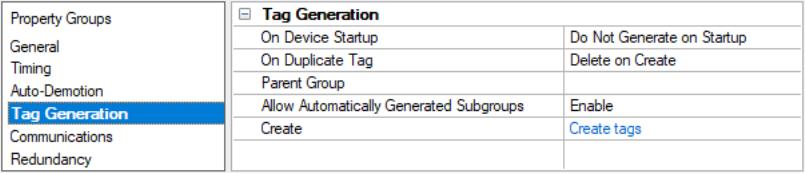
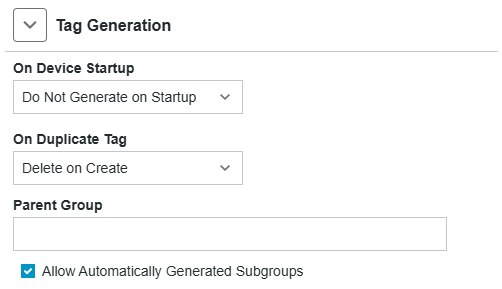
On Property Change: If the device supports automatic tag generation when certain properties change, the On Property Change option is shown. It is set to Yes by default, but it can be set to No to control over when tag generation is performed. In this case, the Create tags action must be manually invoked to perform tag generation. To invoke via the Configuration API service, access /config/v1/project/channels/{name}/devices/{name}/services/TagGeneration.
On Device Startup: Specify when OPC tags are automatically generated. Descriptions of the options are as follows:
• Do Not Generate on Startup: This option prevents the driver from adding any OPC tags to the tag space of the server. This is the default setting.
• Always Generate on Startup: This option causes the driver to evaluate the device for tag information. It also adds tags to the tag space of the server every time the server is launched.
• Generate on First Startup: This option causes the driver to evaluate the target device for tag information the first time the project is run. It also adds any OPC tags to the server tag space as needed.
Note: When the option to automatically generate OPC tags is selected, any tags that are added to the server's tag space must be saved with the project. Users can configure the project to automatically save from the Tools | Options menu.On Duplicate Tag: When automatic tag database generation is enabled, the server needs to know what to do with the tags that it may have previously added or with tags that have been added or modified after the communications driver since their original creation. This setting controls how the server handles OPC tags that were automatically generated and currently exist in the project. It also prevents automatically generated tags from accumulating in the server.
For example, if a user changes the I/O modules in the rack with the server configured to Always Generate on Startup, new tags would be added to the server every time the communications driver detected a new I/O module. If the old tags were not removed, many unused tags could accumulate in the server's tag space. The options are:
• Delete on Create: This option deletes any tags that were previously added to the tag space before any new tags are added. This is the default setting.
• Overwrite as Necessary: This option instructs the server to only remove the tags that the communications driver is replacing with new tags. Any tags that are not being overwritten remain in the server's tag space.
• Do not Overwrite: This option prevents the server from removing any tags that were previously generated or already existed in the server. The communications driver can only add tags that are completely new.
• Do not Overwrite, Log Error: This option has the same effect as the prior option and also posts an error message to the server's Event Log when a tag overwrite would have occurred.
Note: Removing OPC tags affects tags that have been automatically generated by the communications driver as well as any tags that have been added using names that match generated tags. Users should avoid adding tags to the server using names that may match tags that are automatically generated by the driver.Parent Group: This property keeps automatically generated tags from mixing with tags that have been entered manually by specifying a group to be used for automatically generated tags. The name of the group can be up to 256 characters. This parent group provides a root branch to which all automatically generated tags are added.
Allow Automatically Generated Subgroups: This property controls whether the server automatically creates subgroups for the automatically generated tags. This is the default setting. If disabled, the server generates the device's tags in a flat list without any grouping. In the server project, the resulting tags are named with the address value. For example, the tag names are not retained during the generation process.
Note: If, as the server is generating tags, a tag is assigned the same name as an existing tag, the system automatically increments to the next highest number so that the tag name is not duplicated. For example, if the generation process creates a tag named "AI22" that already exists, it creates the tag as "AI23" instead.Create: Initiates the creation of automatically generated OPC tags. If the device's configuration has been modified, Create tags forces the driver to reevaluate the device for possible tag changes. Its ability to be accessed from the System tags allows a client application to initiate tag database creation.
Note: Create tags is disabled if the Configuration edits a project offline.