FX3U Series PLC Setup
FX3U Series PLC Setup
For the Mitsubishi Ethernet to communicate with the FX3U PLC via the FX3U-ENET block, some network parameters have to be configured in the FX3U PLC. The Mitsubishi GXDeveloper-FX software is necessary for the following process.
Device Configuration
1. To start, create a new GXDeveloper project for a FX3U model. Then click Tools | FX Special Function Utility.
2. Next, select FX Configurator-EN. Note: The FX Configurator-EN dialog should appear as shown below.
Note: The FX Configurator-EN dialog should appear as shown below. 3. Next, specify the FX3U-ENET block's minimum required configuration information. Select a module from the first drop-down list and then click Operational Settings.
4. Specify the settings so that they appear similar to the ones shown above.
5. Click End.
6. In FX Configurator-EN, click Open Settings.
7. The open settings depend on the chosen IP protocol: TCP or UDP.
Open Settings for TCP
Enter TCP in the Protocol field. For simplicity, the Unpassive open system is recommended. By using the unpassive open system, the IP and port that the driver will use do not need to be configured. The Procedure exist(MC) communications procedure sets the correct protocol in the FX3U-ENET block to communicate with this driver. In the example below, 5001 (1389 Hex) is specified in the Host station Port No. field.
 Note: The example shown below includes only one connection. To make multiple connections to the device from the OPC server, add another entry on this screen and configure another open port (such as, Port 5002). Check the device's manual to verify the device's available ports.
Open Settings for UDP
1. Enter UDP in the Protocol field. There are no open system options for UDP. The Procedure exist(MC) communications procedure sets the correct protocol in the FX3U-ENET block to communicate with this driver. In the example below, 5000 (1388 Hex) is specified in the Host station Port No. field.
2. To allow this driver to choose any port for communications, configure the target port as "unspecified" by entering 65535 (FFFFHex) in the Transmission target device Port No. field. The IP address that the driver uses can be specified or not. To enter the "unspecified" address of 255.255.255.255, do as shown below. 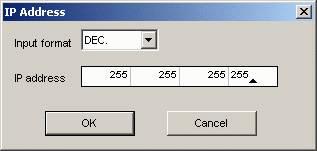

Write Network Parameters to PLC
After all of the network parameters have been specified, they must be written to the PLC. To do so, click Write from the main FX-Configurator-ENwindow.
 Note: There must be a serial connection to the FX3U PLC. The configuration settings are written to the PLC via this serial link. Also make sure that the communication parameters are correct. Settings can be checked by clicking Transfer Setup or be selecting Online | Transfer Setup from the main menu.
Users must cycle the power on the PLC for the network parameter changes to take effect.