Logging in to PTC Arbortext Content Delivery and Resetting Password
The PTC Arbortext Content Delivery home page provides user access to the PTC Arbortext Content Delivery interface utilities.
Logging in to PTC Arbortext Content Delivery Administration
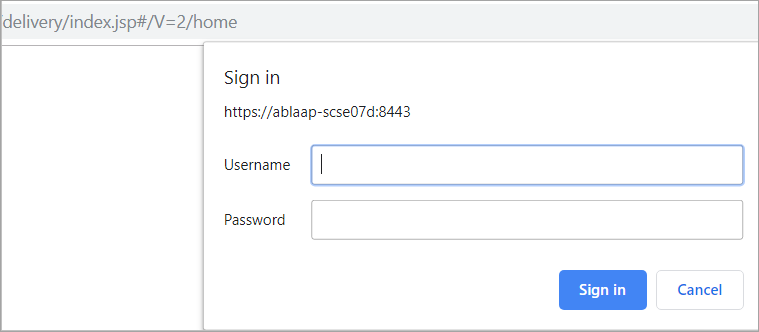
1. Launch the user interface home page using the following URL: http://<hostname>:<port>/InService/delivery/index.jsp.
2. Enter Username and Password.
3. Click Sign In. The PTC Arbortext Content Delivery administration home page is displayed.
Resetting the Password
If you forget the password and want to reset it, you can do it as follows:
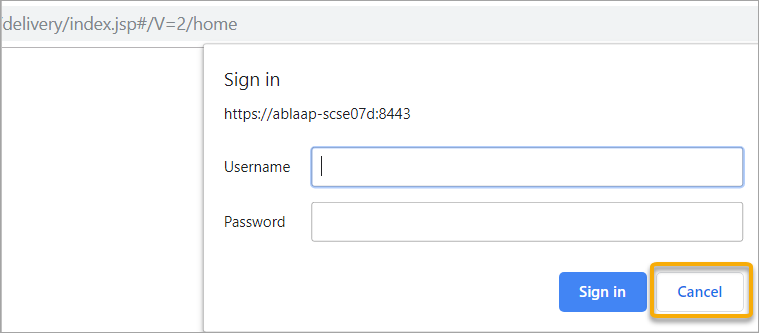
1. In the authentication window, click Cancel.
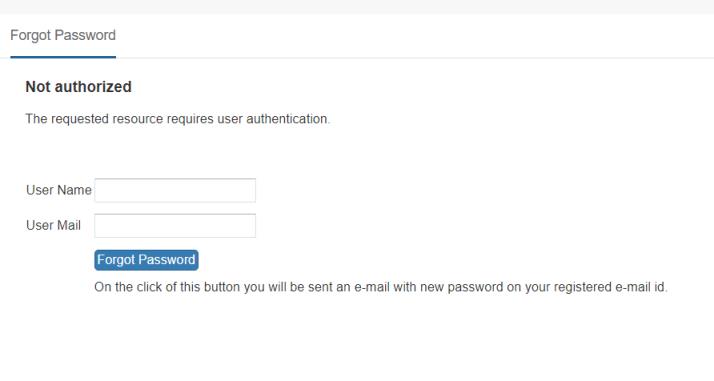
2. In the Forgot Password page, enter User Name, User Mail, and click Forgot Password.
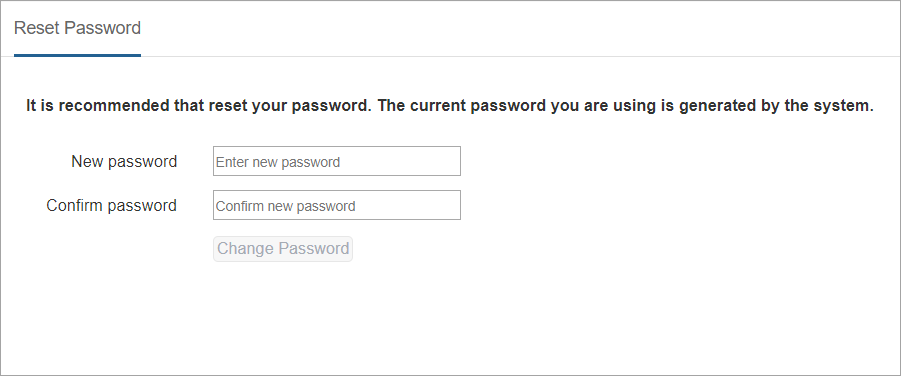
You will receive an email with the newly generated password on your registered email id. You can now login with this new password following which you are directed to a Reset Password page.
3. Enter New Password and confirm it.
4. Login with the newly set password and continue using the application.