Using Bookmarks
PTC Arbortext Content Delivery enables you to save both products and documents in your bookmarks. Click the bookmarks

icon displayed in the upper right corner of the interface to open and close your bookmarks. The bookmarks window has a tab for document bookmarks and a tab for product bookmarks.
Click any row to select it. A Delete icon appears at the top right corner if at least one row is selected. You can use the CTRL and SHIFT buttons to select bookmarks for bulk selection and also delete items in bulk using the Delete icon in the top right corner. You can view the bookmarked document or product by clicking the Info icon. To add a document to your bookmarks, first open that document in PTC Arbortext Content Delivery.
The Documents Tab
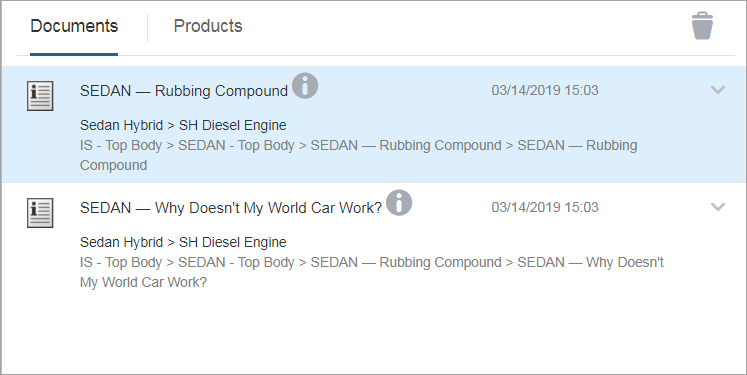
The Documents tab contains the documents you have saved as a bookmark:
Each document bookmark provides the name of the document, the date and time it was added to your bookmarks, and the location of the document. Click the Info icon

of one of the documents to open it. Clicking one of the document bookmarks enables the Delete icon on the right-hand side of the pane. This icon is disabled when none of the document bookmarks is selected.
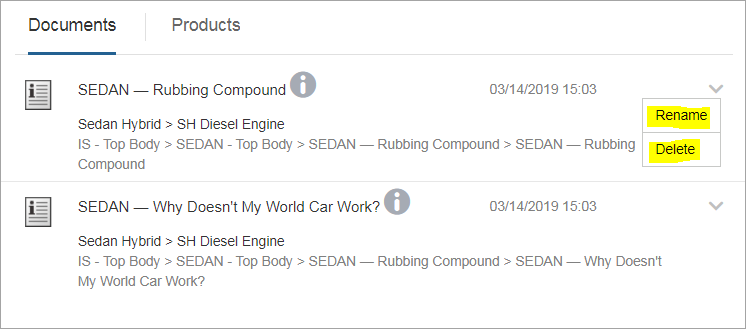
On documents bookmarks drop-down, two options are available—Rename and Delete.
Click the bookmark icon

to the right of the document’s title to open the
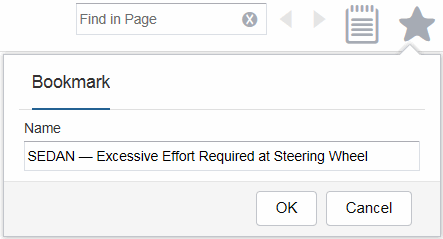
Bookmark window:
Rename the bookmark if you want to, then click
OK to save the document in your bookmarks. Once a document has been saved as a bookmark, the bookmark icon changes to

.
The Products Tab
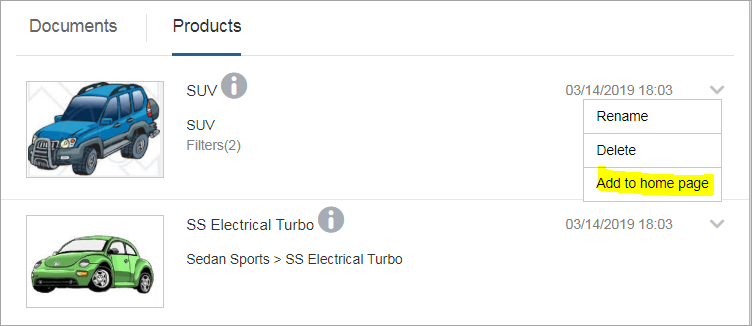
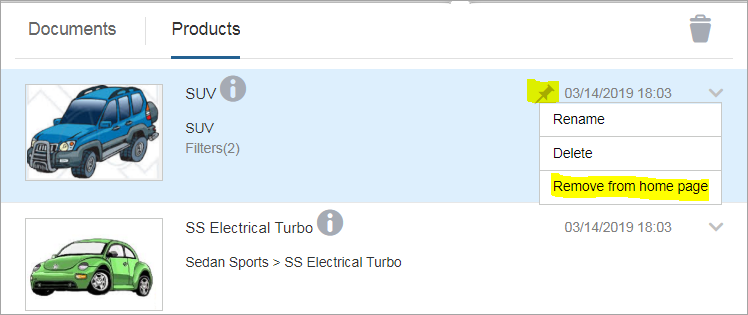
The Products tab contains the products you have saved as a bookmark:
Each product bookmark provides the name of the product, the date and time it was added to your bookmarks, and the location of the product in the product hierarchy. Click the Info icon
of one of the products to open it. Note that you can save a product with filters applied, which is also indicated on the bookmark. On products bookmarks drop-down, three options are available—
Rename,
Delete, and
Add to home page.
Click
Add to home page to save a product to your home page. A product saved to your home page also has the

icon next to the date when it was saved. After saving the bookmark to home page, the
Remove from home page option becomes available in the drop-down.
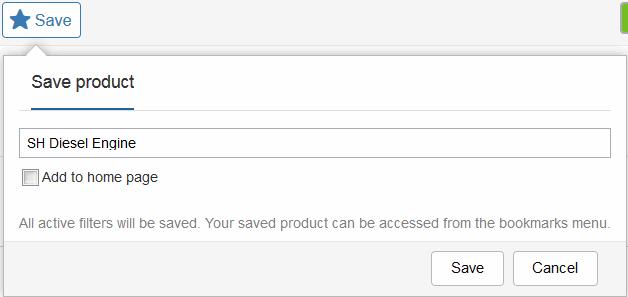
To add a product to your bookmarks, first open that product in the product hierarchy. Click the
Save button

to open the
Save product window:
Rename the product if you want to, then click Save to add the product to your bookmarks. Check the Add to home page box if you want to also add the product to the home page.
Product bookmarks also have a choice to add or remove that product from your home page.