To Define a Solve Block
1. In a worksheet, click where you want to insert a solve block.
2. Press Ctrl+7. A solve block region appears.
Alternatively, on the Math tab, in the Regions group, click Solve Block.
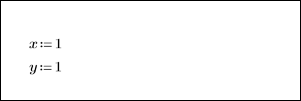
3. For a linear system of equations, click inside the solve block region and then define a guess value for each unknown. Here, define x and y.
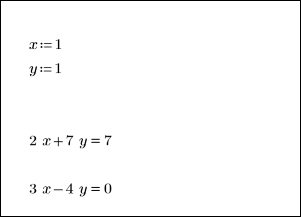
4. Define a constraint for each unknown using Boolean operators. Use the Equal To operator to define the two equations.
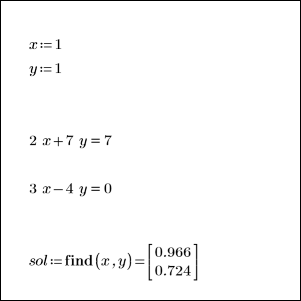
6. Verify that x and y, which are locally defined inside the solve block, have no values outside that solve block.


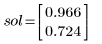
7. Verify that vector sol has a value and can be used for calculations to the right or below the solve block in which it is defined.
Additional Information
• To define constraints for solving linear or nonlinear equations, or for optimization problems, you can use the following operators:
◦ Boolean Equal To operator
◦ Comparison operators: <, ≤, >, ≥
You can add comparison operators to avoid undesirable stopping points.
◦ You can use logical operators in the definition of guess values, but you cannot use them in the definition of constraints.
◦ You cannot use the Inequality operator ≠ to define a constraint within a solve block.
• To define differential equations and their initial or boundary conditions, use the Equal To operator.
• Do not use the Range or the Is Element Of operators inside solve blocks.
• To hide the labels of the solve blocks in your worksheet, go to the Document tab, in the Region Formatting group, and select Solve Blocks Labels. Once hidden, the labels will be visible only if a solve block is activated.