Example: Checkbox
In this example, you can change the calculation results based on a selection in a checkbox.
1. On the Input/Output tab, in the Controls group, click > .
2. Enter the output variable name for the Checkbox on the left side of the definition operator.
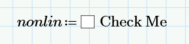
3. To change the properties and behavior of the Checkbox, follow the steps:
a. Right-click the Checkbox and select Edit.
b. Select the Properties tab.
c. Edit the Name property.
d. Click Close.

Alternatively, you can edit the properties using the script.
 | Copy this example to your Engineering Notebook worksheet to see the script in VBscript that was used here. |
4. Define a function:

5. Evaluate the solution based on different selections of the checkbox.

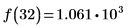
6. The example above is in VBscript. Copy the following examples to see the script in Jscript and Python.
◦ JScript

◦ Python

Download another example of the checkbox control: Checkbox Example.