To Insert Callouts in 2D Figures
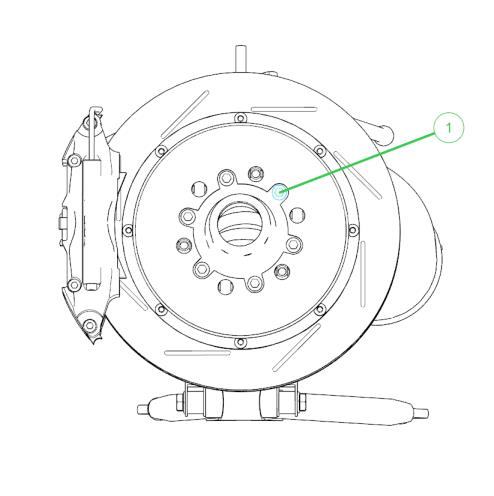
To Insert a Single Callout with a Single Leader Line
1. Click > , and then select a callout template from the drop down list. The pointer changes to a  callout insertion pointer. callout insertion pointer.2. Click on a group or part and drag to define the length and direction of the line. Release to place the label. Alternatively, 1. Select a group or part. 2. Select a callout template from the callout drop down list. Individual callouts are created for all selected parts or groups.
|
 |

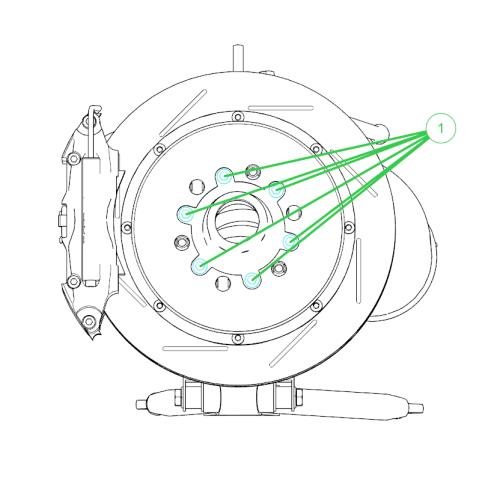
To Insert a Single Callout with Multiple Leader Lines
|
Use the Multi-leader Callout tool to activate the option to insert mutiple leader lines for a single callout.
Follow these steps when the parts or groups are selected prior to adding the callout.
1. Click > to activate the tool.
2. Select multiple groups or parts.
3. Choose a callout template from the callout drop down list. A single callout with a leader line to each part or group is created.
Follow these steps when the parts or groups are not selected prior to adding the callout.
1. Click > to activate the tool.
2. Click > , and then select a callout template from the drop down list.
3. Click on a group or part and drag to define the length and direction of the line. Release to place the callout label. The Callout Reference dialog box opens.
4. Click on another group or part to create a second leader line. Continue adding additional groups or parts as needed.
5. In the Callout References dialog box, click OK to complete the callout or click Cancel to remove it.
|
 |
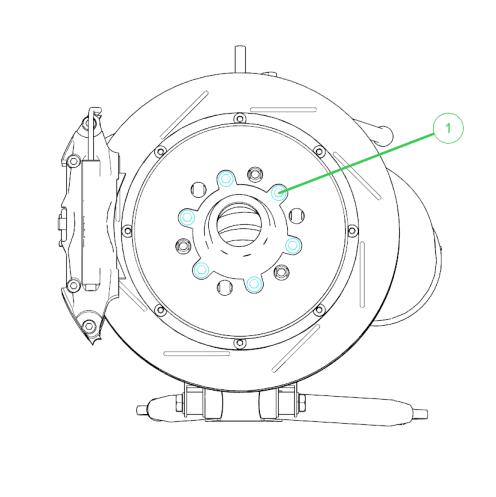
To Insert a Single Callout with One Leader Line to Multiple Parts
|
Follow these steps when the parts or groups are selected prior to adding the callout.
1. Click > to activate the tool.
2. Select multiple groups or parts.
3. Choose a callout template from the callout drop down list. A single callout with a leader line to each part or group is created.
4. Click Edit in the Leader group on the callouts ribbon menu. The Callout References dialog box opens.
5. To remove a leader line, uncheck the leader check box for each part the should not have a leader line.
6. Click OK to apply changes.
Follow these steps when the parts or groups are not selected prior to adding the callout.
1. Click > to activate the tool.
2. Click > , and then select a callout template from the drop down list.
3. Click on a group or part and drag to define the length and direction of the line. Release to place the callout label. The Callout Reference dialog box opens.
4. Click on another group or part to create a second leader line. Continue adding additional groups or parts as needed.
5. To remove a leader line, uncheck the leader check box for each part the should not have a leader line.
6. Click OK to apply changes.
|
 |
To Insert a Note
1. Click > , and then select a note template from the drop down list.
2. Click anywhere in the figure to insert the note.
3. To add text, double click on the note.