PID Controller Exercise 8— Generating the Simulation Report
Creating Scenes for the Report
Simulation scene is created to save the view (orientation and zoom level) of the simulation geometry that will be used in Simulation Report.
1. Use the mouse to fix the view (orientation and zoom level) of the geometry.
2. In the Post-processing tab, select Simulation Scene. The Simulation Scene dialog box opens.
3. Click New to create a new view. The view is stored in SCENE 01.
4. To update the view, re-orient the geometry as needed, select SCENE 01 and click Update.
5. Click Close to close the Simulation Scene.
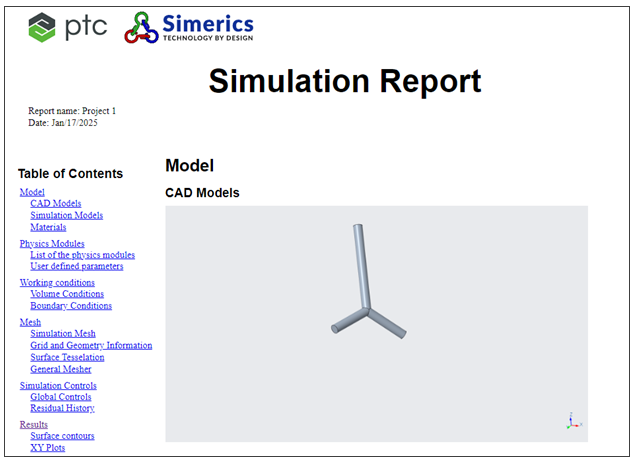
Generating the Simulation Report
1. Select Simulation report wizard from the Project overflow menu. The Simulation Report Wizard dialog box opens.
2. Enter the name of the project and click Next.
3. In the Content tab, enable only Streamlines, Surface contours, and XY Plots to include them in the Simulation report. Click Next.
4. In the Camera tab, select SCENE 01 to select the view of the geometry. This view is used, while creating figures in the report. Click Next.
5. In the Boundary conditions tab, enable pipe_cold_inlet, pipe_hot_inlet, and pipe_outlet to add the conditions used for the selected boundaries to the report. Click Next.
6. In the Streamlines tab, enable Streamline. Click Next.
7. For Streamline, select Temperature: [Heat] from the variable drop down list. Click  to add the Streamlines to the report. Click Next.
to add the Streamlines to the report. Click Next.8. In the Surface contours tab, enable all the boundaries to display contours on the boundaries. Click Next.
9. Select All in the Surface Figure selection drop-down list and then select Temperature: [Heat] from the variable drop down list. Click to show temperature contours on all boundaries in the report.
to show temperature contours on all boundaries in the report.10. Click Finish. Enter the filename for the report and click Save. The report is saved in the HTML format by default in the working directory.
Simulation Report showing list of contents