PID Controller Exercise 2— Creating Boundary Conditions
1. Under Domains, right-click PIPE_Body_1 and select Add Boundary Condition. The Surface Sets dialog box opens.
Add Boundary Condition. The Surface Sets dialog box opens.2. Select the surfaces corresponding to the pipe_cold_inlet, as shown in the following figure.
Figure 4. Boundaries surfaces
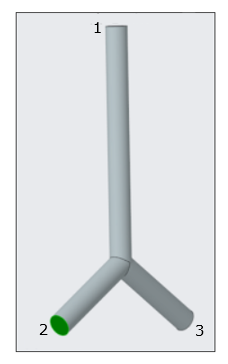
1. pipe_outlet
2. pipe_cold_inlet
3. pipe_hot_inlet
3. Click OK. Under General Boundaries, a new entity BC_0001 is created.
4. Under Domains, right-click PIPE_Body_1 and select Add Boundary Condition. The Surface Sets dialog box opens.
Add Boundary Condition. The Surface Sets dialog box opens.5. Select the surfaces corresponding to the pipe_hot_inlet, as shown in the above figure.
6. Click OK. Under General Boundaries, a new entity BC_0002 is created.
7. Under Domains, right-click PIPE_Body_1 and select Add Boundary Condition. The Surface Sets dialog box opens.
Add Boundary Condition. The Surface Sets dialog box opens.8. Select the surfaces corresponding to the pipe_outlet, as shown in the above figure.
9. Click OK. Under General Boundaries, a new entity BC_0003 is created.
10. Right-click and rename the following boundary conditions:
◦ BC_0001 as pipe_cold_inlet
◦ BC_0002 as pipe_hot_inlet
◦ BC_0003 as pipe_outlet